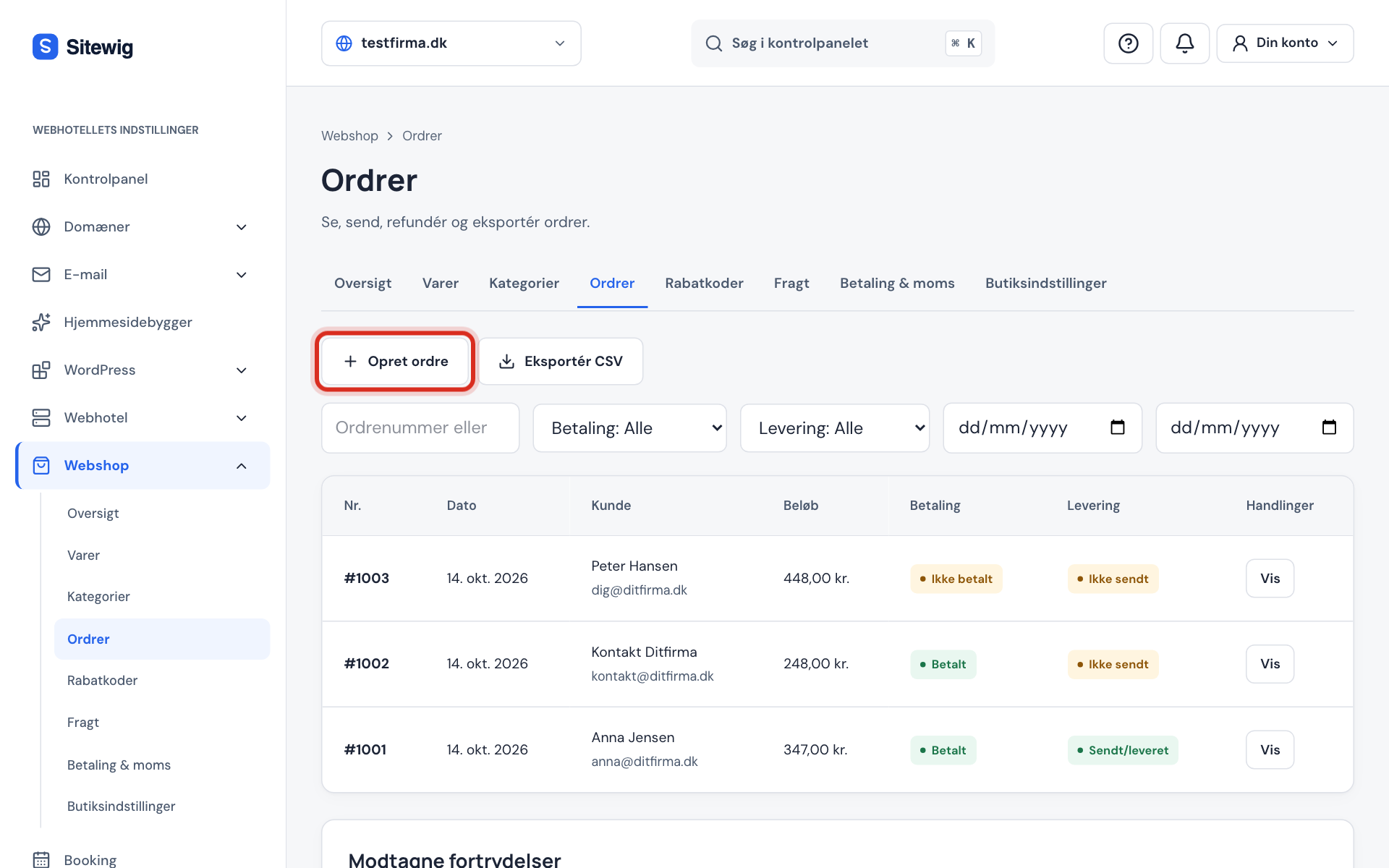
All orders are collected under Online shop → Orders. You also get an email about every new order, sent to Email for order notifications under Shop settings, or to the shop's contact email if that field is empty.
The order's two tracks: payment and delivery
Every order has a status for payment and one for delivery. The two go hand in hand, but each changes separately.
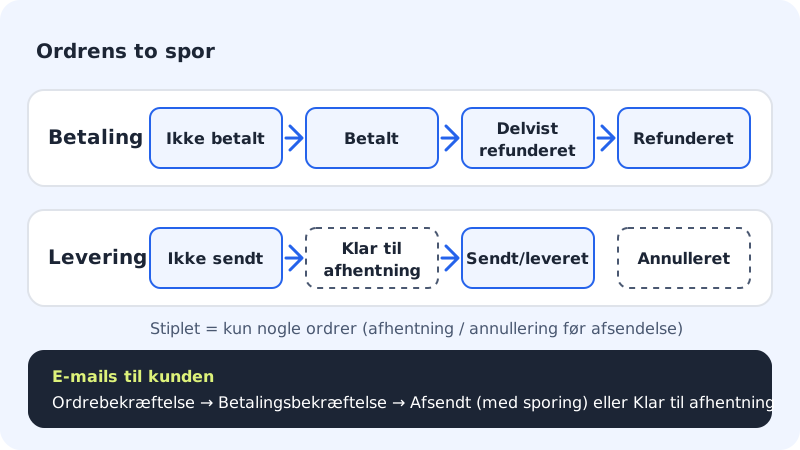
| Payment | Delivery |
|---|---|
| Not paid – waiting for payment | Not shipped – needs packing |
| Paid – the money has been received | Ready for collection – the customer can collect |
| Partly refunded – part has been given back | Shipped/delivered – the order is complete |
| Refunded – the full amount has been given back | Cancelled – the order has been stopped |
Ship an order
Step 1: Find the order
Go to Online shop → Orders. Use the filters Payment, Delivery, From and To, or search by order number or email. Click View next to the order.
Step 2: Check the order
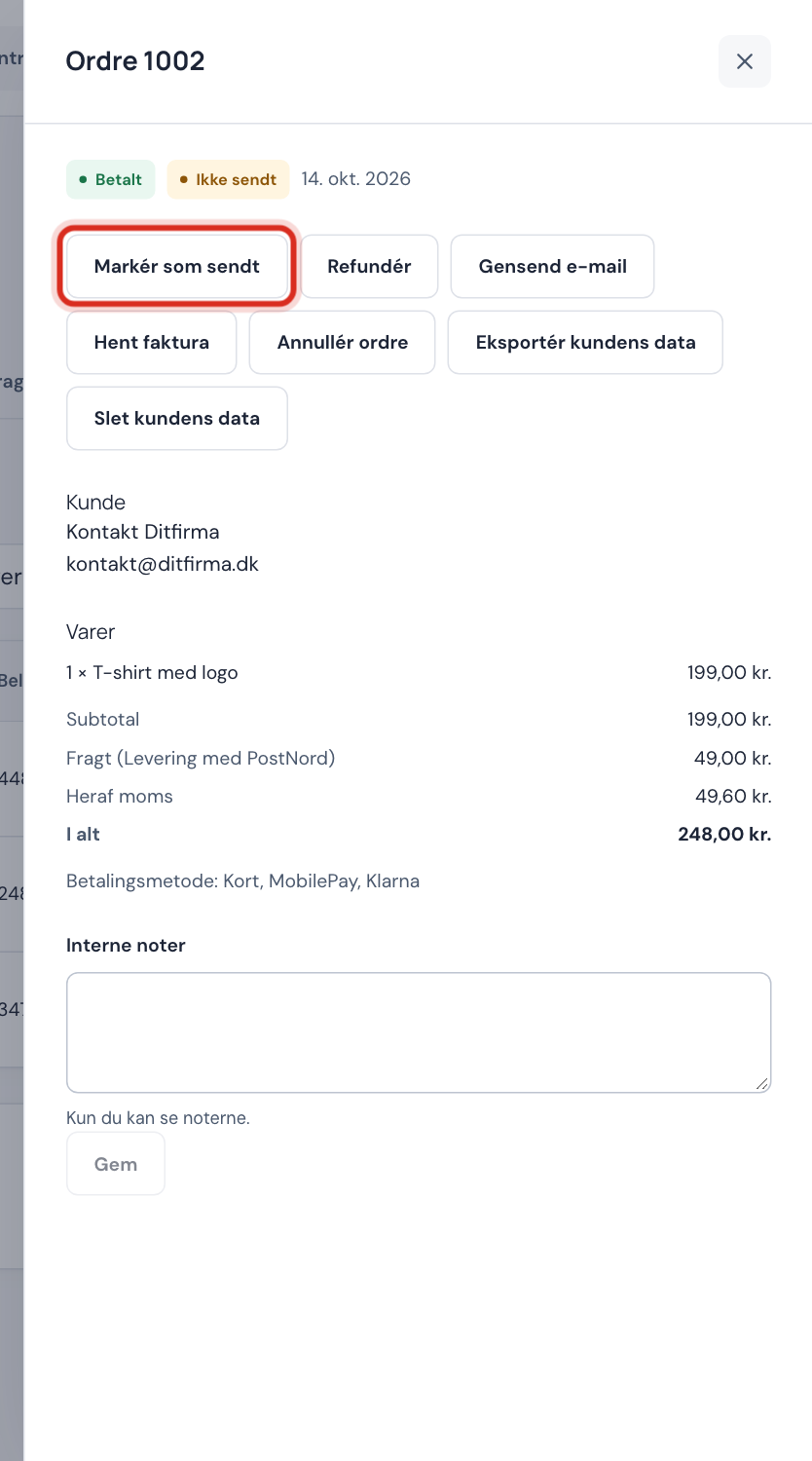
At the top is Order with the number, e.g. Order 1002. Here you see the customer, the products, Subtotal, Discount, Shipping, Of which VAT and Total, plus the shipping method and delivery address.
Step 3: Click Mark as shipped
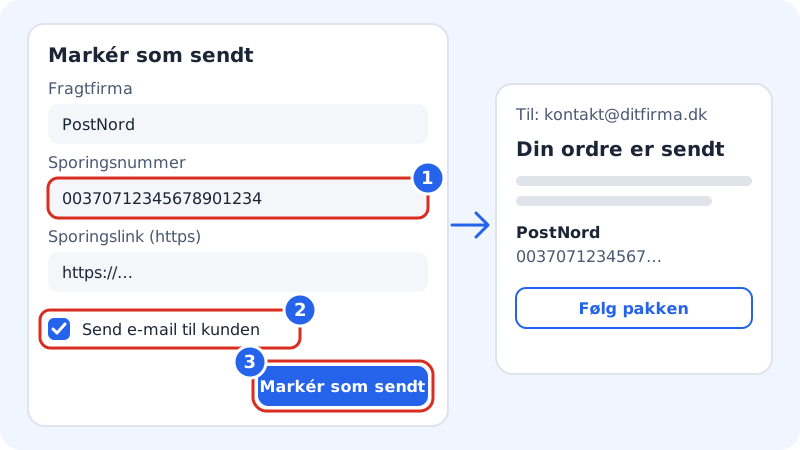
Pack the products and click Mark as shipped. Enter the Carrier, Tracking number and, if you like, Tracking link (https). The fields are optional, but customers benefit from the tracking.
Step 4: Notify the customer
Leave Email the customer ticked. The customer receives the Shipped email with the tracking details. Click Mark as shipped.
Resend an email
If a customer hasn't received an email, for example because it ended up in spam, click Resend email on the order and choose the type:
- Order confirmation
- Payment confirmation
- Shipped
- Ready for collection
- Cancelled
- Download links (only orders with digital products)
Invoice, notes and history
- Mark as delivered appears on shipped orders when you know the parcel has arrived.
- Download invoice downloads the invoice for the order so you can send it or book it.
- Internal notes are for you only – the customer never sees them.
- History shows everything that has happened to the order: created, paid, shipped, emails and refunds.
- Export CSV on the overview downloads the orders from the selected filter, e.g. for your accounts.
Create an order from the phone or in store
If you sell over the phone or in a physical shop, you can create the order yourself:
Step 1: Click Create order
Go to Online shop → Orders and click Create order. The New order (phone or store) window opens.
Step 2: Choose products and customer
Choose a Product and Quantity, and click Add product for more. Fill in the Customer's name and Customer's email, and choose Delivery.
Step 3: Choose payment
Choose Payment link by email (card, MobilePay etc.) so the customer gets a link and pays themselves. If you've already received the money, e.g. in cash, choose Payment received (e.g. cash): register as paid.
Step 4: Create the order
Click Create order. The order appears in the list and is processed like any other order.
Customer data and GDPR
If a customer asks for access to their data or for it to be deleted, open one of the customer's orders and click Export customer data or Delete customer data. When data is deleted, the customer's details are anonymised. Paid orders are kept for 5 years after the end of the financial year, however, because the Danish Bookkeeping Act requires it.
Frequently asked questions
Can I cancel an order that has been shipped?
No. An order that has been marked as shipped or delivered can't be cancelled – you need to refund instead. See Refund, cancel and handle withdrawals.
Why can't I click Mark as paid?
The button only exists on orders with a manual payment method, such as bank transfer. Card payments via Stripe are marked as paid automatically.
How do I find all orders that haven't been shipped?
Choose Not shipped in the Delivery filter. Combine it with Paid in the Payment filter to see the orders that are ready to be packed.