If you've changed phone, reset it or lost it, you no longer have access to the codes in your authenticator app. Here's how to get back in and move two-factor sign-in to your new phone.
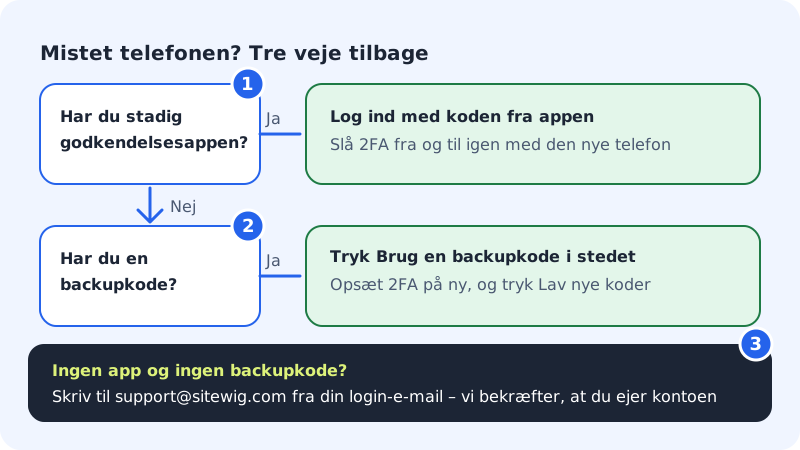
Sign in with a backup code
Step 1: Start signing in as normal
Go to the sign-in page and enter your email and password.
Step 2: Choose a backup code
When you're asked for the code from the app, press Use a backup code instead.
Step 3: Enter the code
Enter one of your backup codes in the Backup code field. The codes are 10 characters, e.g.
abcde-fgh23. Hyphens and spaces don't matter. Each code works only once.Step 4: Move two-factor sign-in to the new phone
Go to Settings → Sign-in and security. Press Turn off next to Two-factor sign-in and confirm. Then press Turn on and scan the QR code with the new phone. See Turn on two-step sign-in (2FA).
Step 5: Create new backup codes
In the Backup codes row you see how many codes you have left. Press Create new codes and save the new set. The old codes stop working immediately.
If you have neither the app nor backup codes
There's no self-service way to turn off two-factor sign-in without a code – otherwise a thief could do it too. Write to support@sitewig.com from the email address you sign in with, or from your confirmed recovery email. Tell us which account it concerns. For your security, we need to be sure that you're the owner of the account before we can turn off two-factor sign-in.
Once you're back in
- Sign out of unknown devices: Under Active sessions in Sign-in and security you can press Sign out of other devices if the phone has been stolen. See Passkeys and active sessions.
- Change your password if you're in doubt about who may have seen it.
- Add a recovery email under Sign-in and security, so we can help you more easily next time.
Frequently asked questions
When should I create new backup codes?
When you have 3 or fewer left, the panel shows the message You're running low on codes – create new ones. Create new ones straight away.
I've got a new phone, but the old one still works – what do I do?
Sign in with the code from the old phone, turn off two-factor sign-in, and turn it on again with the new one. Many authenticator apps can also transfer the codes themselves – see the app's own instructions.
Is it dangerous to turn off two-factor sign-in?
Only while it's turned off. The panel warns you with Your account becomes less secure. Turn it on again as soon as you have the new phone ready.