When email stops working, it is almost always down to one of five things. Go through them in order – most problems are solved by the first three.
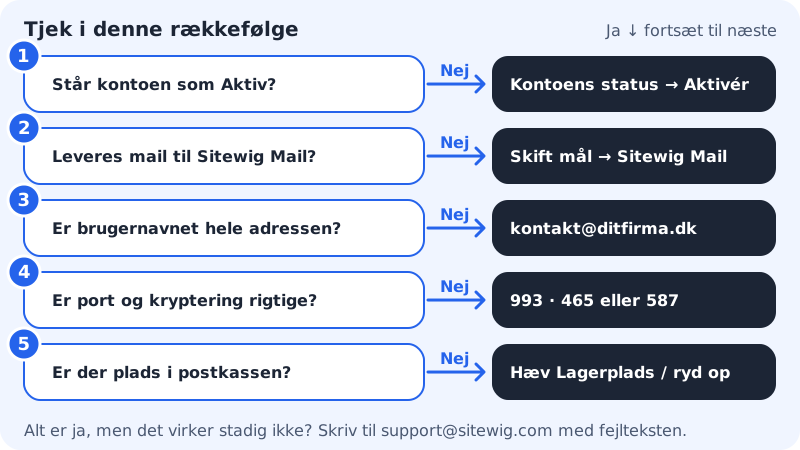
Find out where it goes wrong
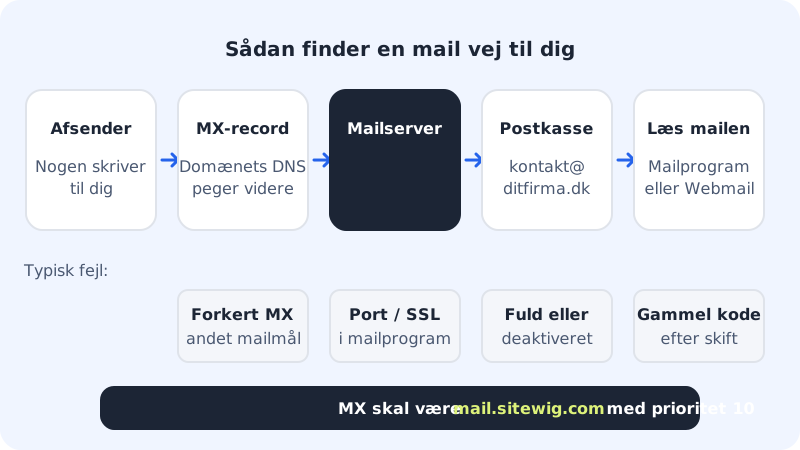
- Can't send or receive anywhere? Start with the account status and the password (checks 1 and 3).
- Does Webmail work, but not your phone? Then the fault is in your phone's settings (checks 3 and 4).
- Can you send but not receive? Check the domain's mail target and storage (checks 2 and 5).
Go through the five checks
Step 1: Check the account status
Go to Email → Mailboxes and look at the Status column next to the address. Only Active works. If it says Deactivated, choose Account status in the account menu and click Activate account. Awaiting activation means the account is being created: wait a moment and click Refresh usage.
Step 2: Check that the domain delivers email to Sitewig Mail
If you see Email is not enabled for this domain on Email → Mailboxes, the domain's email is being delivered somewhere else. Go to My domains, open the domain, click Change target and choose Sitewig Mail under Where should email be delivered?.
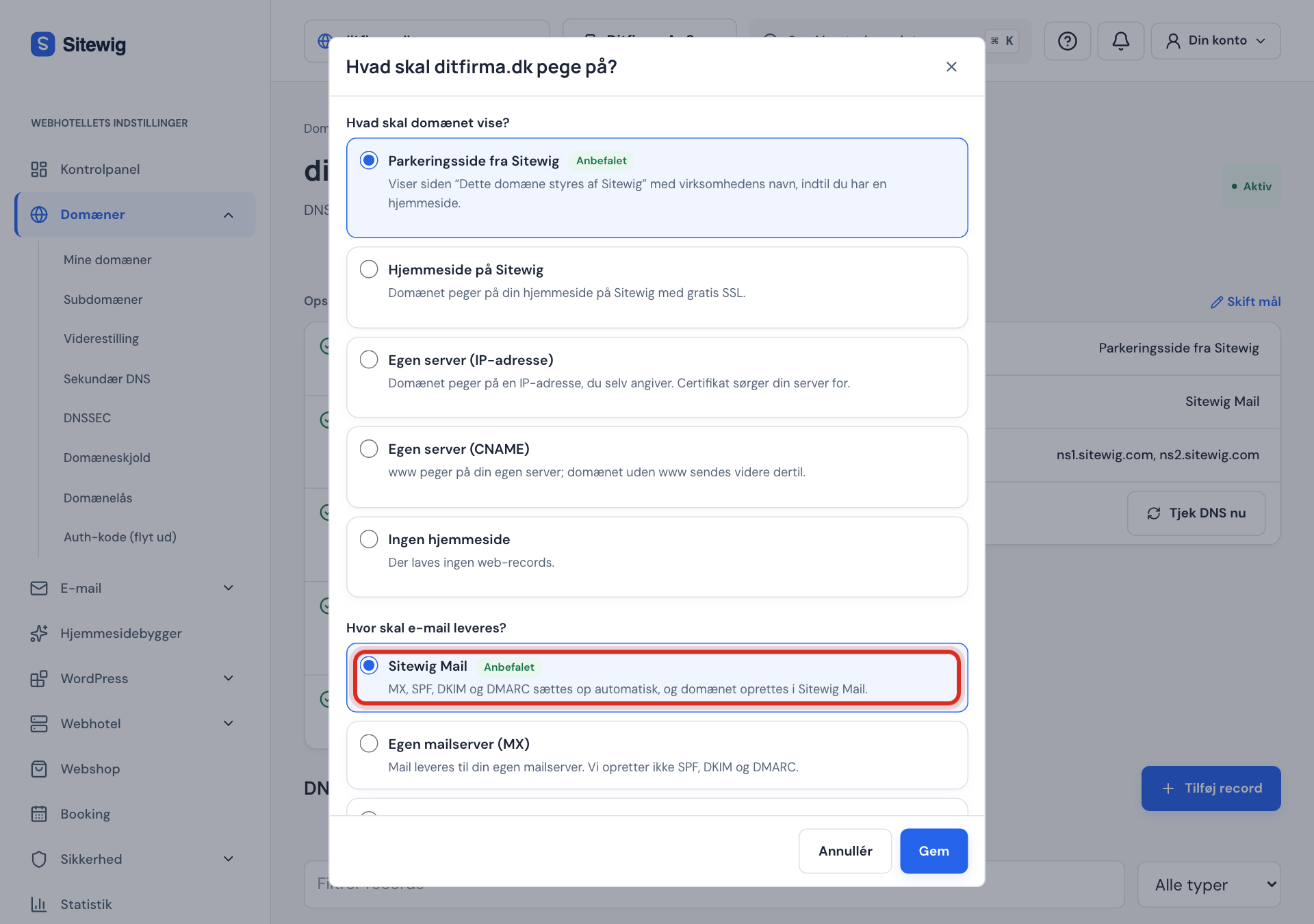
Choose Sitewig Mail as the mail target In the DNS table on the domain page there must be an MX record pointing to
mail.sitewig.comwith priority 10.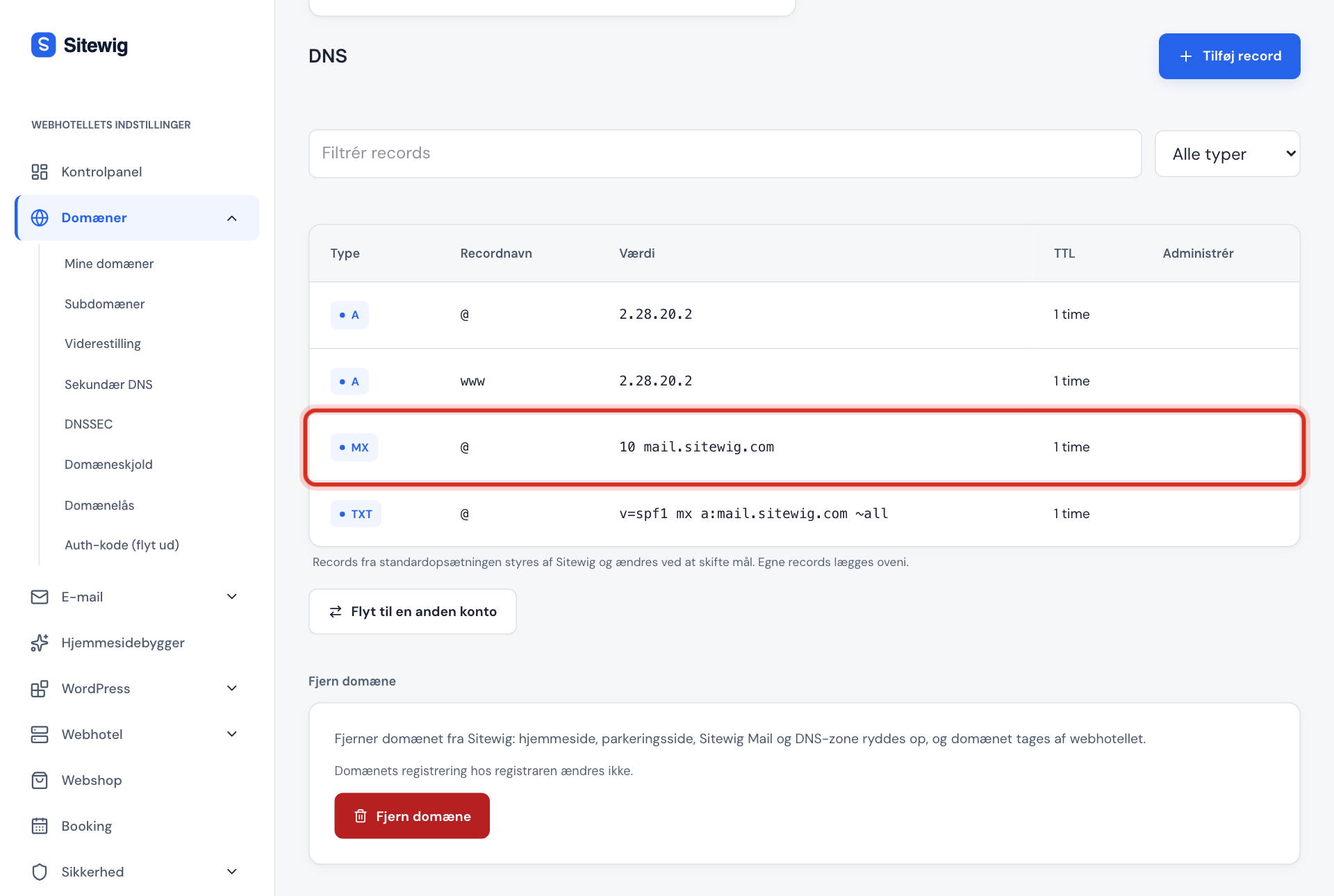
The MX record must point to mail.sitewig.com Step 3: Check the username and password
The username is the whole email address, e.g.
contact@yourcompany.com. The password is the mailbox's, not the control panel's. If the password has been changed recently, the new one must be entered on every device. In doubt? Create a new password and try Webmail first.Step 4: Check ports and encryption
Incoming:
mail.sitewig.com, port993, SSL/TLS. Outgoing:mail.sitewig.com, port465with SSL/TLS or587with STARTTLS, and authentication switched on. See all the values in Server settings for your email program.Step 5: Check the storage
If the mailbox is full, it cannot receive new email. Look at the Storage column on Email → Mailboxes, and either give the mailbox more space or clear some out – see Storage and quota.
The right DNS records for Sitewig Mail
| Type | Name | Value | Priority |
|---|---|---|---|
| MX | @ | mail.sitewig.com | 10 |
| TXT (SPF) | @ | v=spf1 mx a:mail.sitewig.com ~all | - |
If the domain uses Sitewig's nameservers and the mail target Sitewig Mail, Sitewig creates these records for you.
Contact support
If it still does not work, write to support@sitewig.com and include:
- the email address concerned,
- which program or phone you are using,
- the exact error message (a screenshot is ideal),
- whether the problem is with sending, receiving or both.
Never put the password in the email to support.
Frequently asked questions
The sender gets an error saying the mailbox is full. What do I do?
Give the mailbox more storage under Email → Mailboxes → the account menu → Storage, or clear out large emails and the bin.
My emails end up as spam with the recipients. Why?
Check that the domain's SPF record is as shown in the table above. If you send newsletters to many recipients, use a newsletter service instead of your ordinary mailbox.
Can I test whether the mail server responds?
There is not yet a test tool in the control panel. The quickest test is to sign in to Webmail and send an email to yourself: if it works there, the fault is in your email program.