When your email moves to Sitewig, your new emails arrive on a new server. Phones and computers that still point to the old provider will therefore not see the new emails. Follow the order below so that you neither lose emails nor end up without email along the way.
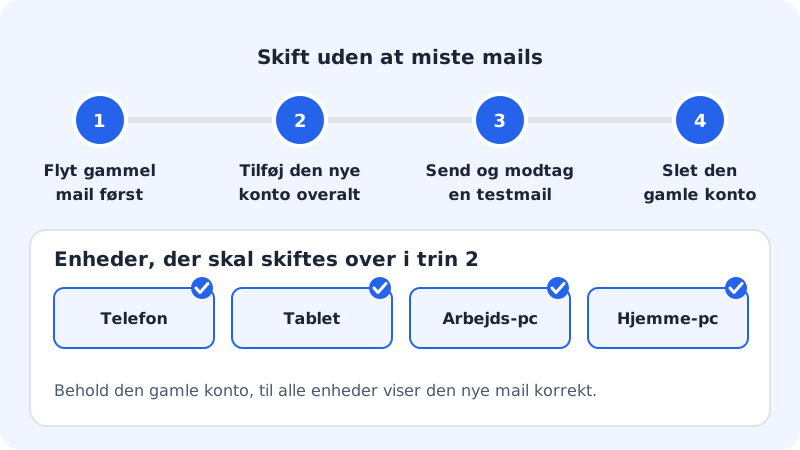
Step 1: Move the old email first
Create the mailboxes with Sitewig under Email → Mailboxes → New account, and bring in your old emails under Email → Import email (the Backup and import tab). Then both old and new emails are with Sitewig.
Step 2: Point the domain's email to Sitewig
New emails only start arriving at Sitewig once the domain's mail destination is Sitewig Mail. You choose this under My domains. Until then, new emails still land with the old provider.
Step 3: Add the new account on each device
Add your Sitewig account on your phone, tablet and computers: before you delete the old one. Use the server
mail.sitewig.com, port993incoming and465outgoing, and the full email address as the username. You will find guides for each program under Guides by device below.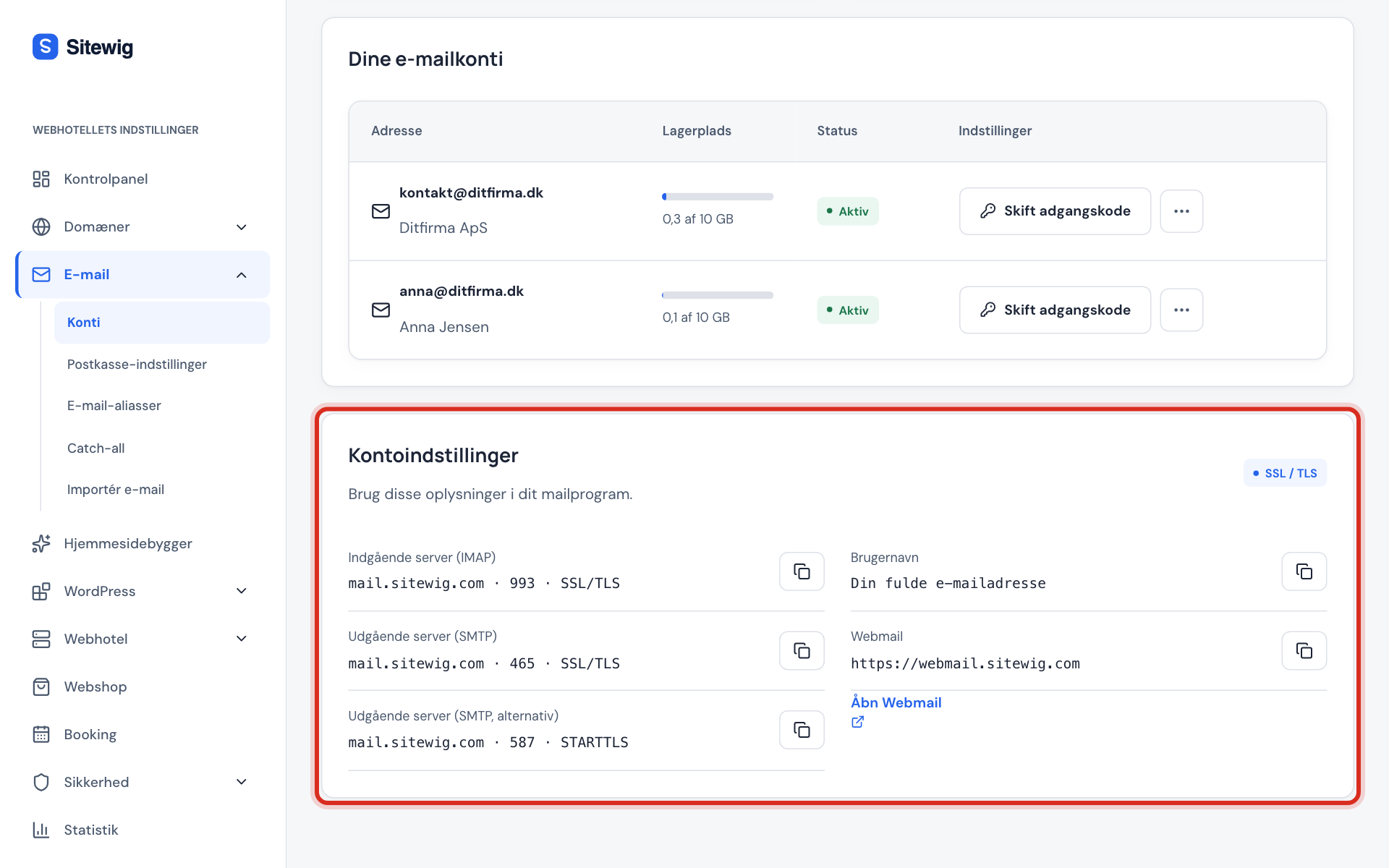
The settings for your devices are shown under Account settings Step 4: Send and receive a test email
Send an email from the new account to another address, and reply to it. Check that it arrives, and that sent mail appears in the Sent folder on all devices.
Step 5: Delete the old account on the devices
Once everything works and the old emails have been imported, delete the old account in your email programs. This only deletes the account on the device, not the emails with Sitewig.
Remember all your devices
It is easy to forget a device. Go through the list:
- Phone (your own and any company phones)
- Tablet
- Work computer
- Home computer
- Other programs that send email for you, for example a scanner, an accounting program or an online shop
Guides by device
- iPhone and iPad
- Android
- New Outlook for Windows
- Classic Outlook for Windows
- Outlook for Mac
- Apple Mail on Mac
- Thunderbird
The moving guide
Sitewig also has a complete moving guide that takes you through the domain, mailboxes, email import and finally the Set up your devices step. Here you can see the settings for each mailbox, download a ready-made profile for iPhone, iPad and Mac, and download a setup file for Thunderbird. The step opens once you have created at least one mailbox.
Frequently asked questions
Can I keep the old account alongside the new one?
Yes, during the transition. But once the domain's email points to Sitewig, no more new emails will arrive in the old account. Delete it once you have checked that everything has been moved.
Do I need to change anything on devices that already use webmail?
No. Webmail needs no setup: simply log in via Open Webmail in the control panel with your full email address and the mailbox password.
My contacts and calendars were with the old provider. Will they move too?
The email import moves emails and folders. Calendar and contacts need to be exported from the old provider and imported into your programs. See also Sync your calendar and contacts.