Whether VAT is added to your purchases depends on whether you buy as a private individual or a business, and whether your business has a valid VAT number.
Private customers
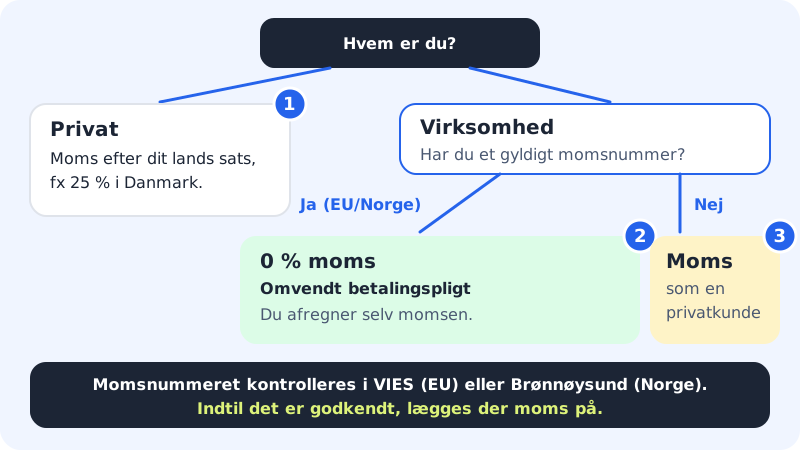
As a private customer you pay VAT at the rate in the country where you live, e.g. 25% in Denmark. Prices on the pricing page and in the basket are shown incl. VAT, and in the order summary the VAT is on a separate line, e.g. VAT (25%).
Businesses
Sitewig is run by a UK company. If your business has a valid VAT number in an EU country or an organisation number in Norway, you are therefore invoiced without VAT under the reverse charge. That means your business accounts for the VAT itself in its own books. This also applies to Danish businesses with a Danish VAT number.
If the business does not have a valid VAT number, or the number cannot be verified, VAT is added as for a private customer.
Enter the VAT number when you order
Step 1: Choose Business
In the Customer details step of checkout, choose Business instead of Personal.
Step 2: Fill in Company name and VAT number
Enter the business's name and the VAT number with the country code in front, e.g.
DK12345678. If you register a.dkdomain as a business, you must use a valid Danish CVR number.Step 3: Tap Validate
The number is checked in the EU's VIES register, and Norwegian numbers in the Brønnøysund Register Centre. You get one of the answers Valid VAT number, Invalid VAT number, Invalid format for the country or The register is not responding right now. We will check again at payment.
Step 4: Save the number on the account
If you are signed in, you can tap Save VAT number so that the number is used for all future payments.
Add or correct the VAT number afterwards
If you already have an account, the account owner or an administrator can correct the details in the control panel.
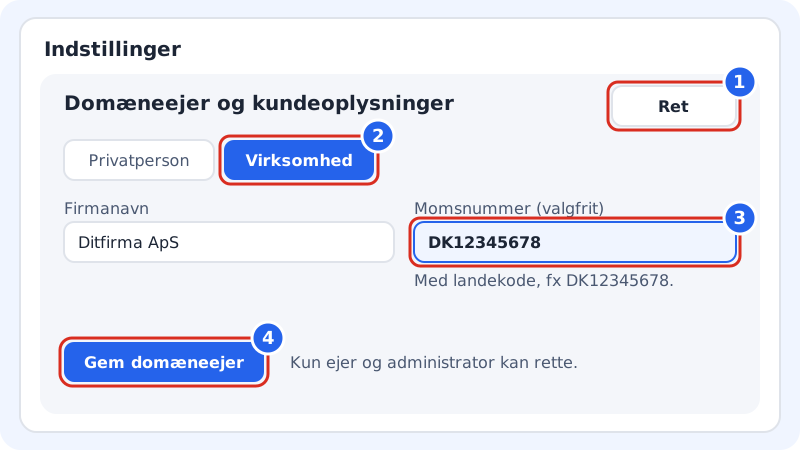
- Choose Settings in the menu.
- Tap Edit on the Domain owner and customer details card.
- Choose Business and enter the number in the VAT number (optional) field, with the country code, e.g.
DK12345678. - Tap Save domain owner.
The number is checked at the next payment. A changed VAT number applies from the next payment: invoices that have already been issued are not changed.
Frequently asked questions
How often is my VAT number checked?
When you order, and again when more than 30 days have passed since the last check. If the register is down, we keep an approval that is no more than 30 days old. Every check is stored as documentation.
Why is there VAT on my invoice even though I'm a business?
Typically because Personal was selected when you ordered, because the VAT number is missing the country code, or because the register could not confirm the number. Check the details under Settings → Domain owner and customer details.
I have switched from business to private. What happens?
From the next payment, VAT is added at your country's rate.