Error 403 means the server has found the address but isn't allowed to show it. At Sitewig it is almost always down to one of four things: there's no index file, the file permissions are too strict, a security plugin in WordPress has blocked access, or the domain points to a different website.
Find the cause
Step 1: Check that there is an index file
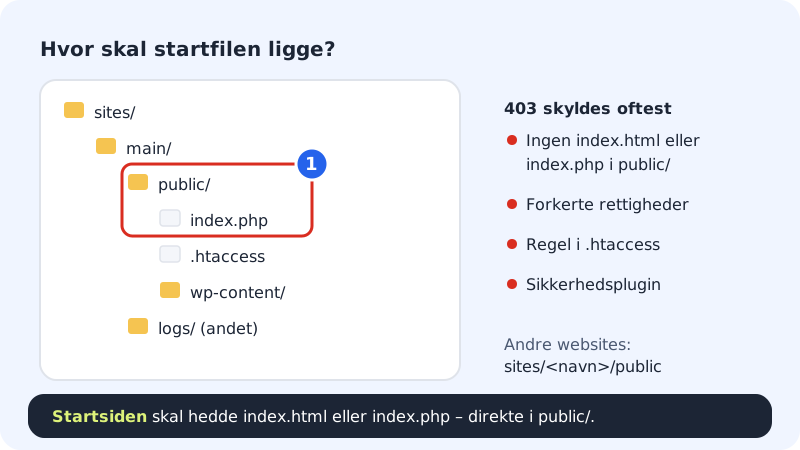
Open the folder for your website. The main website is in
sites/main/public, other websites insites/<name>/public. The start page must be calledindex.htmlorindex.phpand sit directly inpublic, not in a subfolder. If you've uploaded a folder containing your site, move the files up one level.Step 2: Check the permissions
Connect with your SFTP program and look at the permissions on files and folders. Files should typically be
644and folders755. In most programs you right-click and choose something like File permissions.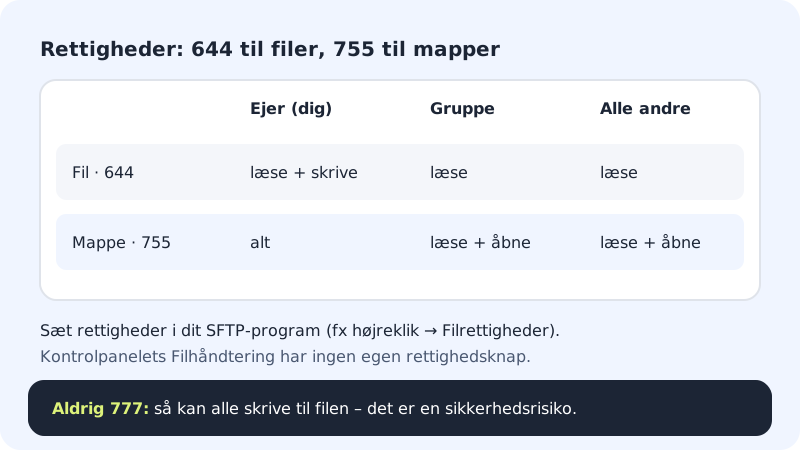
644 for files, 755 for folders – never 777 Step 3: WordPress: turn off security plugins
If you have a security or firewall plugin, it may have blocked your IP address. Temporarily rename the plugin folder under
public/wp-content/plugins/and try again.Step 4: Check that the domain points to the right website
Go to Domains → My domains, click the domain and look at the The domain points to card. If the domain points to a website with no content, press Change target and choose the right one.
What the control panel can't do (yet)
- The file manager in the browser has no button for changing permissions – use an SFTP program.
- The control panel doesn't show the server's error log yet. It's the file
logs/<website>.error.login your home folder (e.g.logs/main.error.log). If you're stuck, support can look at the log for you.
Frequently asked questions
Only one folder gives 403. Why?
The folder probably has no index file, and the server doesn't show the contents of folders. Put an index.html in the folder, or link directly to the files.
I get 403 in wp-admin, but everything else works. What's wrong?
Typically a security or firewall plugin that only blocks wp-admin. See I can't get into WordPress admin.
When should I contact support?
When the index file, permissions and plugins are all fine and the error is still there. Write to support with the full address and the time you saw the error.