Have you changed something on your website that you regret, or has the AI assistant redone a page in a way you don't like? In the website builder you can go back to an earlier version without using a backup.
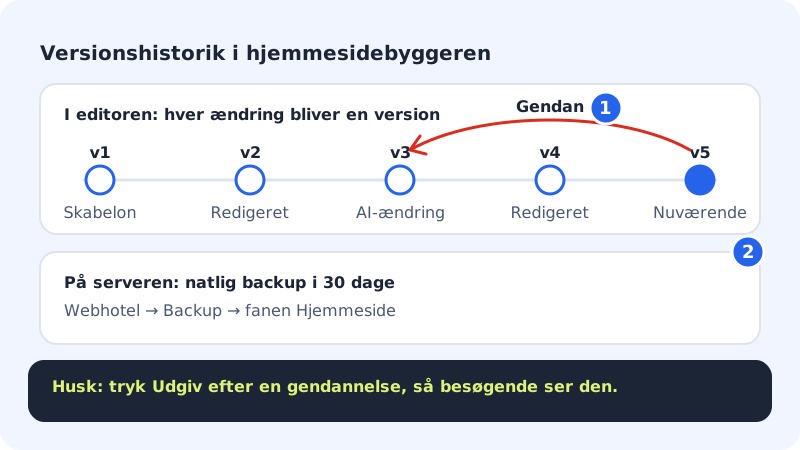
Go back to an earlier version
Step 1: Open the editor
Click Website builder in the left-hand menu and open the website you want to change.
Step 2: Click Version history
In the top bar there's a clock icon called Version history. Click it.
Step 3: Choose a version
The list shows all saved versions with number, source and time. The version you're working on now is marked Current.
Step 4: Press Restore
Press Restore next to the version you want to go back to. The page in the editor switches to that version.
Step 5: Publish again
Restoring only changes the draft in the editor. Press Publish when you're happy, so your visitors see the restored version too.
Undo a publication
If you've published something wrong, you can put the public website back to the previous publication. Open the publish window in the editor and press Undo publication. Confirm, and the previously published version is shown again.
Two safety nets
- Version history in the editor saves every change you make in the builder, and is the quickest to use.
- Nightly backup on the server saves the website every night for 30 days (90 days with Max). Find it under Web hosting → Backup on the Website tab. See Restore your web hosting or database from a backup.
Frequently asked questions
Are changes from the AI assistant also saved as versions?
Yes. Every change is saved as a new version, whether you or the AI made it.
It says "No earlier versions yet"?
Then you haven't changed anything since the page was created. Versions appear as soon as you start editing.