When you order or link a domain, you choose what it should point to. Sitewig then creates the DNS records that are needed. You can always change the choice later with Change target: you don't need to know anything about A, CNAME or MX records.
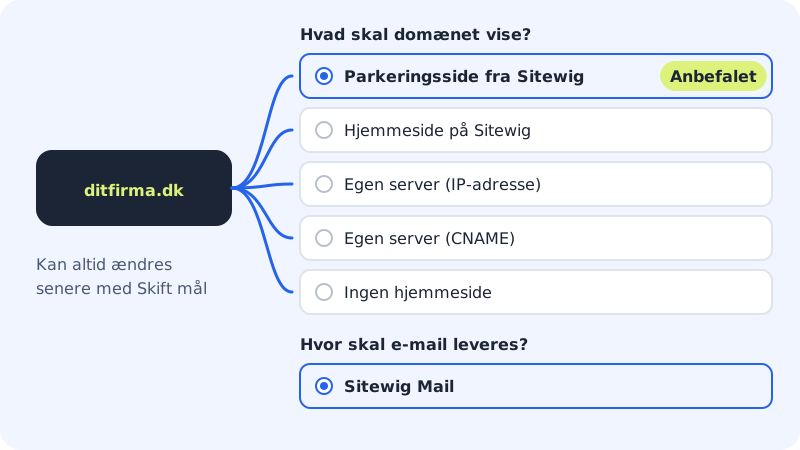
The options under "What should the domain show?"
| Option | What happens | When to use it |
|---|---|---|
| Parking page from Sitewig (recommended) | The domain shows a simple page with the text "This domain is managed by Sitewig" and the company's name. | Straight after purchase, until your website is ready. |
| Website on Sitewig | The domain points to one of your websites at Sitewig with free SSL. If you have several, you choose one under Website. | When the website has been built in Sitewig. |
| Own server (IP address) | The domain points to an IPv4 address and optionally an IPv6 address (optional) that you enter yourself. | When the website is on another server. Your server must handle SSL itself. |
| Own server (CNAME) | www points to the Hostname you enter, and the domain without www is forwarded there. | When an external service gives you a hostname, e.g. a web shop platform. |
| No website | No web records are created. | When the domain is only going to be used for email. |
The options under "Where should email be delivered?"
- Sitewig Mail (recommended): MX, SPF, DKIM and DMARC are set up automatically, and the domain is created in Sitewig Mail. You create the mailboxes under Email → Mailboxes.
- Own mail server (MX): Mail is delivered to your own mail server. Enter one server per line with the priority first, e.g.
10 mx1.example.com. Sitewig doesn't create SPF, DKIM and DMARC for you. - No email: The domain rejects all mail. SPF and DMARC are set to reject, so no one can send mail in your name.
Change the target on a domain you already have
Step 1: Open the domain
Go to Domains → My domains and click the domain.
Step 2: Click Change target
In the The domain points to card you can see what Web and Email currently point to, and which Nameservers the domain uses. Click Change target above the card.
Step 3: Choose the new target
The window What should yourcompany.com point to? opens. Choose the new target under What should the domain show? and fill in any fields, e.g. the IP address. Don't touch the email choice if your mail should carry on as before.
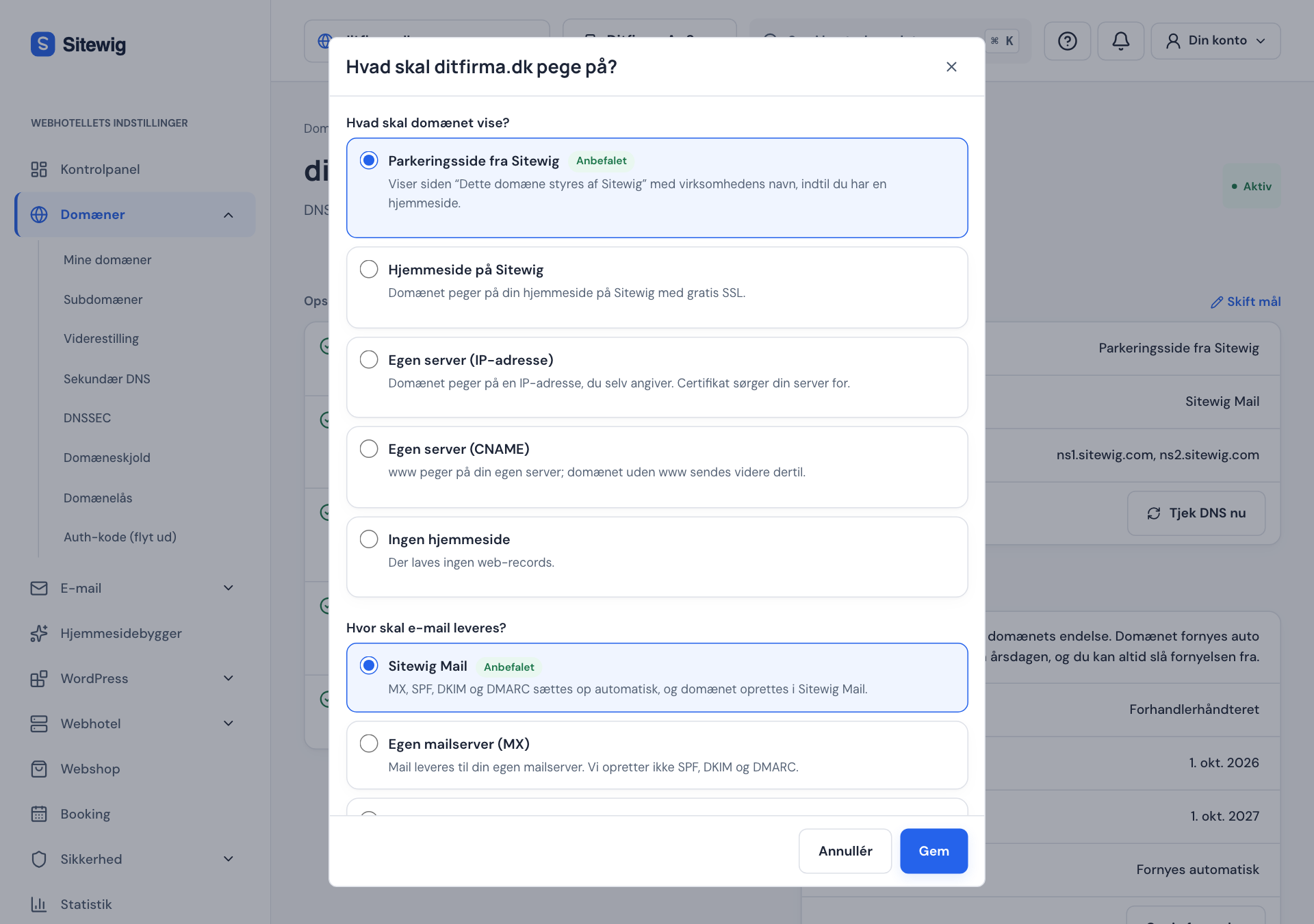
Change target: choose a new target and click Save Step 4: Save
Click Save. You'll see the message The target has been changed, and Sitewig updates DNS and the setup straight away. The change is normally live on the name servers after a few minutes.
Follow the setup on the domain page
On the left of the domain page is the Setup card. It shows each step (DNS at Sitewig, Registration, Email, the website and SSL) with a status.
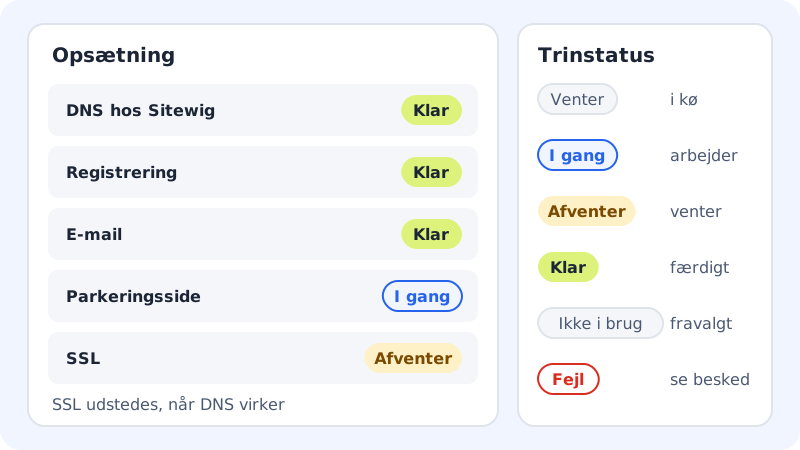
- Waiting: the step is in the queue.
- In progress: Sitewig is working on it now.
- Pending: the step is waiting for something else, typically for the domain to point to Sitewig's name servers.
- Ready: the step is complete.
- Not used: you've switched it off, e.g. No website.
- Error: see the message at the top of the page, and click Try again.
The SSL certificate is free and is issued automatically once the domain points to Sitewig's name servers ns1.sitewig.com and ns2.sitewig.com.
Frequently asked questions
Will I lose my own DNS records when I change the target?
No. Sitewig only manages the records that belong to the standard setup. Records you've added yourself under DNS on the domain page are left in place.
Can I point the domain to an app built on an external platform?
Yes. See Point your domain to an external app or website platform. The guide also shows how to do it manually.
Why does the domain still show the parking page?
It can take a few minutes for the change to go live, and your browser may have saved the old page. Try reloading the page or opening it in a private window.