Every time the AI changes your app, Sitewig saves a new version. You can therefore always go back, and undoing costs no AI edits.
Undo the latest change
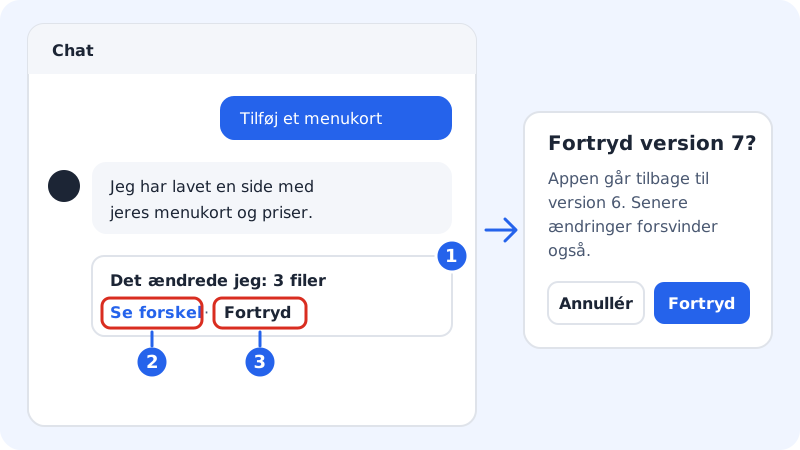
Step 1: Find the answer in the chat
Under every answer where the AI has made a new version, there is a line such as What I changed: 3 files · See changes · Undo.
Step 2: See what was changed
Click See changes. A window shows each file that is New, Changed or Deleted. On a wide screen you can switch between Unified and Side by side.
Step 3: Undo
Click Undo. If more changes have been made since, Sitewig asks first, for example Undo version 7?, and tells you how many later changes will disappear too. Click Undo in the window to confirm. Afterwards the answer shows Undone.
Go back to an older version
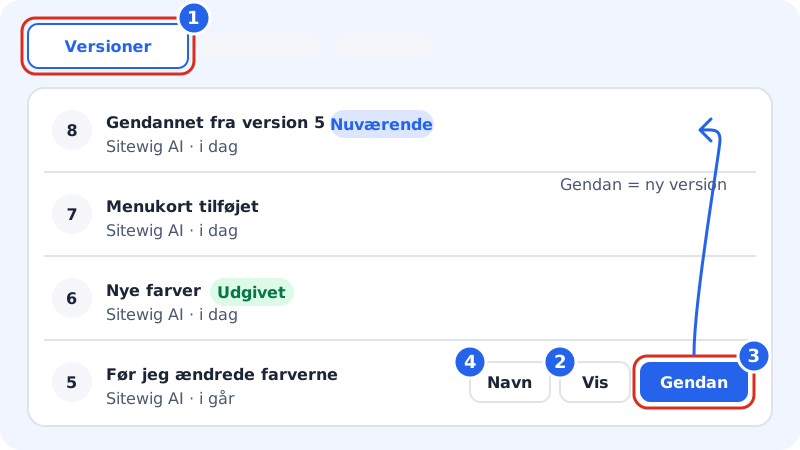
Step 1: Open the Versions tab
Click the Versions tab at the top of your app. It lists all versions with their number, who made them (the AI or you) and when. The labels Current, Published and Showing now show which version is which.
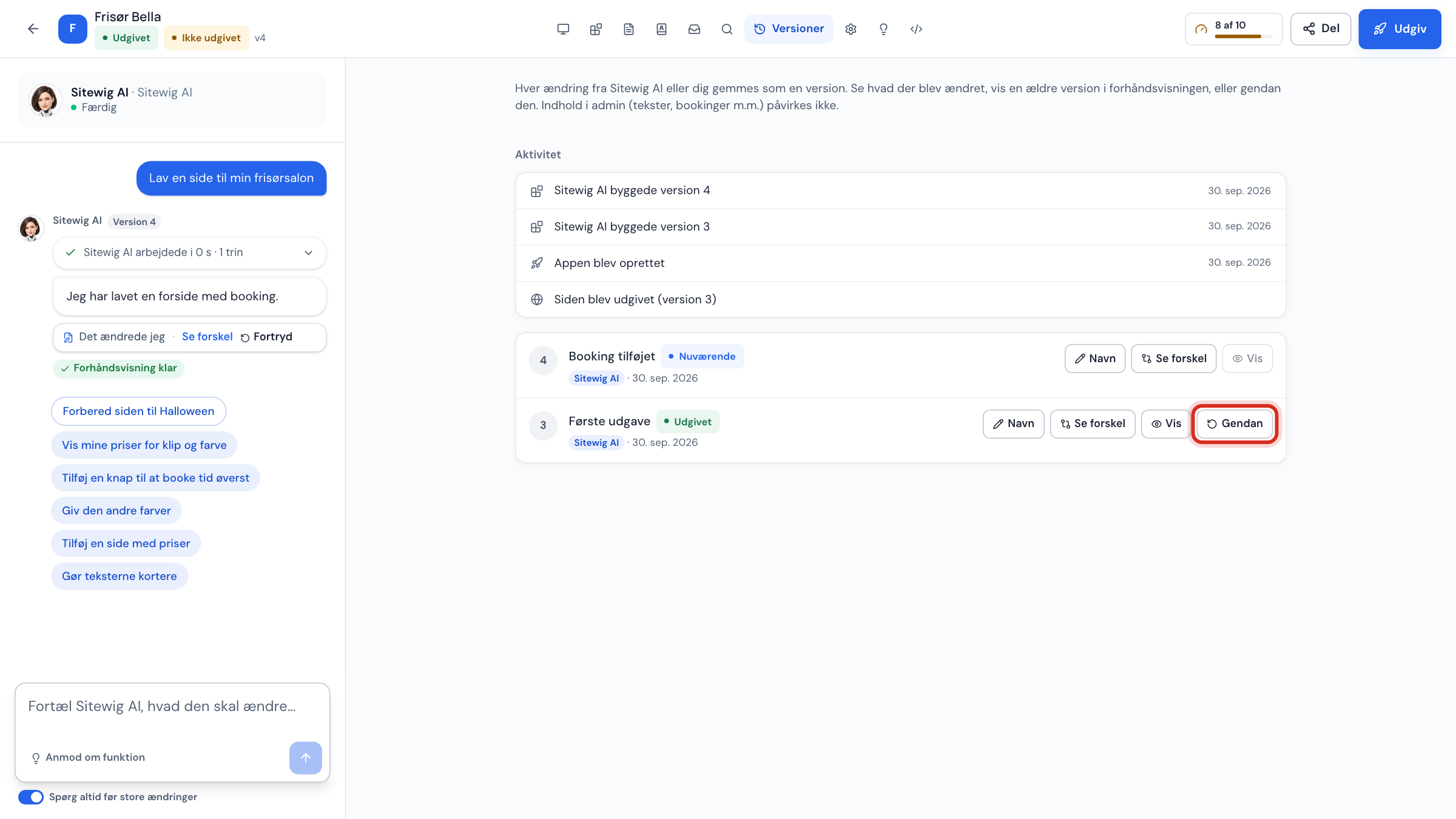
Step 2: Look at an older version
Click View next to a version. Sitewig then builds a preview of it, without changing your app.
Step 3: Restore the version
Click Restore, and confirm in the window Restore version 5?. The code from the old version is saved as a new version, so you can always go forward again. The published app only changes when you publish.
Step 4: Give important versions a name
Click Name next to a version, type something like Before I changed the colours, and click Save. That makes it easy to find again.
Undo everything today
If you have made lots of changes today that you would like to get rid of, the Versions tab shows the Undo everything today card. Click Go back to this morning, and confirm. The app goes back to how it was at the start of the day.
Undo in the website builder (NinaAI)
In the website builder, Undo appears under every reply from NinaAI on the AI tab. If you click it, the change is taken off again, and the button switches to Apply again, so you can put the change back on.
Frequently asked questions
Do I get the AI edit back when I undo?
No. The edit was used when the AI made the change. But it does not cost anything to undo or restore, either.
Can I restore a version after I have published?
Yes. Restore an older version and then publish again. Until you publish, your visitors see the version that is already published.
What is the difference between Undo and Restore?
Undo goes back to how the app was just before a particular AI edit. Restore fetches any older version. Both save the result as a new version.