Your social media and your website should help each other: your profiles should be easy to find from your website, and your website should look good when it's shared. With Sitewig's website builder you can do both, and NinaAI can write draft posts.
Link to your profiles
Step 1: Open Social media
In the editor, go to the Settings tab and find the Social media section.
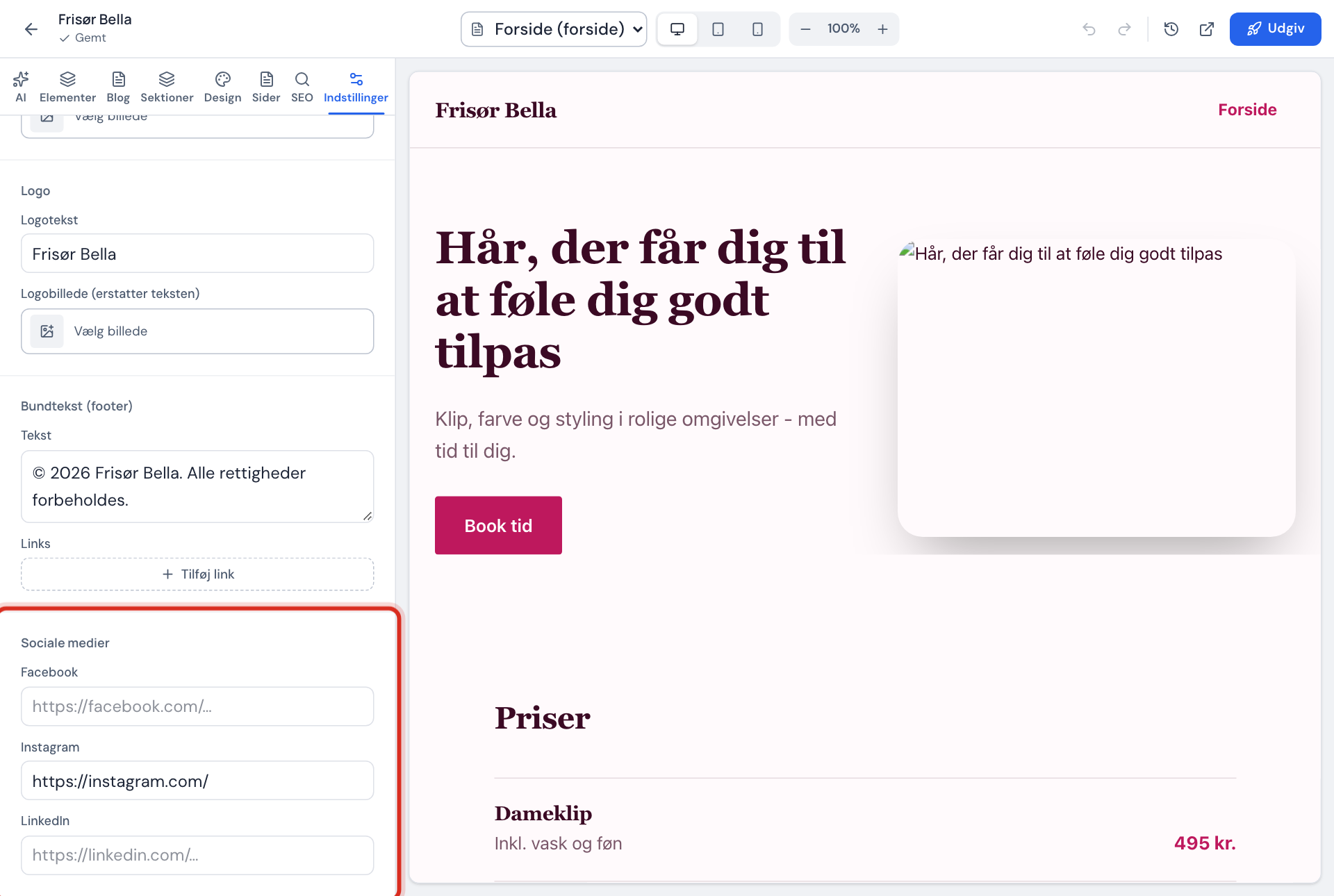
Step 2: Add your profile links
Fill in Facebook, Instagram and LinkedIn with the full address of your profile. The address must start with
https://, e.g.https://www.instagram.com/yourcompany.Step 3: Publish
Press Publish. The icons are shown at the bottom of the website.
Choose your sharing image
When someone shares your page on Facebook, LinkedIn or in a message, a small card with an image, title and text is shown. The title and text come from Meta title and Meta description in the SEO tab. You choose the image yourself.
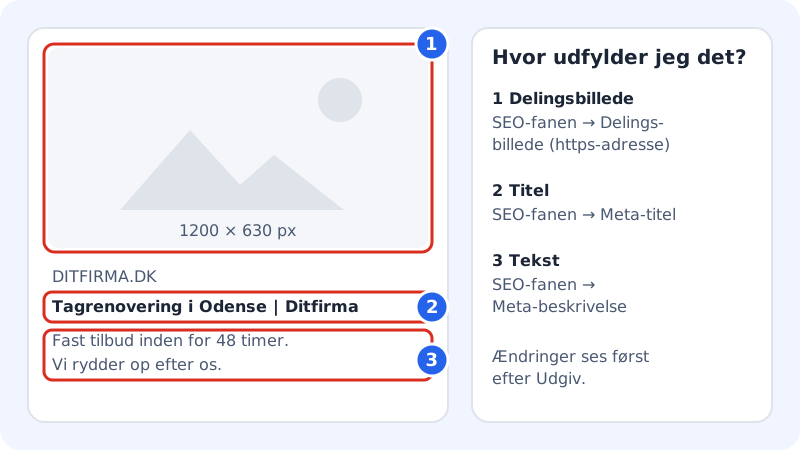
- Go to the SEO tab, and choose the page in the page selector.
- Enter the address of the image in Sharing image (https address). Use an image of 1200 × 630 px.
- Publish the website.
Let NinaAI write your posts
The Social posts section is in the Marketing tab, or in the Settings tab if you don't have a Marketing tab.
Step 1: Choose a blog post or product
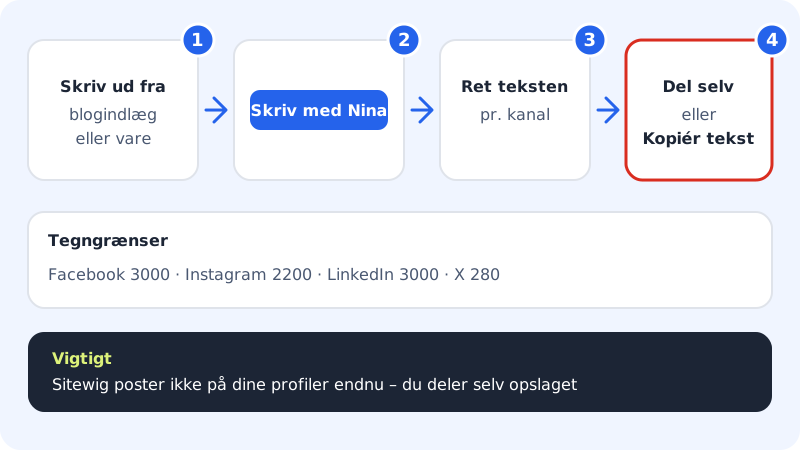
Under New post, choose a published blog post or an active product from your online shop in Write based on.
Step 2: Choose channels
Tick the Channels you want to write for: Facebook, Instagram, LinkedIn and X.
Step 3: Press Write with NinaAI
NinaAI creates a draft for each channel under NinaAI's suggestions. The counter shows how many characters you've used out of the channel's limit.
Step 4: Edit the text
Edit the text so it sounds like you. Press Fix with NinaAI if you want the text to be more engaging.
Step 5: Share it yourself
Press Copy text and paste it into the app, or press Share yourself to open the channel's own sharing page. You can also Save as draft and come back later.
Character limits per channel
- 3,000 characters
- 2,200 characters (no clickable links – the link goes in your profile)
- 3,000 characters
- X
- 280 characters
Frequently asked questions
Can I show my Instagram feed on the website?
Sitewig doesn't have an Instagram feed. You can embed individual posts from some services using an embed section, if it's turned on for your account. Embedded content is only shown once the visitor has said yes to cookies.
Why do links have to start with https://?
It makes sure the link leads to the right profile over a secure connection. If it says Must start with https:// under the field, the start of the address is missing.
Do NinaAI's posts use my AI limit?
The drafts are made from fixed templates. If you press Fix with NinaAI, it uses one AI change from your plan's monthly limit.