The new Outlook for Windows is the app that comes with newer Windows computers and has replaced the old Mail app. Your Sitewig email works in it as an ordinary IMAP account. If you use classic Outlook from Microsoft 365 or Office, see Outlook for Windows (classic) instead.
What you need
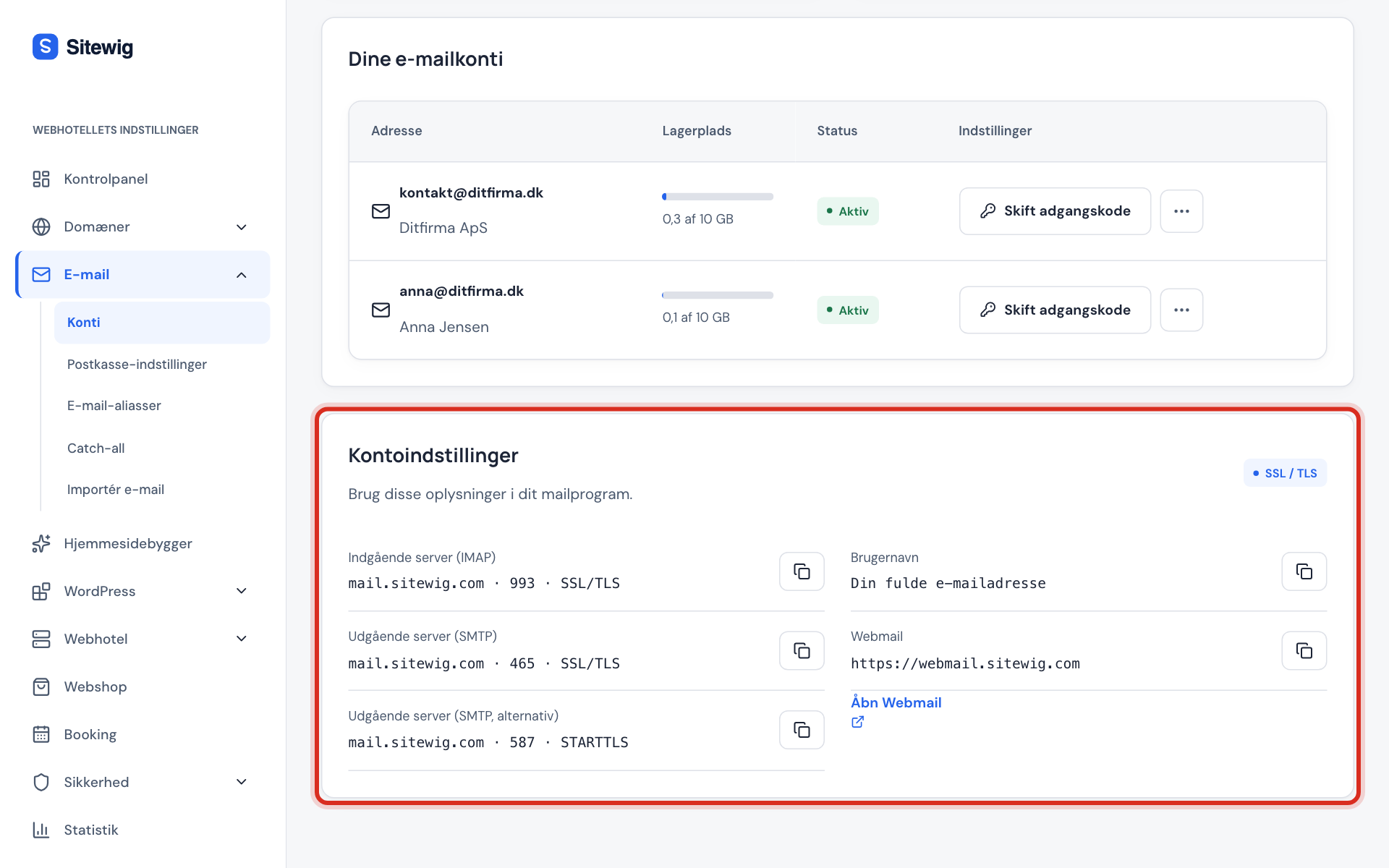
Incoming server (IMAP)
- Server
mail.sitewig.com- Port
993- Security
- SSL/TLS
- Username
- Your full email address
Outgoing server (SMTP)
- Server
mail.sitewig.com- Port
465- Security
- SSL/TLS
- Username
- Your full email address
The password is the mailbox's own password. You will find the servers in the control panel under Email → Mailboxes → Account settings.
Add the account
Microsoft regularly changes the menus in the new Outlook, so the names may differ slightly from those below.
Step 1: Open the account settings
Click the gear icon (Settings) at the top right, choose Accounts → Email accounts and click Add account.
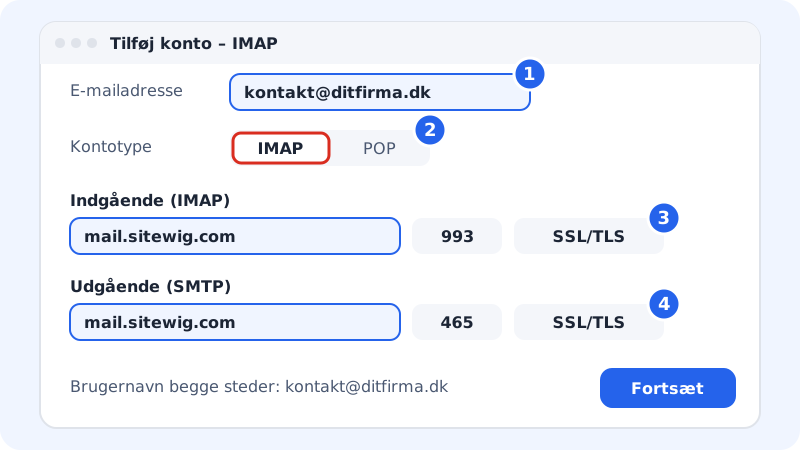
Step 2: Enter your email address
Enter your full address, e.g.
contact@yourcompany.com, and click Continue.Step 3: Choose IMAP as the account type
If Outlook suggests signing in with Microsoft or Google, choose IMAP instead (sometimes under Choose a different provider or Advanced). Your email is hosted at Sitewig, not with them.
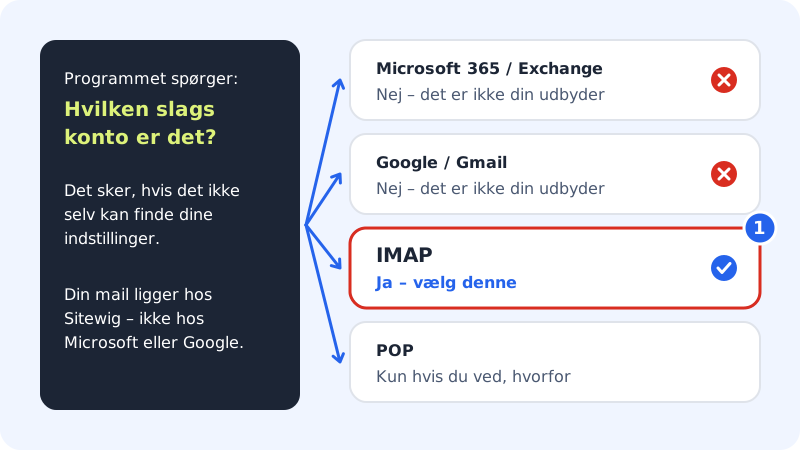
Microsoft 365, Exchange and Google are the wrong choices – choose IMAP Step 4: Fill in the incoming server
Enter the mailbox password. Under IMAP incoming server enter
mail.sitewig.com, port993and security SSL/TLS. The username is the whole address.Step 5: Fill in the outgoing server
Under SMTP outgoing server enter
mail.sitewig.com, port465and security SSL/TLS. The username and password are the same as for the incoming server.Step 6: Continue and test
Click Continue. Outlook checks the connection and fetches your folders. Send a test email to yourself to check that both sending and receiving work.
Good to know about the new Outlook
The new Outlook fetches IMAP accounts through Microsoft's own service and not directly from your computer. This means Microsoft also stores a copy of your password and your emails. That is Microsoft's solution and not something Sitewig controls. If you want a direct connection, you can use classic Outlook, Thunderbird or webmail.
Frequently asked questions
Outlook keeps asking for the password. What do I do?
Check that the username is the whole email address in both places and that you are using the mailbox password. If you recently changed the password in the control panel, you also need to enter the new one in Outlook. See My email program rejects my password.
Can I get my Sitewig calendar in the new Outlook?
Not at the moment. Outlook cannot add CalDAV calendars, and Sitewig does not offer Exchange. Instead, calendar and contacts can be synced with, for example, iPhone, Mac and Thunderbird – see Sync calendar and contacts.
What about the old Mail app in Windows?
Microsoft has retired it and replaced it with the new Outlook. Read more in Windows Mail and Calendar.