The Gmail app can fetch email from providers other than Google. Your email still stays at Sitewig – the app simply shows it. Setup takes about 5 minutes.
What you need
- Your full email address, e.g.
contact@yourcompany.com - The mailbox password (not your control panel password)
- The servers below – they are also shown in the control panel under Email → Mailboxes → Account settings
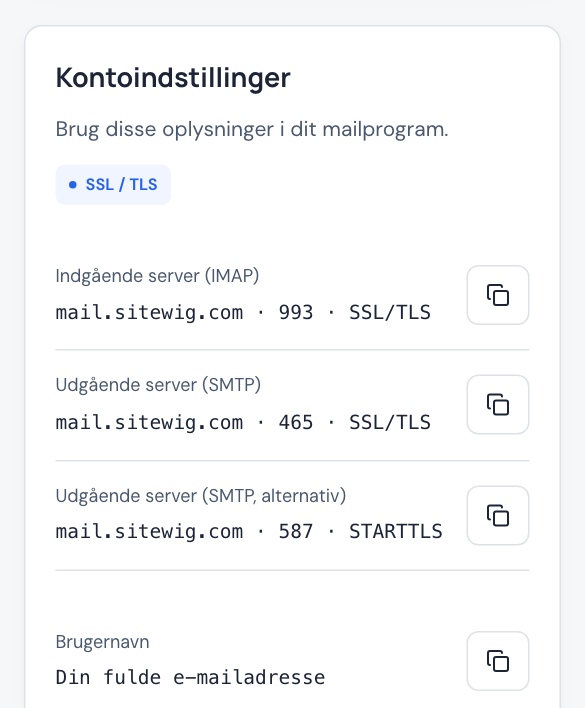
Incoming server
- Server
mail.sitewig.com- Port
993- Security type
- SSL/TLS
Outgoing server
- Server
mail.sitewig.com- Port
465- Security type
- SSL/TLS
- Require sign-in
- Yes
Add the account in the Gmail app
Menu names can vary slightly between Android versions and phone brands.
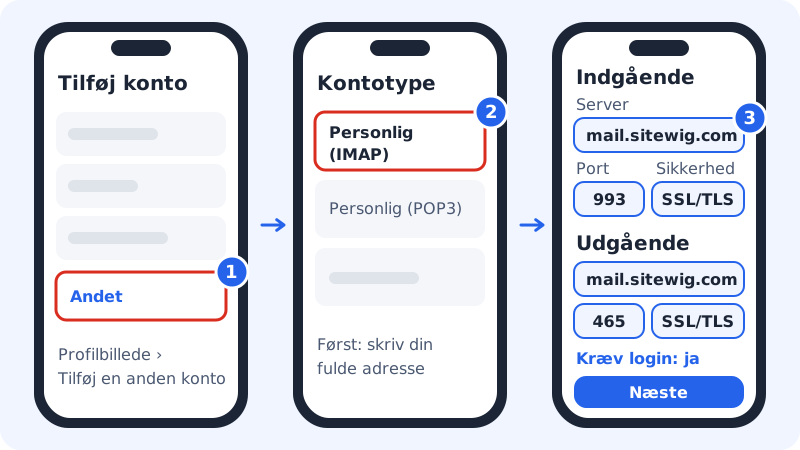
Step 1: Start by adding an account
Open the Gmail app, tap your profile picture at the top right and choose Add another account. Choose Other at the bottom of the list – not Google, Outlook or Exchange.
Step 2: Enter the address and choose IMAP
Enter your full email address and tap Manual setup (if the button appears). Choose the account type Personal (IMAP).
Step 3: Enter the mailbox password
Enter the mailbox password and tap Next.
Step 4: Incoming server
Check that the username is the whole address. Enter
mail.sitewig.comas the server, port993and security type SSL/TLS. Tap Next.Step 5: Outgoing server
Turn on Require sign-in. The username and password are the same as before. Enter
mail.sitewig.comas the server, port465and security type SSL/TLS. Tap Next.Step 6: Choose sync settings and save
Choose how often the app should fetch new emails and whether you want notifications. Give the account a name, e.g. your company name, and enter the name recipients should see. Tap Next – the account is ready.
Samsung Email
If you use Samsung's own Email app, the values are the same. Choose Add account → Other, enter your address and password and tap Manual setup. Choose IMAP account and fill in the servers as in the table above.
| Setting | Gmail app | Samsung Email |
|---|---|---|
| Account type | Personal (IMAP) | IMAP account |
| Incoming | mail.sitewig.com · 993 · SSL/TLS | mail.sitewig.com · 993 · SSL/TLS |
| Outgoing | mail.sitewig.com · 465 · SSL/TLS | mail.sitewig.com · 465 · SSL/TLS |
| Sign-in for sending | Require sign-in: yes | Authentication turned on |
Frequently asked questions
Can I also get calendar and contacts on Android?
Yes, but Android cannot sync calendar and contacts from anyone other than Google by itself. You need an extra app that supports CalDAV and CardDAV. See Sync calendar and contacts.
The app says the username or password is wrong. What do I do?
Check that the username is the whole address and that you are using the mailbox password. If it still does not work, follow troubleshooting sign-in.
Can I use POP3 instead?
No. Sitewig Mail supports IMAP only, which also means you see the same emails on your phone, your computer and in webmail.