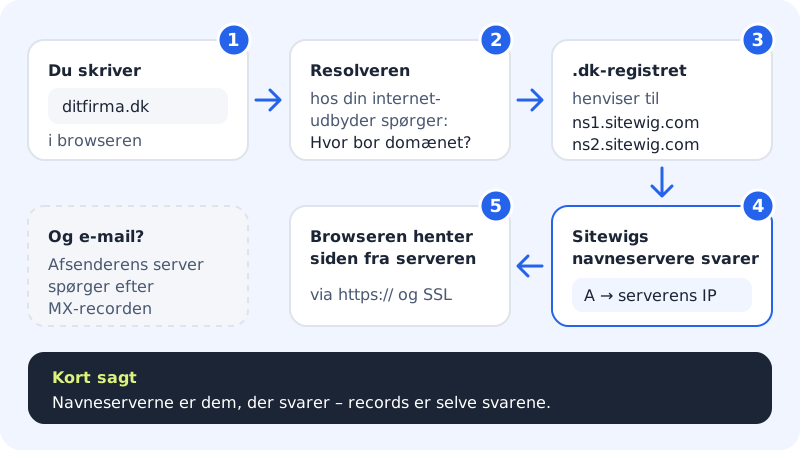
DNS is the internet's address book. When someone types yourcompany.com in their browser or sends an email to contact@yourcompany.com, their computer looks up the domain in DNS to find out which server should receive the visit or the email. You do not need to know DNS to use Sitewig – but it makes it much easier to understand what happens when you point your domain somewhere new.
Three concepts you need to know
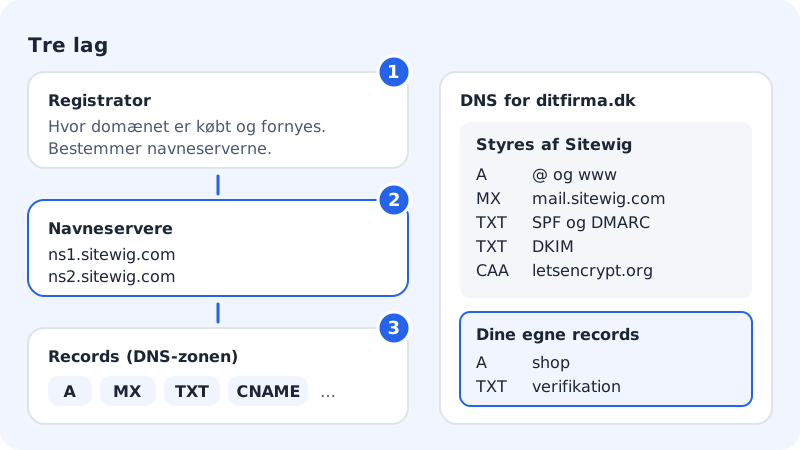
| Concept | What it is | At Sitewig |
|---|---|---|
| Registrar | The place where the domain is bought and renewed. This is where it says which name servers the domain uses. | Sitewig, if you bought the domain from us – otherwise your previous provider |
| Name servers | The servers that answer questions about the domain | ns1.sitewig.com and ns2.sitewig.com (also for .dk) |
| Records | The individual answers in the domain's DNS zone, e.g. which IP address the website has | Shown in the DNS section on the domain page |
The most used records:
- A and AAAA point a name to a server (IPv4 and IPv6). See A and AAAA records.
- CNAME makes a name an alias for another. See CNAME.
- MX decides where email is delivered. See MX records.
- TXT is used for SPF, DKIM, DMARC and verifying the domain with other services. See TXT records.
What Sitewig does automatically
When your domain uses Sitewig's name servers, we create the necessary records ourselves based on what you have chosen under Change target:
- Website: A records (and AAAA when the server has IPv6) for the domain itself and
www. - SSL: a CAA record that only allows Let's Encrypt to issue certificates while the website is hosted at Sitewig. The certificate is created automatically and free of charge.
- Email with Sitewig Mail: MX to
mail.sitewig.comwith priority 10, SPF, DKIM and DMARC, records that let email programs find the settings by themselves (autoconfig/autodiscover and SRV) as well as records for calendar and contacts.
These records are called default records. They appear in the DNS table together with your own, but have no buttons to edit or delete them. This is deliberate: they are changed by choosing a new target, so website, email and SSL always fit together.
Find DNS in the control panel
Step 1: Open the domain
Sign in and choose Domains → My domains. Click the domain.
Step 2: See what the domain points to
Under The domain points to you see three lines: Web, Email and Nameservers. The Change target button changes the website and email target in one go.
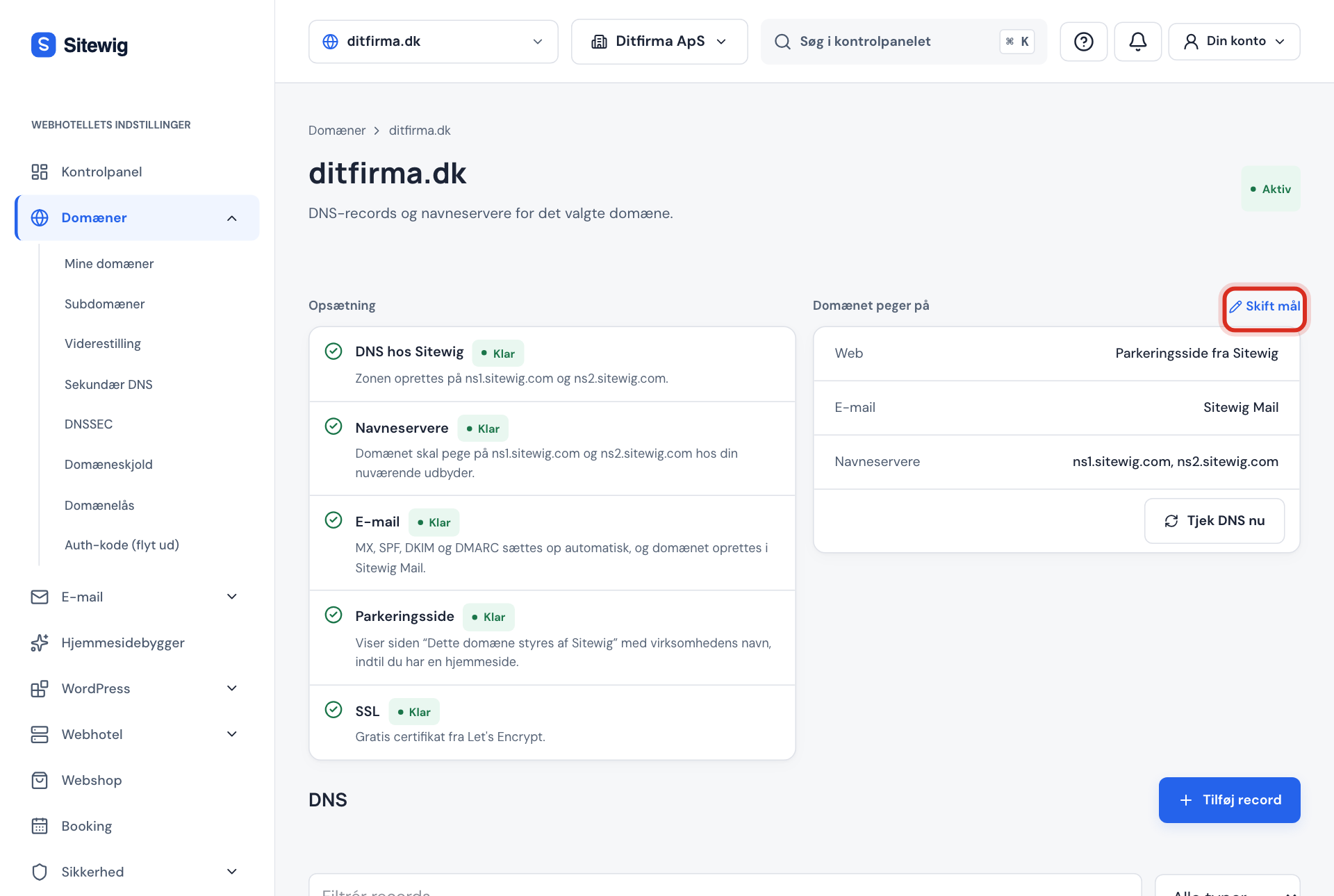
The domain page: what does the domain point to right now? Step 3: See all records
Scroll down to the DNS section. Here you can filter with Filter records and All types and create new records with Add record.

The DNS table on the domain page
Frequently asked questions
Do I need to create records myself before my website and email work?
No. If the domain uses Sitewig's name servers, we create all the necessary records automatically. You only need to add records yourself when another service asks you to.
Why can I not edit some of my records?
They are default records that Sitewig manages. If, for example, you want your email delivered somewhere else, use Change target instead. See MX records.
Who can change DNS?
Owners and administrators of the company in the control panel. Other users can see the records, but the buttons are turned off.
Can I change DNS if the domain uses another provider's name servers?
Not at Sitewig. As long as the domain points to another provider's name servers, their DNS is what applies. See Change name servers to Sitewig.