When a website is not showing, the fault is almost always in one of five places: in your own browser, in the domain and DNS, in the SSL certificate, on the server or in the website itself. This checklist takes them in that order, so you do not look in the wrong place. Most faults are found after the first three steps.
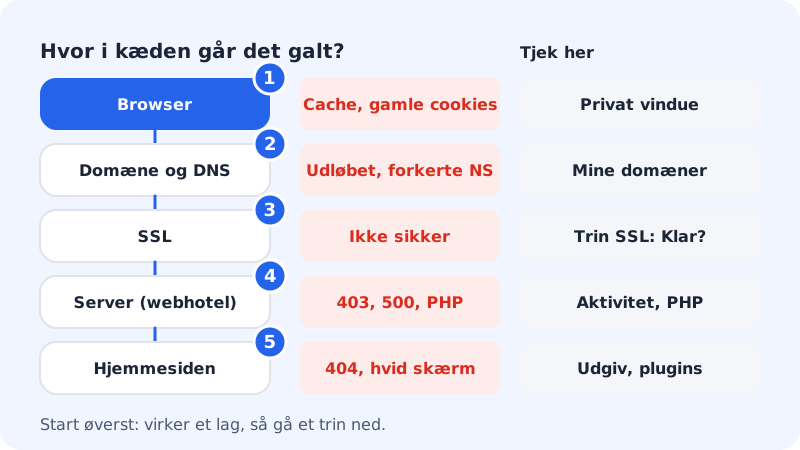
Go through the checklist
Step 1: See whether there is a known service disruption
Open the Service status page. It checks websites, email, webmail, control panel, DNS and the other services every minute and shows the uptime for the last 90 days. If a whole service has problems, it is shown at the top together with our updates.
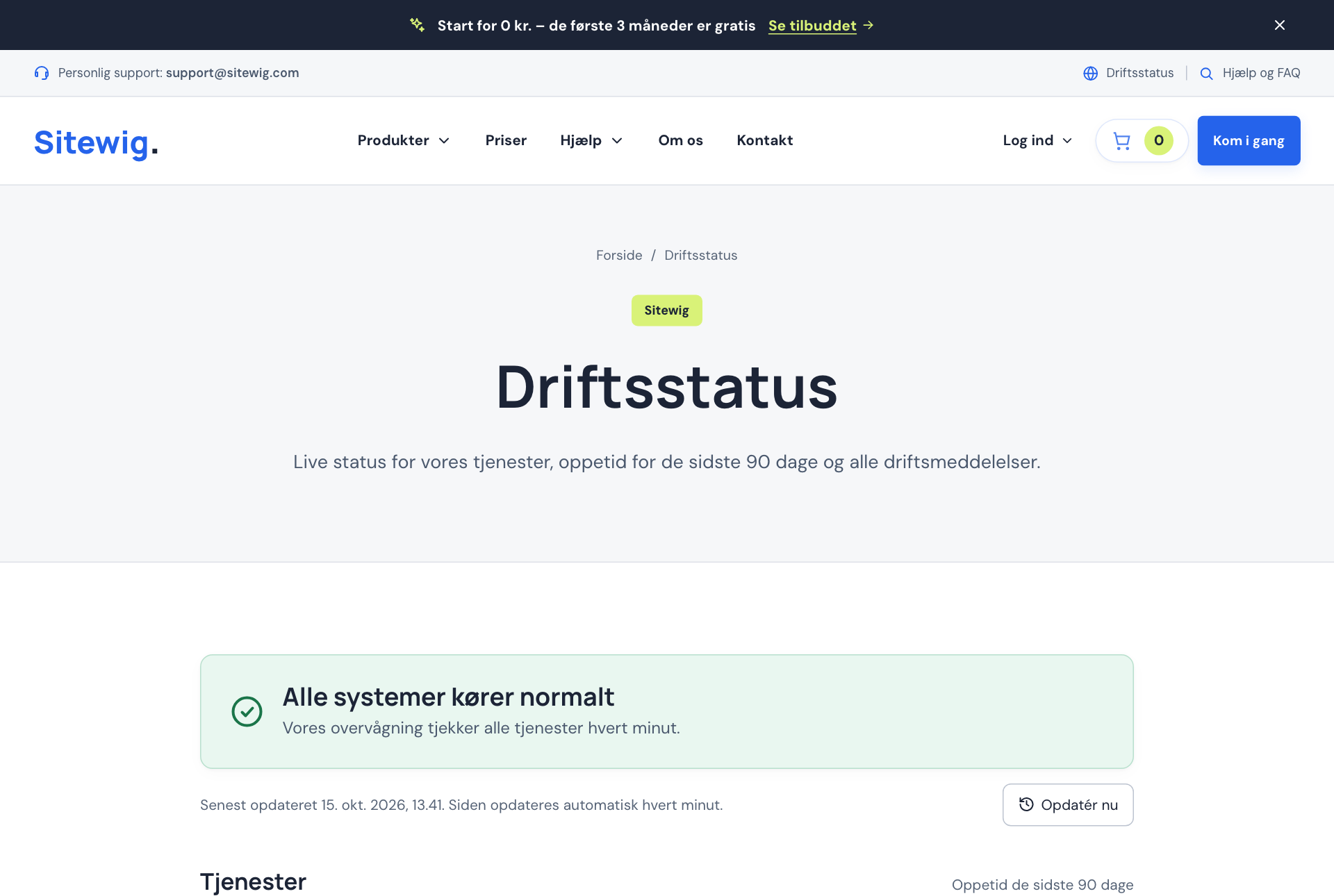
Service status shows live status for all services Step 2: Rule out your own browser and network
Open the website in a private window, and also try on your mobile with wi-fi turned off. If it works there, it is your browser's cache, old cookies or your local network causing trouble. Clear the cache, or wait a little – especially if you have just changed DNS.
Step 3: Check the domain's status
Go to Domains → My domains and click the domain. At the top is the domain's status, e.g. Active, Awaiting name servers, Awaiting validation or Expired. Under Setup you see each step – DNS at Sitewig, Name servers or Registration, Email, the website and SSL – with the status Ready, Pending or Error.
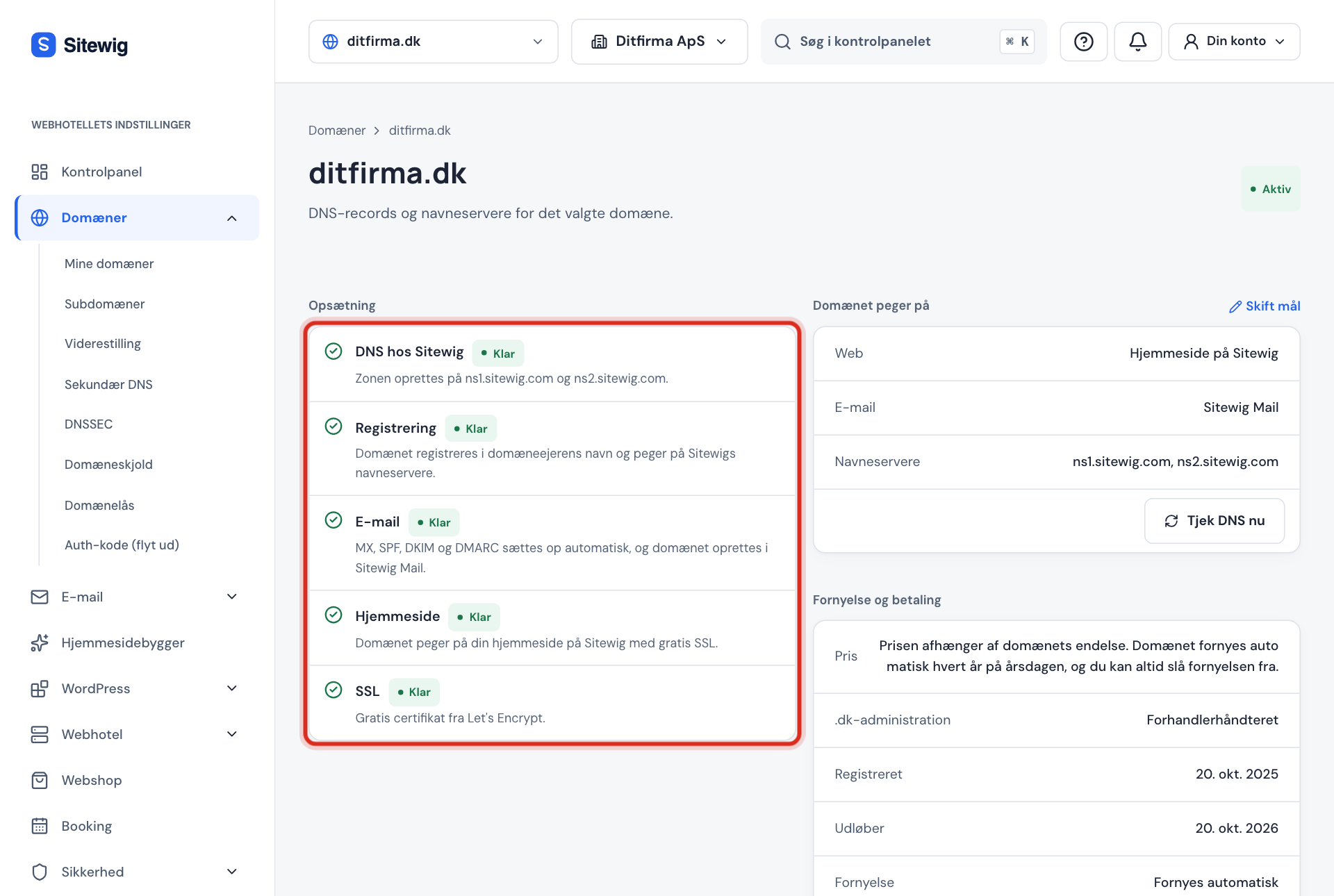
All steps should show Ready - If the domain shows Expired or Awaiting validation, read Website and email stopped – has your domain expired?.
- If it shows Awaiting name servers, read I have changed DNS, but nothing has happened.
Step 4: Check what the domain points to
In the The domain points to card you see what the domain shows under Web. If it says Parking page from Sitewig or No website, that is the explanation. Tap Change target and choose the right website.
Step 5: Is the website published and working?
- Website builder: Open the project and tap Publish. Changes are only visible once you have published them.
- WordPress and your own files: Does the home page work but not the subpages? Or do you get an error code? Go on to the next step.
Step 6: Use the error code
The error message in the browser tells you which layer is failing. Find it in the overview below and follow the matching guide.
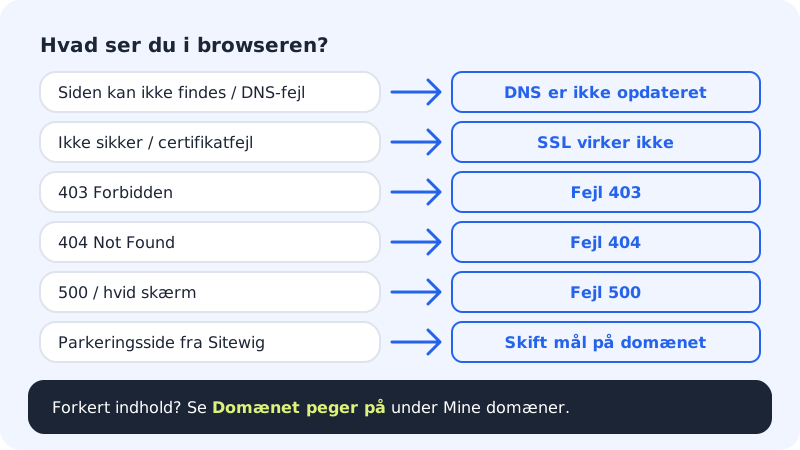
The error message points to the solution Step 7: See what has changed recently
Under Security → Activity log you see the tabs Tasks and Change log. Here you can see whether someone has, for example, changed the PHP version, changed DNS or installed something just before the fault started.
Step 8: Contact support
If nothing helped, write to us. If the whole website is down, say so clearly – see How to contact Sitewig support.
Error codes and where to find help
| What you see | What it usually means | Read |
|---|---|---|
| This site cannot be reached / DNS error | The domain does not point to Sitewig yet | DNS has not updated |
| Not secure / certificate error | SSL has not been issued, or the page loads something via http | SSL does not work |
| 403 Forbidden | No start file or wrong permissions | Error 403 |
| 404 Not Found | The page has been moved, renamed or not published | Error 404 |
| 500 / white screen | An error in PHP, a plugin or a theme | Error 500 |
| The website is very slow | Large images, many plugins, no cache | Slow website |
Frequently asked questions
The website works for me but not for my customers. How can that be?
Your browser may remember an older version, or the DNS change has not yet reached everyone. Test in a private window and on mobile data. If you have changed name servers within the last 24 hours, give it time.
The website works, but my email does not. Are they connected?
Not necessarily. Website and email are controlled by different DNS records. See I am not receiving any emails.
Can I see an error log in the control panel?
Not yet. The control panel does not show the server's error log. If you use WordPress, you can turn on an error log yourself – see Error 500.