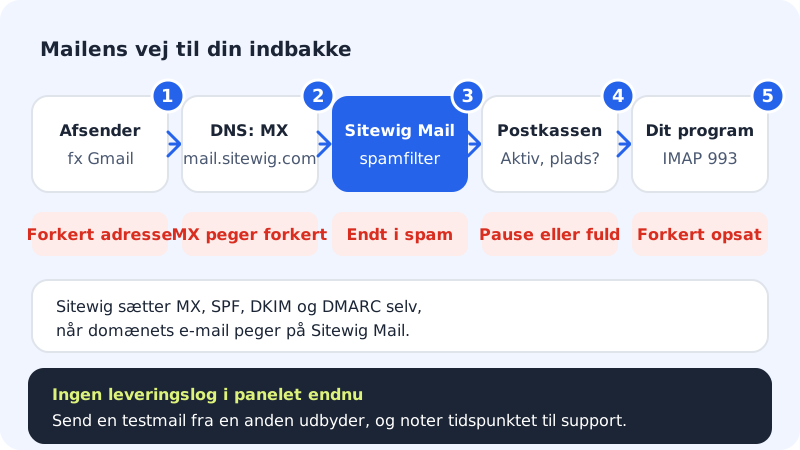
An email has to pass through several stages before it lands in your inbox: the sender's mail server looks up your domain's MX record, sends the email to Sitewig Mail, the spam filter checks it, and finally it is placed in your mailbox, where your email program fetches it. The fault can be in any of these stages.
The quick checks first

Step 1: Look in spam and filters
Open Webmail (opens in a new window) and look in the junk folder. Also check whether your email program has rules that move or delete emails automatically. If good emails land in spam, you can adjust the level under Spam filter for the account.
Step 2: Check the account status
Go to Email → Mailboxes. In the Your email accounts table, the Status column should show Active. If it says Disabled, Awaiting activation or Error, the account is not receiving email. If the mailbox is paused, you need to turn the pause off again under Account status.
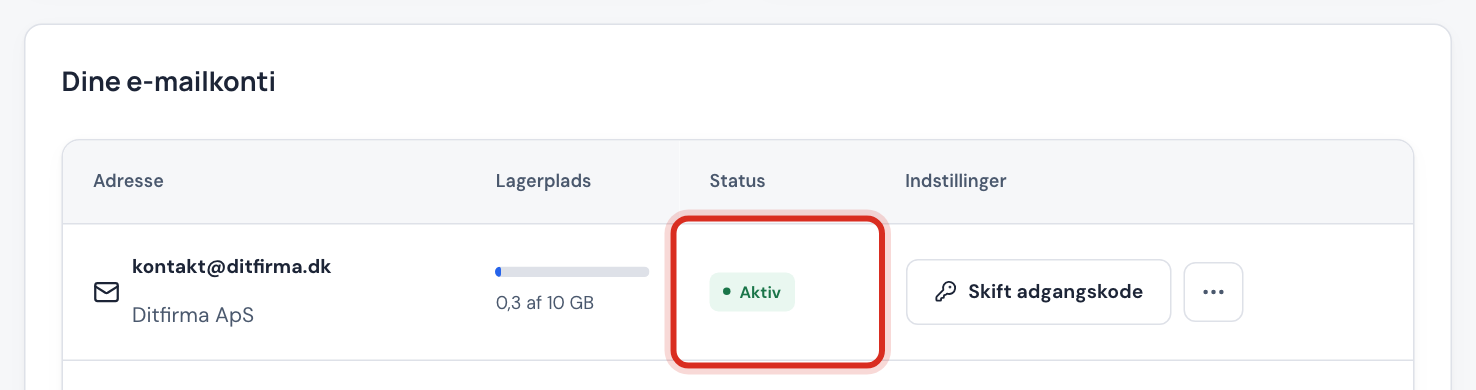
The account should show Active Step 3: Check the storage
The Storage column shows how much the mailbox is using. If it is full, the server rejects new emails. Delete old emails with large attachments, or give the account more space under Storage in the account's menu.
Step 4: Check forwarding
Under Forwarding for the account, emails may be set to be forwarded to another address. If you also want a copy in the mailbox, that must be turned on there.
Step 5: Check the domain's email target
Go to Domains → My domains and click the domain. In the The domain points to card, it should say Sitewig Mail under Email. If it says Own mail server (MX) or No email, email is sent somewhere else. Tap Change target, choose Sitewig Mail under Where should email be delivered? and tap Save.
Check the MX record
When the domain's email points to Sitewig Mail, we create the necessary records ourselves: MX to mail.sitewig.com with priority 10, SPF, DKIM, DMARC and records that help email programs find the settings.
Step 1: Find MX in the DNS table
Scroll down to the DNS section on the domain page and choose the type MX in the filter.
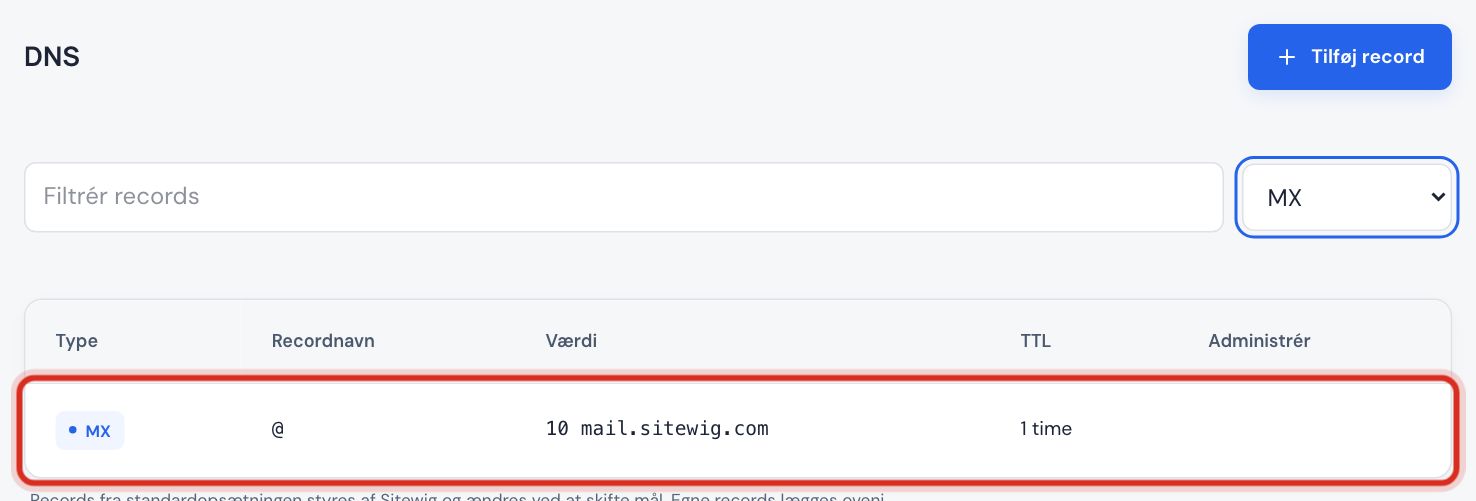
There should be one MX record pointing to mail.sitewig.com Step 2: Compare with the correct values
MX record for Sitewig Mail
- Name
@- Mail server
mail.sitewig.com- Priority
10
Step 3: Does the domain use another DNS provider?
If the domain shows Awaiting name servers, or you have chosen to keep DNS with another provider, that is where the MX record must be fixed. Create MX, SPF and DMARC with the values above at the provider, and delete old MX records that point to your previous email provider.
If nothing helps
Sitewig's control panel does not yet have a delivery log where you can follow a single email yourself. So send a test email from another provider (e.g. a private Gmail account), and note the time and the sender address. Create a support case with those details – then we can find the email in the server's log.
Frequently asked questions
Only some senders get through. What does that mean?
Usually that you have just changed email provider, and some mail servers still remember the old MX record. It sorts itself out within 24 hours. See I have changed DNS, but nothing has happened.
Can I catch emails sent to addresses that do not exist?
Yes, with a catch-all address under Email → Catch-all. It collects emails to all unknown addresses on the domain in one mailbox. Use it with care – it also catches a lot of spam.
The email was sent to a misspelt address. Can you find it?
If you have no catch-all address, the email is rejected and returned to the sender. Ask the sender to check their inbox for an error message.