WordPress is included in all Sitewig web hosting plans. You do not need to upload files or create a database yourself: the control panel creates the database, fetches the latest official WordPress, checks the files and installs everything on your website. Afterwards you get a username and a strong password, so you can sign in straight away.
What needs to be in place first
The control panel checks by itself whether the website is ready. It is ready when four things are in place:
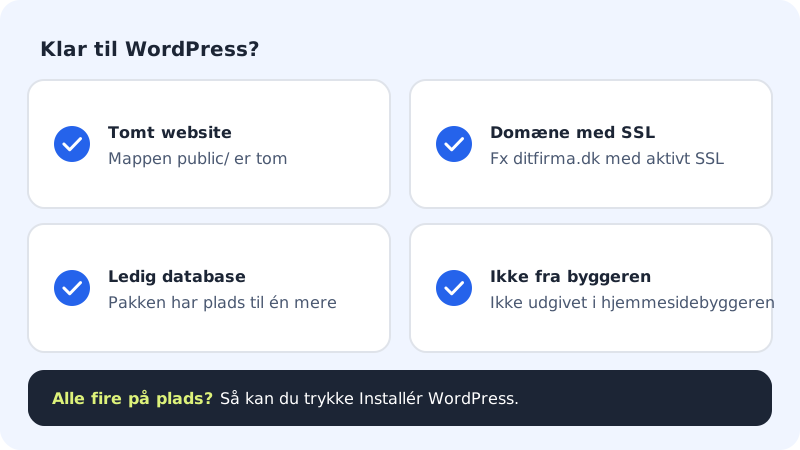
- The website is active and empty. The
public/folder on the website must not contain any files. If you need a new, empty website, tap Create website under WordPress → Overview. - The website has a domain with SSL. Connect the domain with Add domain on the website's page, and wait until the SSL certificate is active. The exception is your main site (main), which can also use its preview address.
- The plan has room for one more database. WordPress gets its own database.
- The website is not published with the website builder. A website you have built and published in the website builder cannot run WordPress at the same time – use another website.
Install WordPress
Step 1: Open the website
Sign in to the control panel and choose WordPress → Overview in the menu. You now see the list of your websites. Click the website WordPress should be installed on – e.g.
yourcompany.com.Step 2: Find the WordPress section
Scroll down to the WordPress section on the website's page. If it says WordPress cannot be installed yet, one of the requirements above is missing – the text below the heading tells you exactly which one. If the website is missing a domain with SSL, the message may also only appear when you tap Install WordPress.
Step 3: Fill in the three fields
Enter the Site title (e.g.
Yourcompany) and Your email (e.g.contact@yourcompany.com). The email is used for sign-in and for messages from WordPress. The Administrator username field is optional – if you leave it empty, the user is calledwpadmin. The username can have 3–30 characters and may only contain a–z, 0–9, full stop, hyphen and underscore.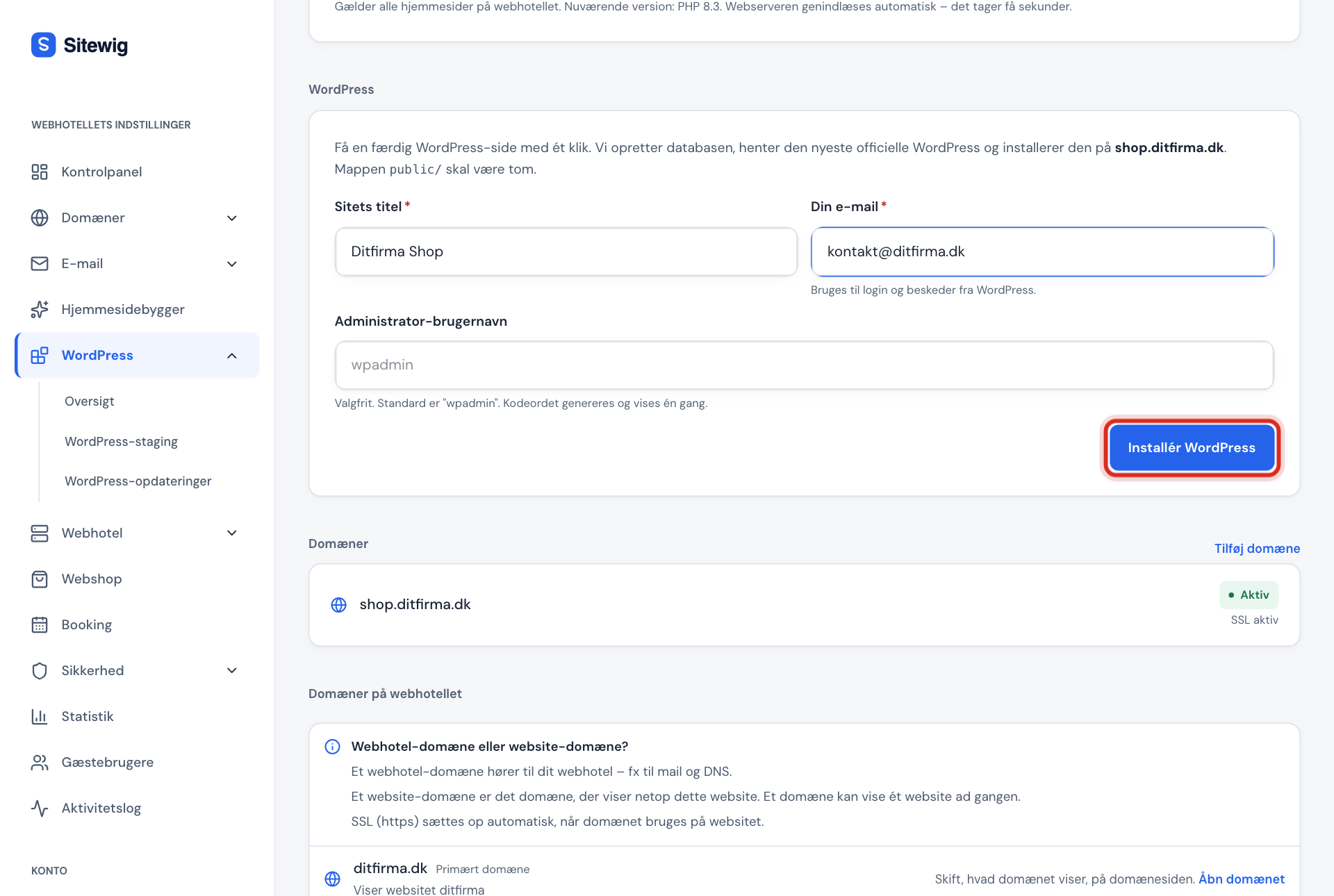
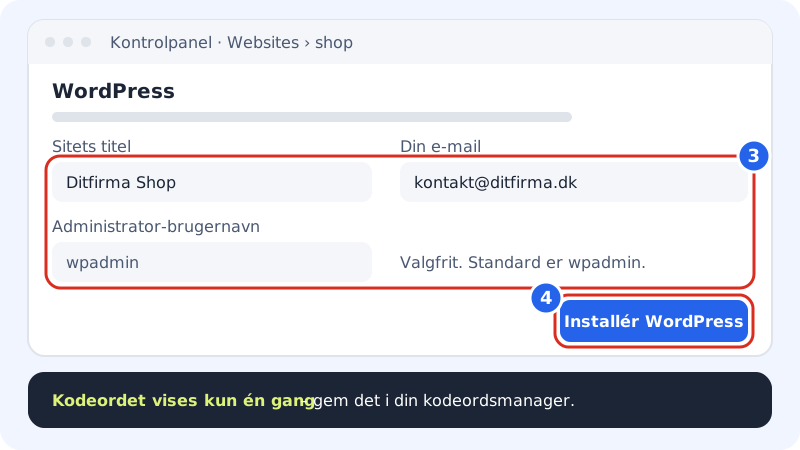
Fill in the fields and tap Install WordPress Step 4: Tap Install WordPress
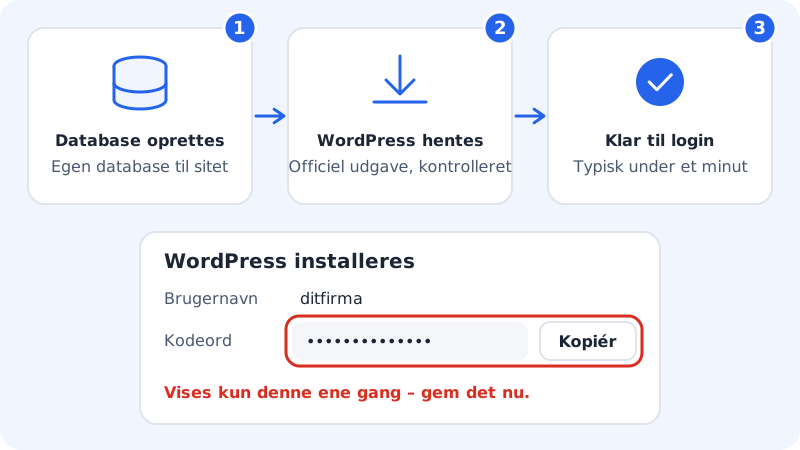
The Installing WordPress window opens and shows your username and password. The password is created by the server and is shown only this once. Copy it to your password manager before you close the window.
Step 5: Wait for the installation to finish
The section shows three steps: Creating database, Fetching, verifying and installing WordPress and Ready to sign in. It usually takes less than a minute, and the page updates by itself.
Step 6: Sign in
When the installation is finished, the section shows the address, the username and the version. Click Sign in to /wp-admin and sign in with the username and password from before.
The new "WordPress in 3 clicks" card
We are rolling out a new, faster card called WordPress in 3 clicks. If you see it on WordPress → Overview or on the website's page, do this:
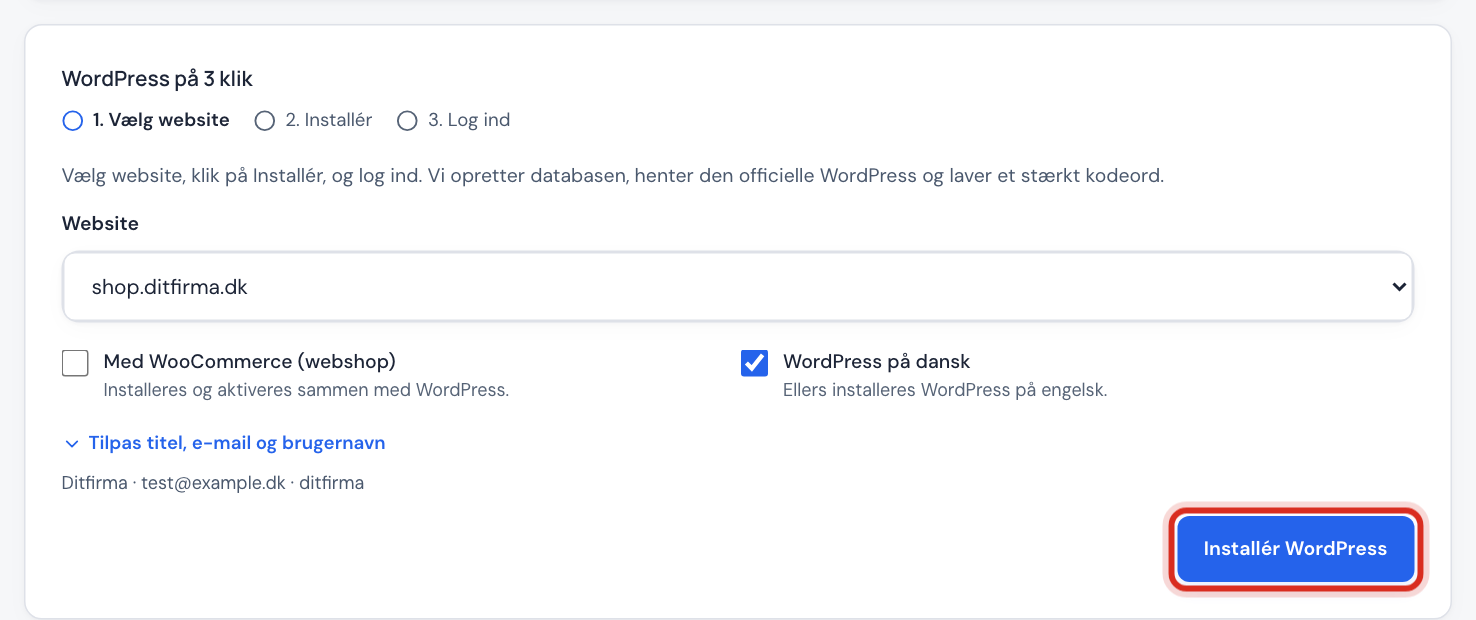
- Pick website – the list only shows websites that meet the requirements above.
- Optionally tick With WooCommerce (online shop) and WordPress in Danish (Danish is selected when the control panel is in Danish). The fields are filled in beforehand: the title and username are based on the domain name, and the email is the one you use to sign in to the control panel. If you want to change them, click Change title, email and username.
- Click Install WordPress. When it says WordPress is ready, you see the username and password – save the password – and you can click Sign in to WordPress.
If you do not see the card, simply use the form in the WordPress section as described above. The result is the same.
Frequently asked questions
Does WordPress cost extra?
No. WordPress is included in all web hosting plans. It uses one of the databases included in your plan.
I did not save the password – what do I do?
The password is not stored at Sitewig and cannot be shown again. Use Lost your password? on the WordPress sign-in page, and you will get a link at the email address you entered during installation. See Change the password or email for the WordPress administrator.
Why does it say the website is not empty?
WordPress is installed in the public/ folder on the website, and it must be empty. If you have uploaded files or an old website is there, move or delete them first via Web hosting → Files – or create a new website.
Can I install WordPress before the domain has been moved to Sitewig?
The domain must be connected to the website and have active SSL. If you want WordPress ready before the domain is moved, you can install it on your main site, which has a preview address.
What if the installation fails?
The section shows WordPress could not be installed with an explanation, and the button now says Try again. The database that has already been created is reused, so you do not lose a slot in your plan.