Your Sitewig account is where your domains, your email, your web hosting and your website come together. Creating an account is free, and you can start on the Free plan at no cost. If you later choose a paid plan, the first 3 months are free.
What you need
- An email address you have access to – it becomes your sign-in
- A password of at least 12 characters
- If you are creating the account for a business: the company name and optionally a VAT number (CVR number for Danish companies)
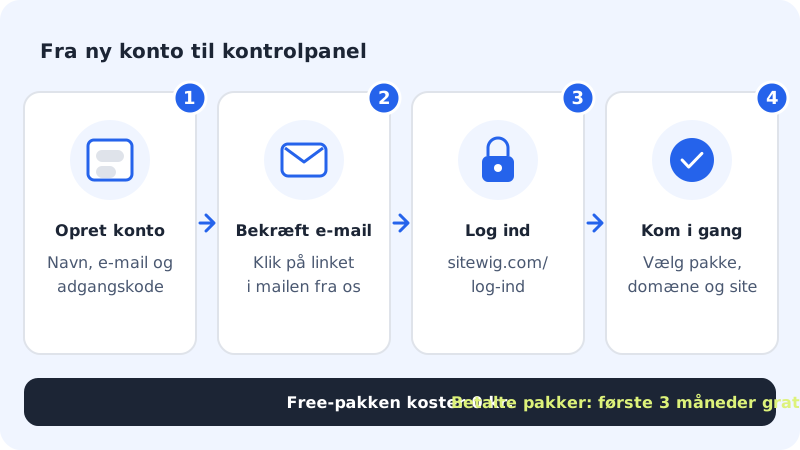
Create the account
Step 1: Open the Create account page
Go to
sitewig.com/opret. If you are already on the sign-in page, you can also choose Create account below the sign-in button.Step 2: Enter name, email and password
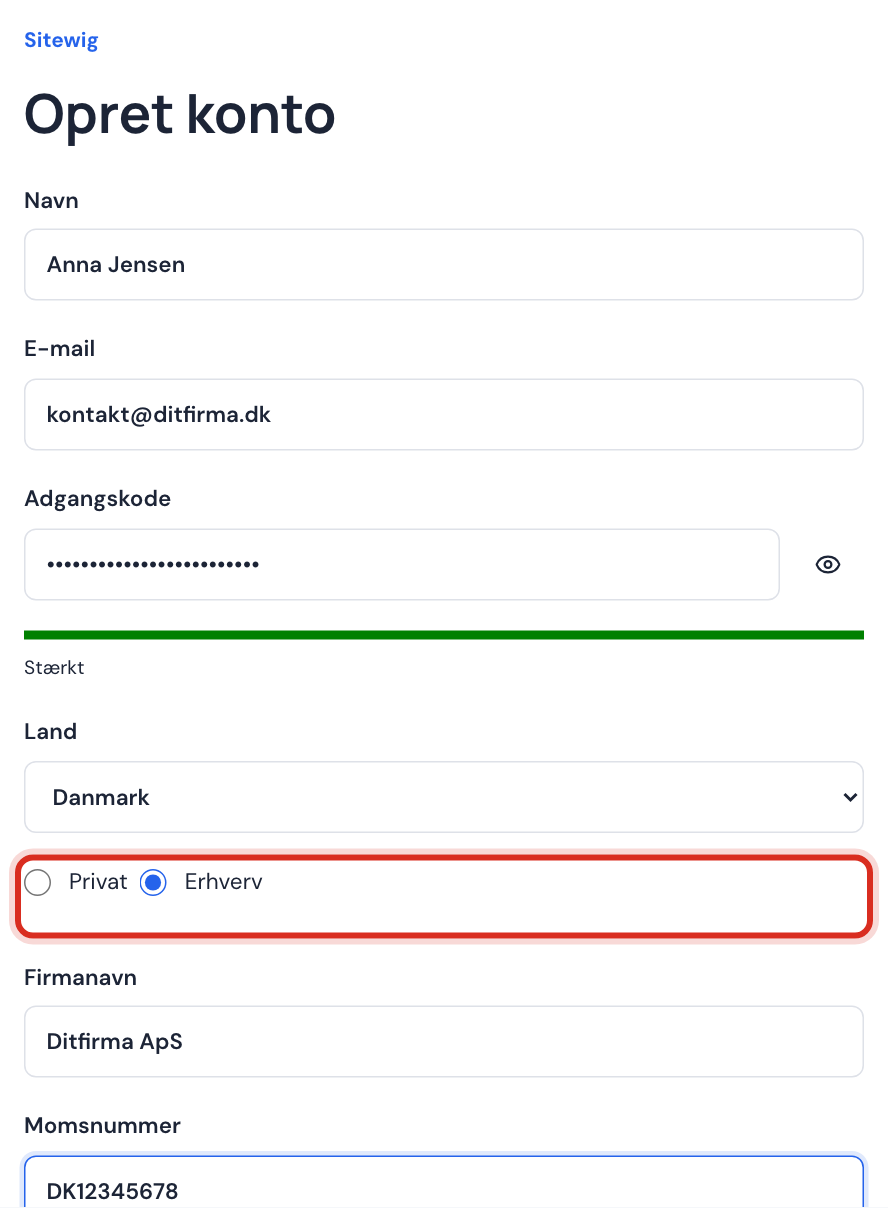
Fill in Name, Email and Password. Below the password, a meter shows how strong it is: Weak, Okay, Good or Strong. The password must be at least 12 characters long.
Step 3: Choose country and customer type
Choose your Country, and choose Personal or Business. If you choose Business, two more fields appear: Company name (required) and VAT number (can be filled in now or later).
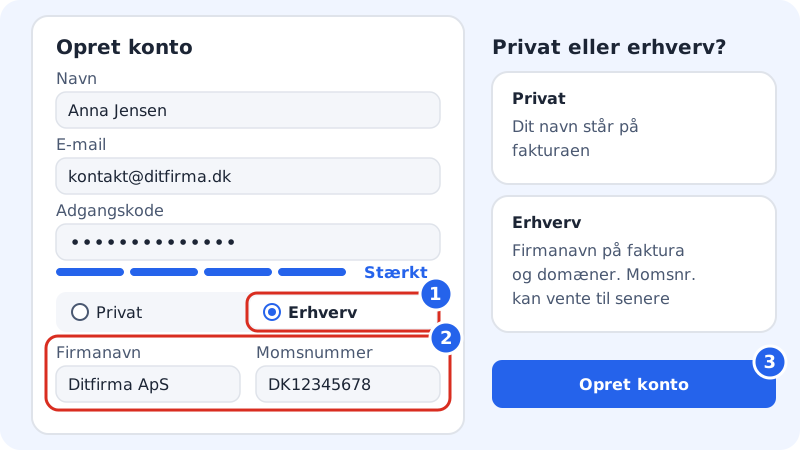
Business adds the Company name and VAT number fields Step 4: Accept the terms and create the account
Tick I accept the Terms and conditions & Privacy policy and tap Create account.
Step 5: Confirm your email
If you see the message Check your email to confirm your account., we have sent you an email. Open it and click the link. The link takes you back to the sign-in page.
Step 6: Sign in and get started
Sign in with your email and password. If you come from Create a free account, the Get started page shows three steps: Account created, Free web hosting being prepared and Nina is building your website. Otherwise you land directly in the control panel.
Personal or business?
Choose Business if the account will be used by a company, an association or another organisation. The company name appears on your invoices and is used as the owner of the domains you buy. With a valid VAT number, business customers in other EU countries can use the reverse charge.
Choose Personal if you are creating the account for yourself. You can always change your customer details afterwards under Settings → Domain owner and customer details.
Frequently asked questions
I have not received the confirmation email. What do I do?
Wait a few minutes and check your spam or junk folder. Also check that you spelt the email address correctly. If the email still does not arrive, write to support@sitewig.com from the address you created the account with.
It says an account with my email already exists. What does that mean?
The address has already been used for a Sitewig account – perhaps you created it earlier. Sign in instead, or use Forgotten password if you cannot remember the password.
It says creating new accounts is closed. Why?
For short periods we may pause new sign-ups, e.g. during maintenance. Try again later, or write to support@sitewig.com.
Does it cost anything to create an account?
No. The account and the Free plan cost nothing. You only pay when you choose a paid plan, a domain or an email plan yourself.