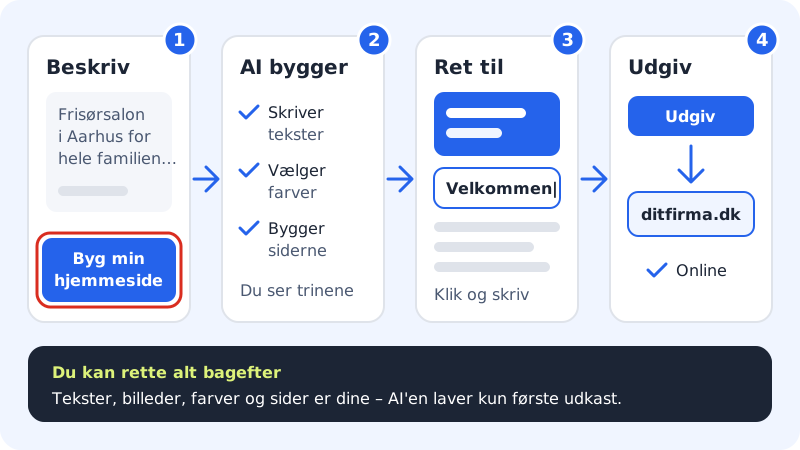
With the website builder you create a website without coding. You write briefly what your business does, and the AI creates a first draft with text, colours, fonts and pages. The draft is your own: you can change everything afterwards, and nothing is shown to others until you publish it yourself.
What you need
- A Sitewig account with web hosting. The main site (website) is created automatically together with the web hosting.
- 2–4 sentences about your business.
- A domain is not needed to get started – you can add it later.
Build the website
Step 1: Open the website builder
Sign in to the control panel and choose Website builder in the menu on the left. At the top of the page is the card Describe your business – and we'll build your website.
Step 2: Describe your business
In the text field, write what you do, where you are based and who your customers are. The field needs at least 15 characters and can hold up to 2,000. If you are unsure, click one of the examples Carpenter, Restaurant or Hairdresser below the field and adjust the text so it fits you.
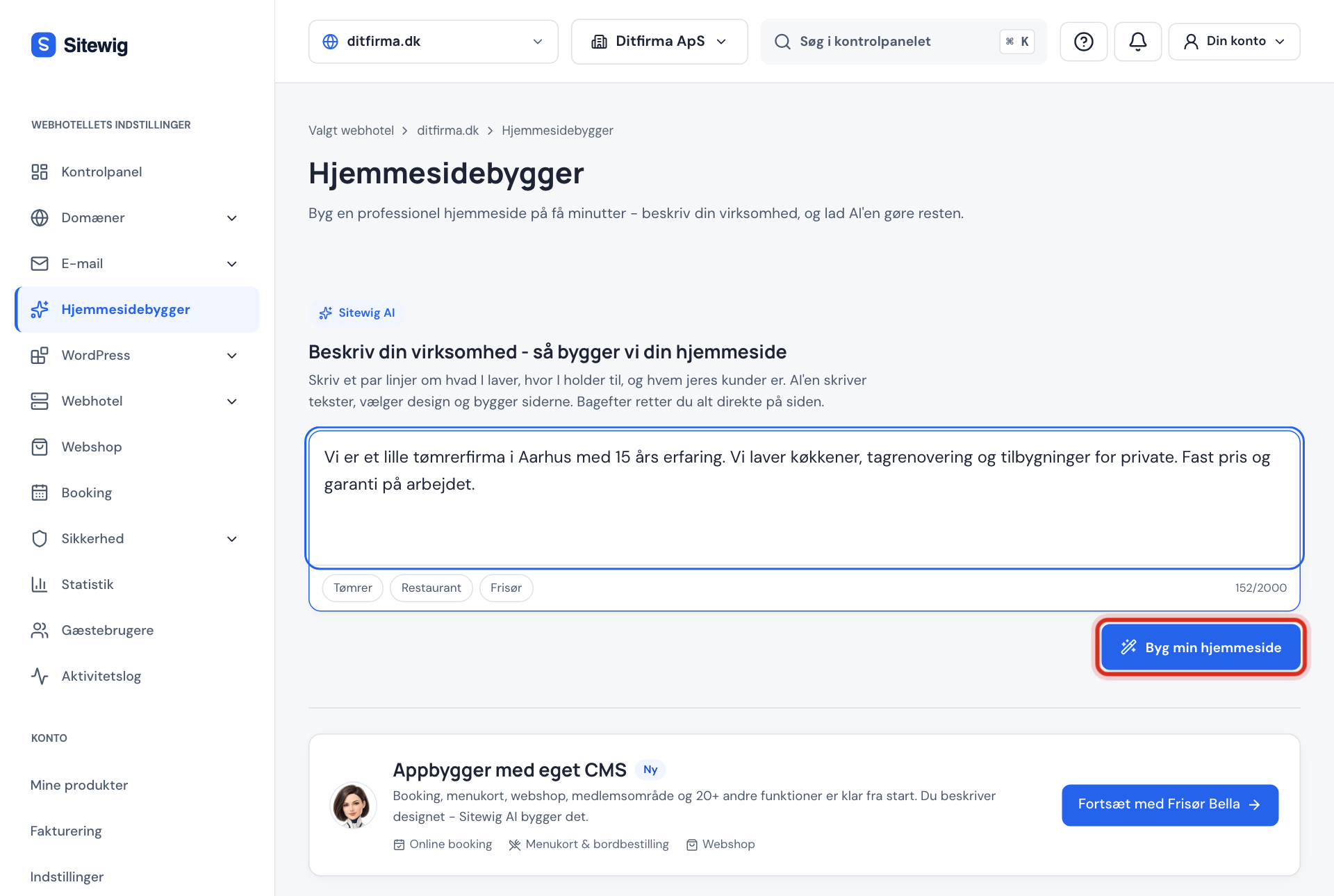
Describe the business and click Build my website 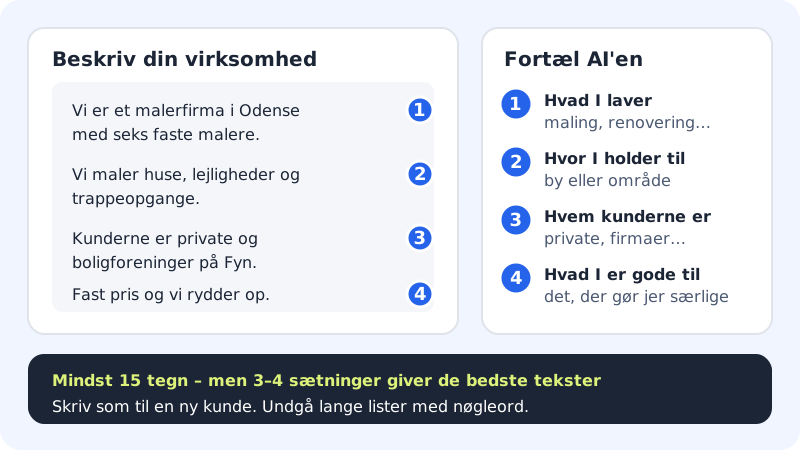
Four things the AI needs to know Step 3: Choose website (only if you have several)
If you have more than one website, the Website field is shown. Choose the website the new site should be published on. It is published on this website and its domains. If you only have one website, it is selected automatically.
Step 4: Click Build my website
Click Build my website, or press Cmd+Enter (Mac) / Ctrl+Enter (Windows) in the text field. The button shows what the AI is doing: Understanding your business…, Writing text…, Choosing colours and fonts…, Building the pages… and Finishing touches…. Do not close the tab in the meantime.
Step 5: Adjust the draft
When you see the message Your website is ready, the editor opens by itself. Click a heading or a piece of text in the preview and type directly. Click an image to replace it. Everything is saved automatically as a draft.
Step 6: Publish when you are happy
Click Publish at the top right to put the website online. See Publish your website.
Your websites
Under Your websites you see all the websites you have built. Each website has the label Draft until it is published for the first time – after that it says Published and the address where it can be seen. Click Edit to open the editor again.
Frequently asked questions
What do I do if it says "AI is not set up yet"?
Then the AI cannot build right now. Choose a template further down the page instead. You can change all text and images directly in the editor, exactly as if the AI had built the website.
Does it count towards my AI limit?
Yes. Your plan has a fixed number of AI websites and AI changes each month, and the limits reset on the 1st of each month. A whole website built with AI counts as one AI website. When you edit text and images yourself, it does not count.
Can I start over if I do not like the draft?
Yes. Open the AI tab in the editor and click Start over. You can also write a new description first. The old version is still in the version history, so you can go back.
Can others see my website while I am working on it?
No. What you do in the editor is a draft. Visitors only see the website when you click Publish and then Publish now.