An email address on your own domain is a mailbox at Sitewig Mail, e.g. contact@yourcompany.com. You create it yourself in the control panel, and it can be used straight away in Webmail, on your phone and in your email program.
Before you begin
- The domain must deliver its email to Sitewig Mail. This is the default for domains bought at or moved to Sitewig. If it is not set up, the page shows the message Email is not enabled for this domain – see the section about that message further down.
- Your plan must have room for one more account. If you have used all the accounts in your plan, the buttons are greyed out and the page shows how many accounts are included.
Create the mailbox
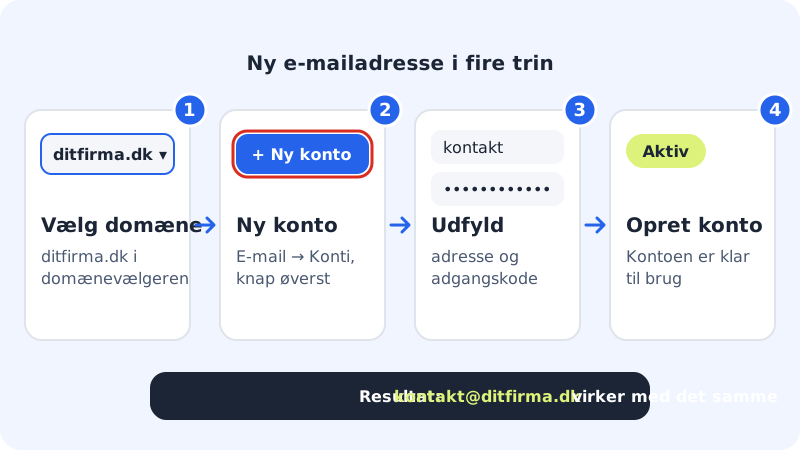
Step 1: Choose the domain
Sign in to the control panel and choose the domain the address should be on in the domain picker at the top. If you only have one domain, it is already selected.
Step 2: Open Email → Mailboxes
Click Email in the menu and choose Mailboxes. Here you see the cards Your email plan and Total storage used and the list Your email accounts.
Step 3: Click New account
The New account button is at the top right. The window Create a new email account opens.
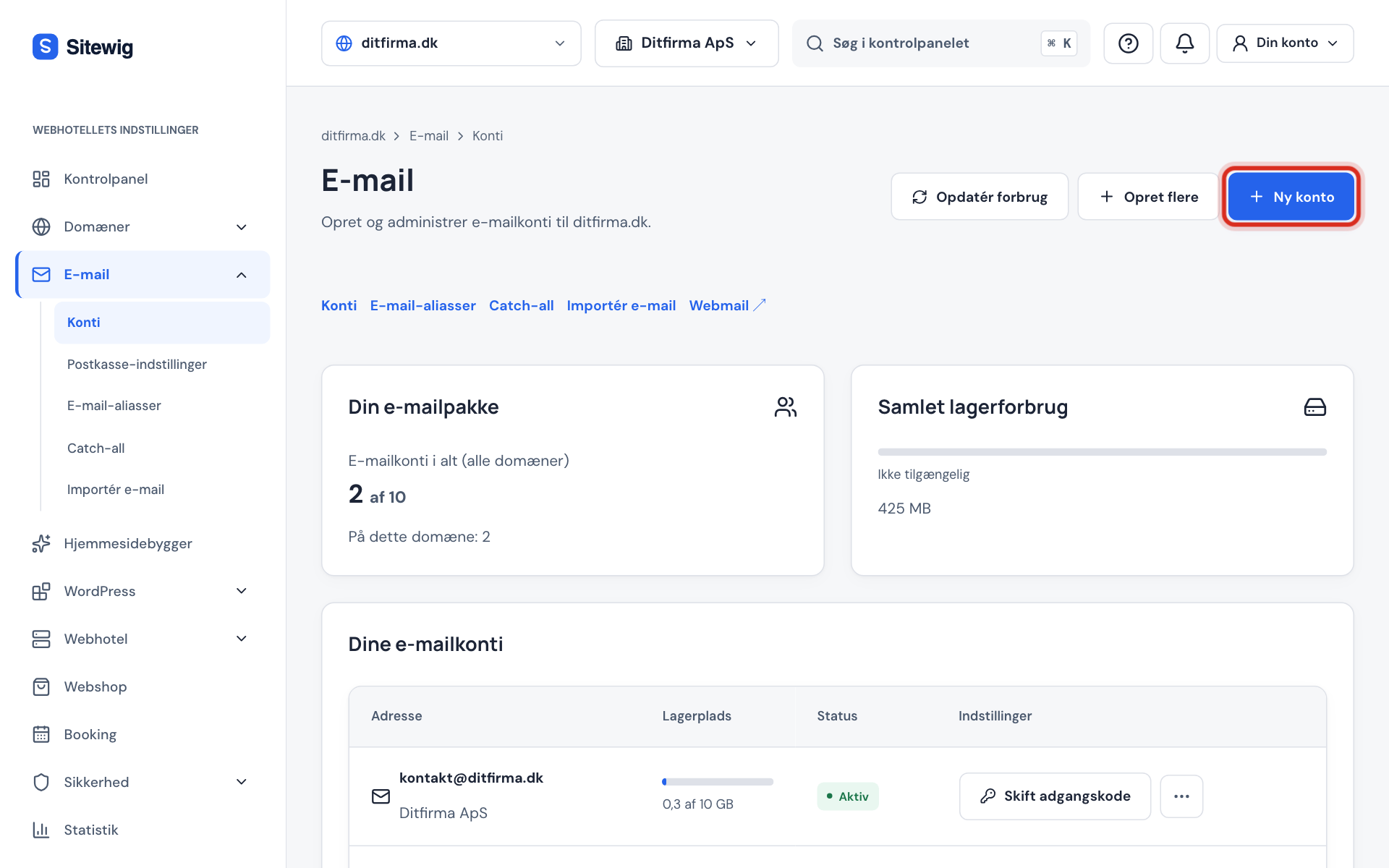
The New account button at the top of the Email → Mailboxes page Step 4: Enter the address and optionally a name
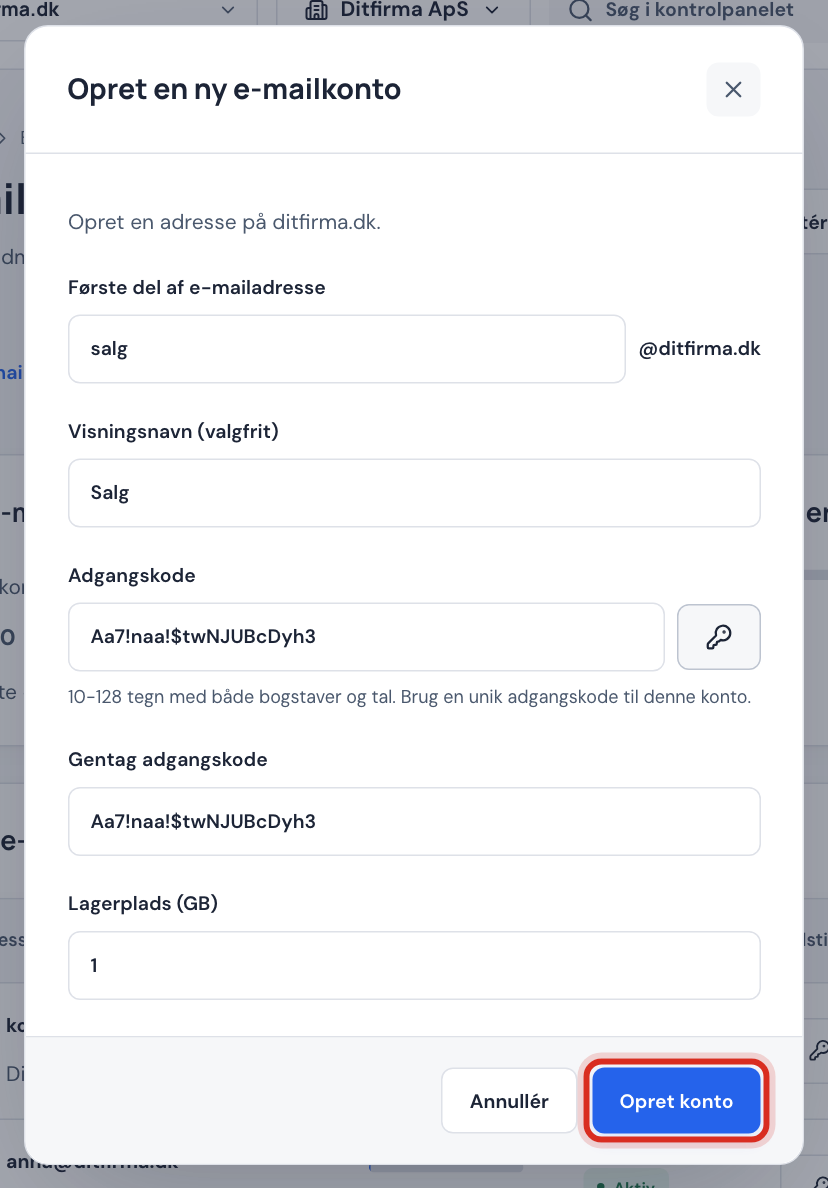
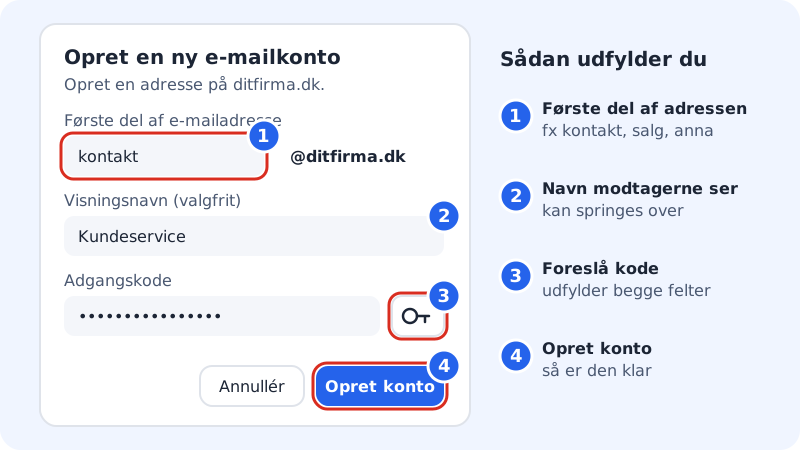
In First part of the address enter what should come before the @, e.g.
contact,salesoranna. The domain is already shown after it. In Display name (optional) you can enter the name recipients see, e.g. Yourcompany Customer Service.Step 5: Choose a password
Enter a password in Password and repeat it in Repeat password. Click the key button (Suggest password) if you want a strong password created for you – it fills in both fields.
Step 6: Choose storage
If the window shows the field Storage (GB), enter how many GB the mailbox may use. Below the field you see how much is available in your plan. You can always change it later – see Storage and quota.
Step 7: Click Create account
When the account has been created, you see the message Your email account is ready to use., and the address appears in the list with the status Active.
Next steps
- Read your email in the browser: Sign in to Webmail.
- Set up the address on your phone or computer: Set up email on iPhone, Android, Outlook and Apple Mail.
- Does the whole team need an address? Create many accounts at once.
Email is not enabled for this domain
If you see this message instead of the list, the domain's email is currently delivered somewhere other than Sitewig. Here is how to fix it:
- Click Go to My domains in the message.
- Open the domain and click Change target.
- Choose Sitewig Mail under Where should email be delivered? and save.
- Go back to Email → Mailboxes and create the account.
Frequently asked questions
Why is the New account button greyed out?
Either no domain is selected, the domain does not deliver email to Sitewig Mail, or you have used all the accounts included in your plan. In the last case, a message above the list shows a link to upgrade.
Can I create an address with æ, ø or å?
No. Mailboxes can only use a–z, numbers and the characters . - _ +. For example, write soeren or soren instead of søren.
Where do I find the password again?
The control panel does not show a saved password again. If you have forgotten it, create a new one – see Change or reset the password.
Can two addresses arrive in the same inbox?
Yes. Instead of an extra mailbox you can create an alias, e.g. info@yourcompany.com, that delivers to an existing mailbox.