When you move a domain to Sitewig, we take over the registration from your current provider. From then on, Sitewig renews and invoices the domain, and DNS, email, website and SSL are set up automatically with us. You order the move itself in the control panel in a few minutes – the registry and the old provider take care of the rest.
This guide applies to all extensions except .dk. If you have a .dk domain, read Move a .dk domain to Sitewig – the process is slightly different.
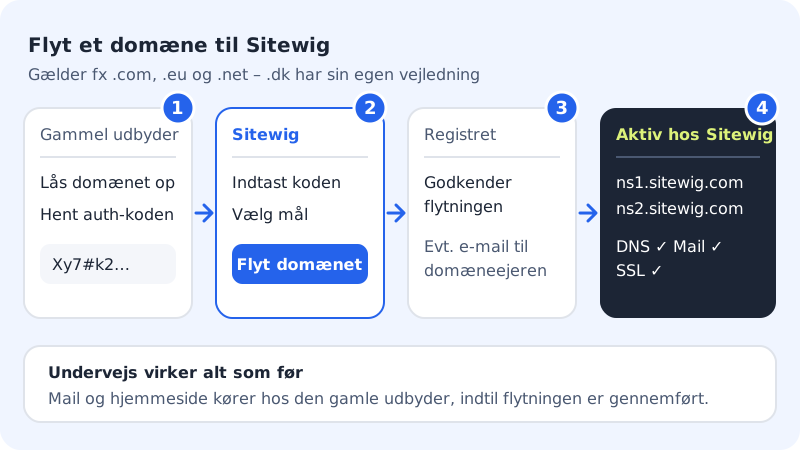
Before you start
Check these things so the move is not rejected:
- The domain is unlocked at the current provider (the transfer lock is turned off).
- You have the auth code – also called the EPP code or transfer code. Read What is an auth code? if you are unsure.
- The domain is at least 60 days old and has not been moved within the last 60 days. See Can my domain be moved?.
- You have a Sitewig company in the control panel, and your role is owner or administrator (or guest with access to domains). Domains are always registered under the company's CVR number.
Move the domain in the control panel
Step 1: Open Add domain
Sign in to the control panel and go to Domains → My domains. Tap Add domain. You land on the Add domain page with three tabs at the top.
Step 2: Choose the Transfer a domain to Sitewig tab
Tap the Transfer a domain to Sitewig tab.
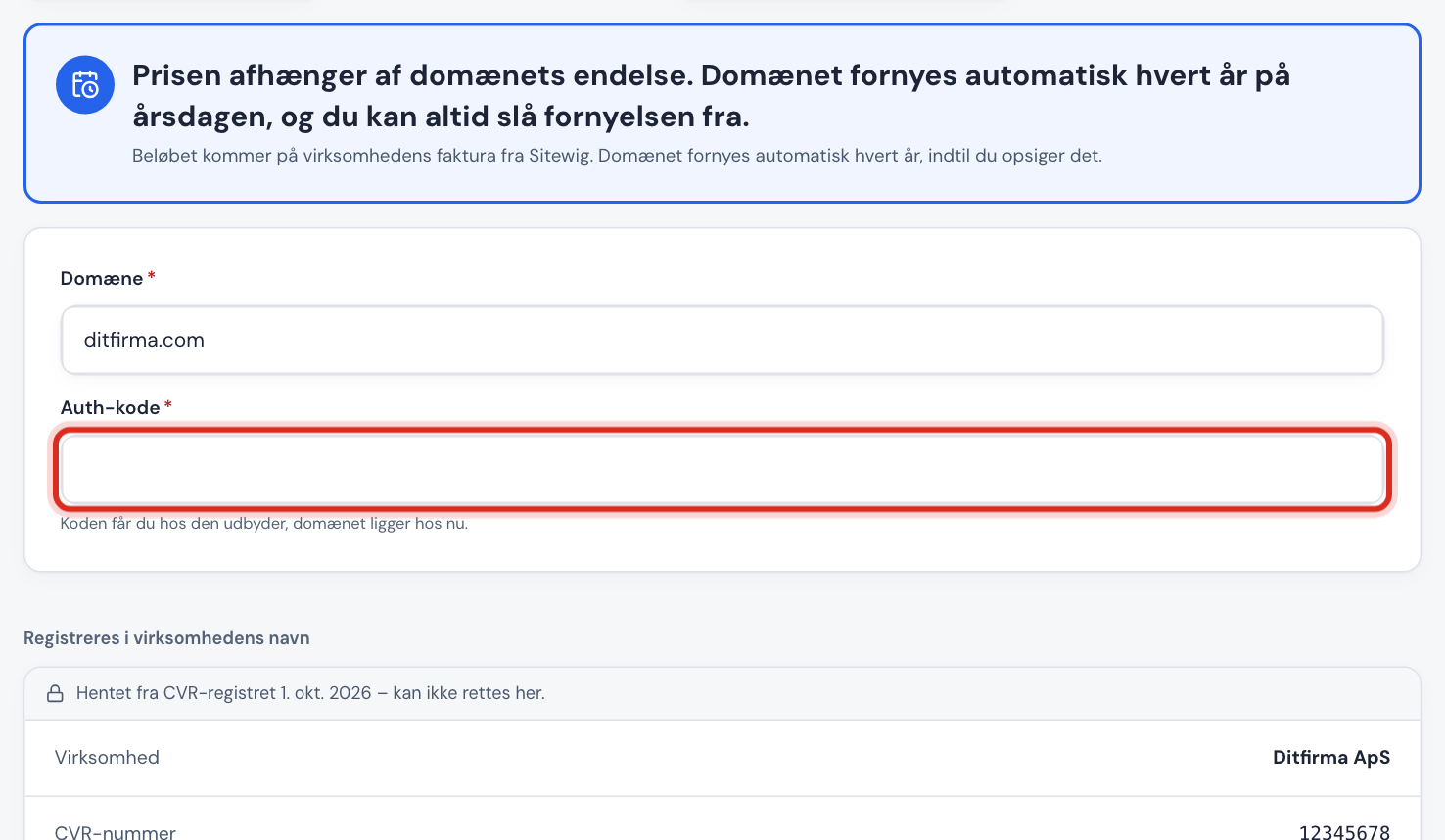
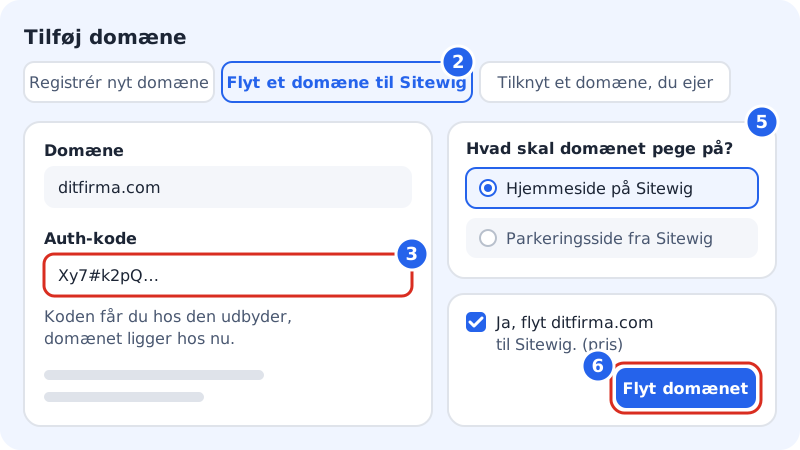
The fields you fill in when you move a domain to Sitewig Step 3: Enter the domain and the auth code
Enter the domain name in the Domain field, e.g.
yourcompany.com. Paste the auth code into the Auth code field exactly as you received it – upper and lower case matter, and there must be no spaces before or after. The field must be filled in for all extensions except .dk.Step 4: Check the domain owner
Under Registered in the company's name you see the company's name, CVR number and address. They come from the CVR register and cannot be changed here. You can change the contact email and phone number – make sure they are correct, as the registry and the old provider may write to them.
Step 5: Choose what the domain should point to
Under What should the domain point to? you choose what the domain should show (e.g. Website on Sitewig or Parking page from Sitewig) and where email should be delivered (e.g. Sitewig Mail). You can always change this later with Change target on the domain's page.
Step 6: Confirm the price and pay
Tick Yes, move yourcompany.com to Sitewig – the text shows the price of the move. Accept the terms and conditions and tap Transfer domain. You are taken on to payment. The move is only sent to the registry once payment is complete.
Step 7: Approve and follow along
Some providers send an email to the domain owner asking them to approve the move. Approve it to speed things up. Afterwards you can follow the move under Domains → My domains – see Follow the status of your domain transfer.
What happens afterwards?
Once the registry has approved the move, the domain gets Sitewig's name servers:
Sitewig's name servers
- Name server 1
ns1.sitewig.com- Name server 2
ns2.sitewig.com
Sitewig creates the DNS zone, sets up email and website according to your choice and issues a free SSL certificate. The domain is registered in the domain owner's name and renews automatically until you cancel it.
If your old provider has special DNS records, e.g. for an external service, write them down before the move goes through. You can add them again under DNS on the domain's page at Sitewig.
Frequently asked questions
What happens to the auth code once I have entered it?
The code is only stored on Sitewig's server while the move is in progress and is deleted when it is complete. It is not shown again in the control panel.
Why can I not choose the tab or tap Transfer domain?
If you see the message Transfer is not possible, your account is missing something: a Sitewig company, the right role (owner or administrator) or a plan that gives access to domains. The message tells you what.
Can I move several domains at once?
The form moves one domain at a time. Repeat the steps for each domain.
Will I be charged if the move fails?
No. If the registry rejects the move, you are not invoiced. See The transfer was rejected – what now?