Many websites store content in a database – e.g. WordPress, an online shop or a PHP script you have written yourself. At Sitewig you create the database in the control panel, and it is ready within a few seconds. All databases run on MariaDB 11.4, which is compatible with MySQL.
How the name is formed
Each database gets a fixed prefix with your customer number, e.g. u12345_. You only choose the last part. The database and the user that has access to it always have the same name, and we create the password for you.
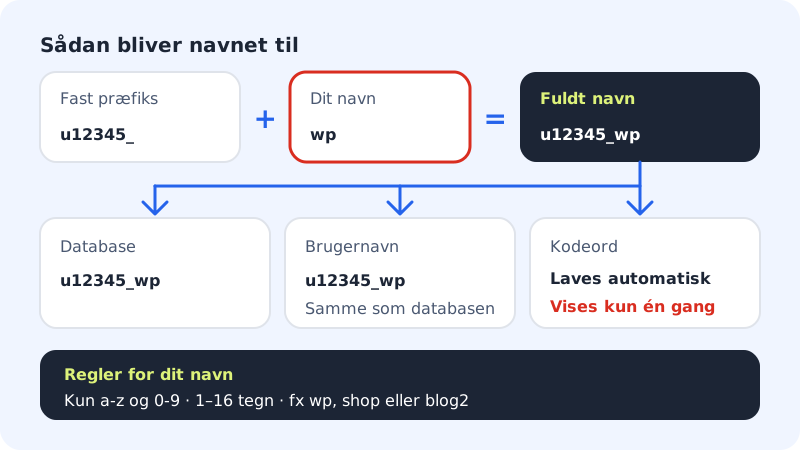
Rules for the name
- Characters
- Only lower-case letters a-z and numbers 0-9
- Length
- 1–16 characters (after the prefix)
- Example
u12345_wp- Character set
- utf8mb4 (supports emojis and all languages)
Create the database
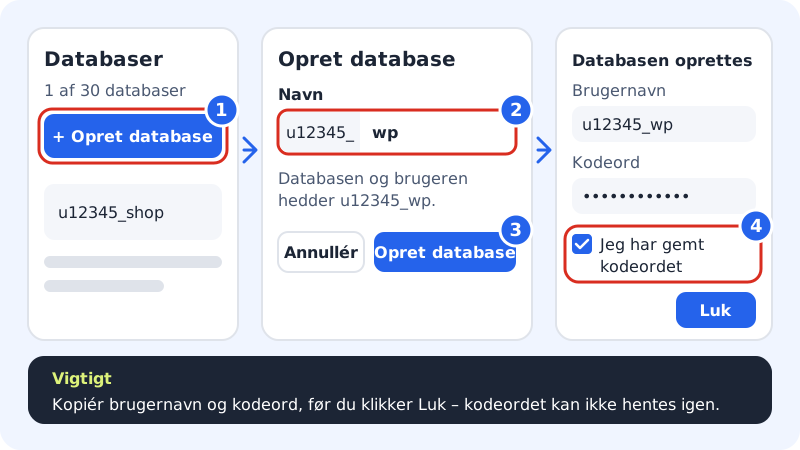
Step 1: Open Databases
Sign in to the control panel, choose your web hosting and go to Web hosting → Databases. At the top you see how many databases you have used, e.g. 1 of 30 databases in your plan. Click Create database.
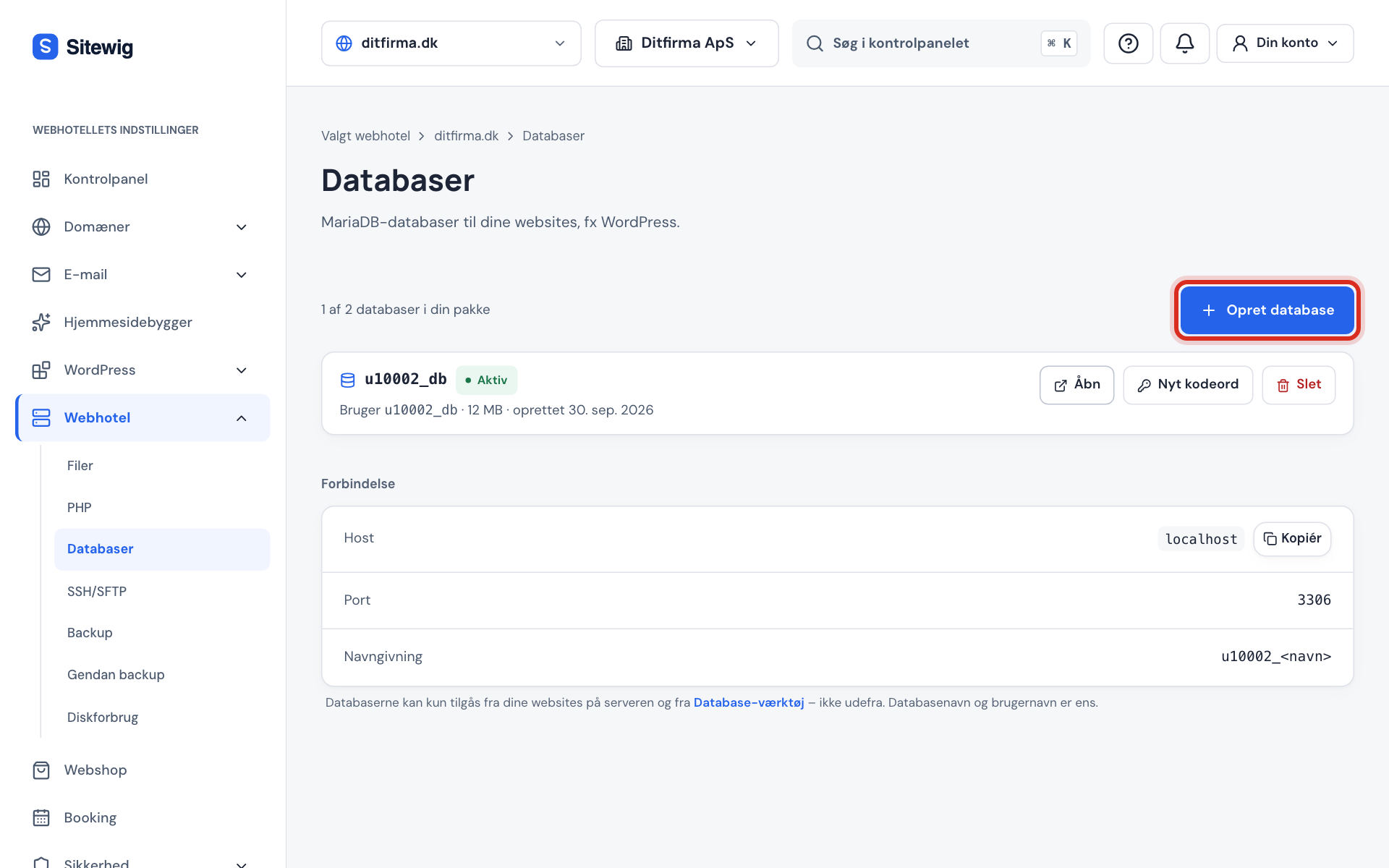
Web hosting → Databases Step 2: Enter a name
Enter a short name in the Name field, e.g.
wporshop. Below the field you can see the full name the database will get. Upper-case letters are automatically changed to lower case, and characters other than a-z and 0-9 are removed.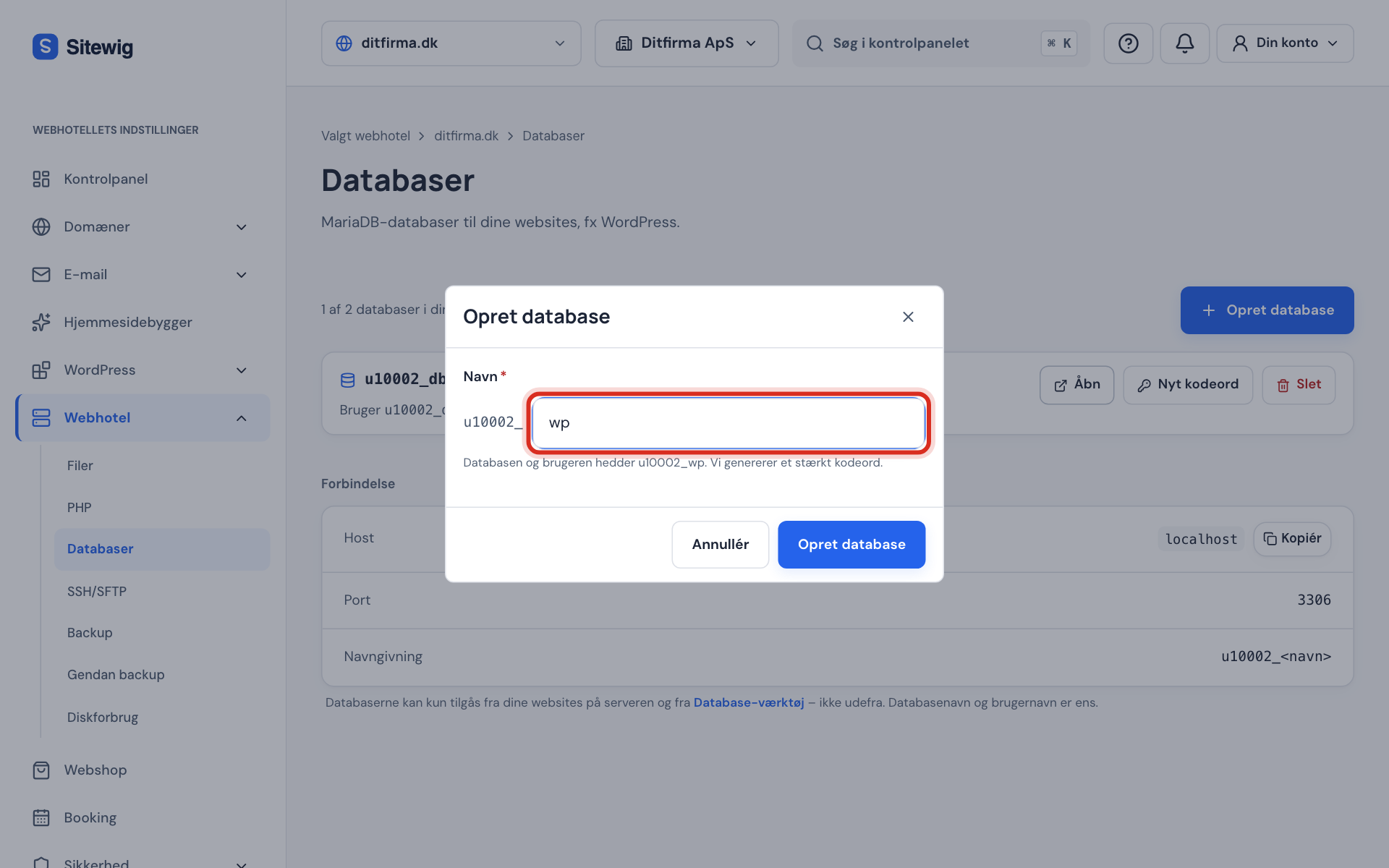
The fixed prefix comes before your name Step 3: Create the database
Click Create database at the bottom of the window. A strong password is created automatically – you cannot choose it yourself.
Step 4: Save the username and password
A new window shows Username, Password and the connection details (Host, Port, Database and User). Copy the password with the copy button and save it in your password manager or directly in your website's configuration. Tick I have saved the password and click Close.
Step 5: Wait for the status Active
The database briefly shows the status Creating. After a few seconds it changes to Active, and then your website can use it. If something goes wrong, the status shows Error, and the reason is shown in red below the database's name.
How many databases can I have?
The number depends on your plan. The limit applies to the whole web hosting, however many websites you have.
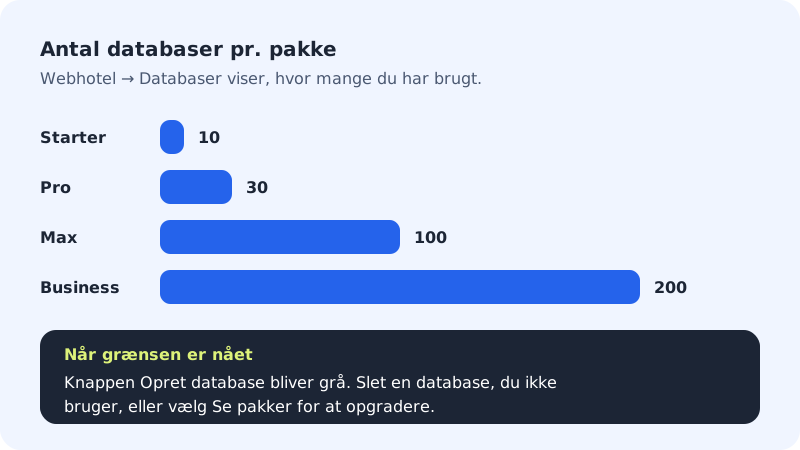
| Plan | Databases |
|---|---|
| Starter | 10 |
| Pro | 30 |
| Max | 100 |
| Business | 200 |
If you have used them all, the page shows You have used all databases in your plan, and the Create database button is greyed out. Delete a database you are not using, or click See plans to upgrade.
Frequently asked questions
Can I choose the username myself?
No. The username is always the same as the database's name, e.g. u12345_wp. This makes it easy to keep track of which user belongs to which database.
Can several databases share the same user?
No. Each database has its own user, which only has access to that particular database. If a script needs to use two databases, it needs two sets of sign-in details.
What should I enter in WordPress as the database host?
Enter localhost. See all the values in Find the host name, port and username for your database.
Why is the Create database button greyed out?
Either you have used all the databases in your plan, or your web hosting is not active, e.g. because it has been suspended. If there is a message at the top of the page, it explains the reason.