When someone searches on Google, they first see a blue heading and two lines of text about your page. You decide both yourself in Sitewig's website builder. Here is how to fill them in, and how to use the SEO score to find the things that are missing.
What Google shows
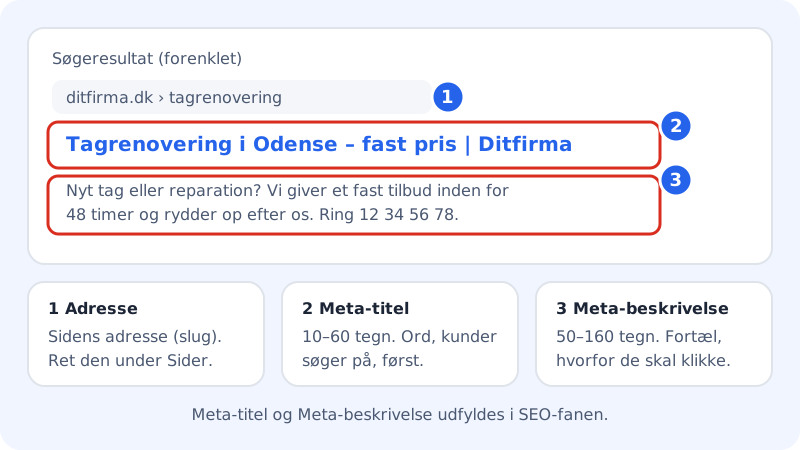
A search result consists of three parts: the page's address, a title and a short description. The title is what people click on. The description should convince them that your page answers what they searched for.
Good lengths
- Meta title
- 10–60 characters (Google shortens longer titles)
- Meta description
- 50–160 characters
- Main heading (H1)
- exactly one per page
Fill in title and description
Step 1: Open the website in the editor
Sign in to the control panel and choose Website builder in the menu. Find your website under Your websites and tap Open editor.
Step 2: Go to the SEO tab
In the panel on the left, tap the SEO tab. At the top you see the SEO score (0–100) and a Checklist with 10 items.
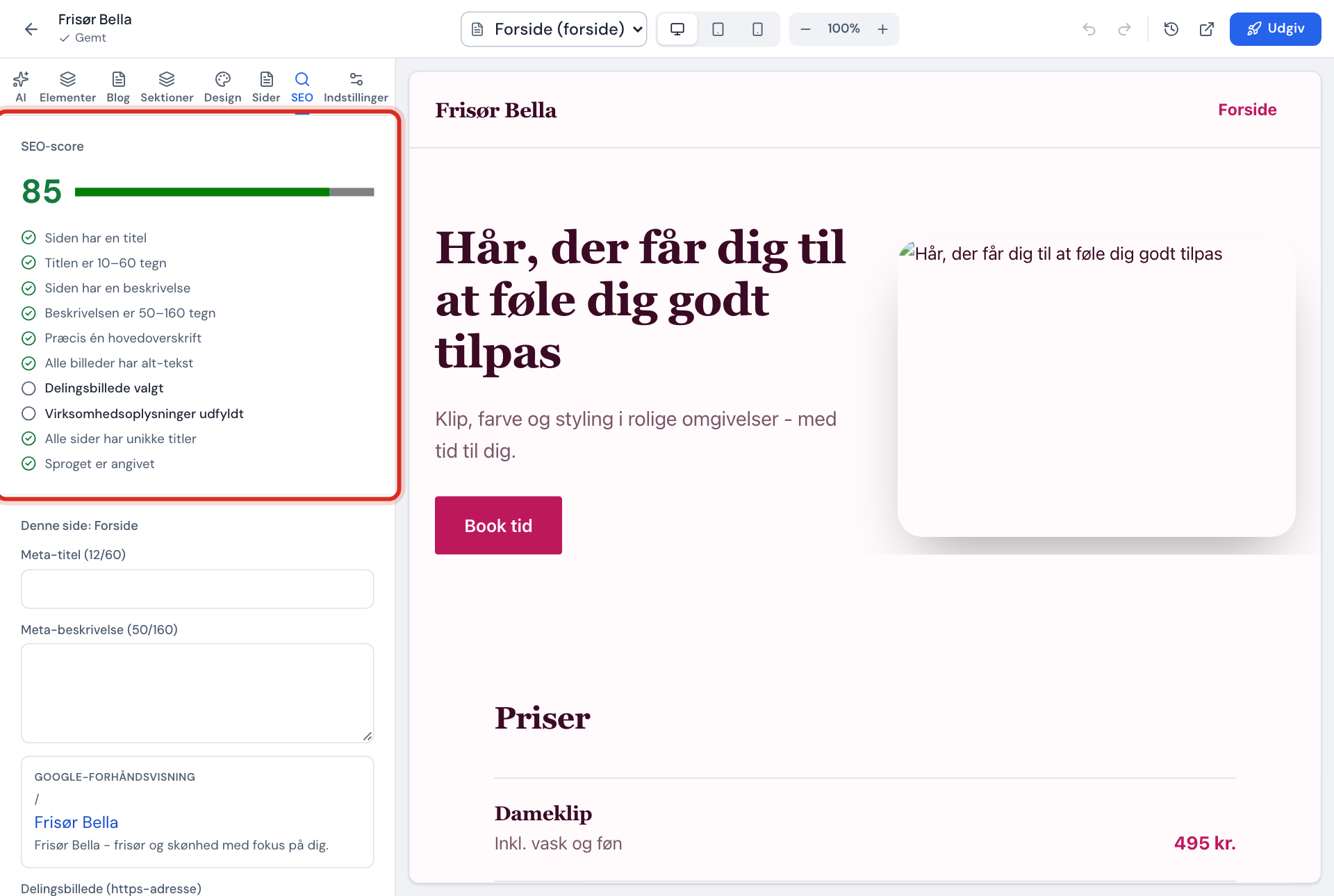
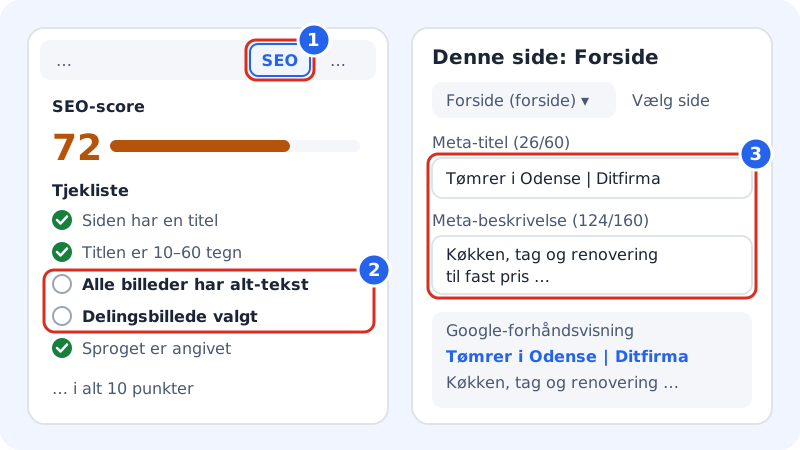
The SEO tab: score and checklist on the left, the page's own fields on the right Step 3: Read the checklist
Items with a green tick are fine. Items with an empty circle and bold text are missing. The score is green from 80, orange from 50 and red below 50.
Step 4: Choose the page you want to improve
Use the page picker at the top of the editor (Choose page) to switch page. The This page section changes name according to the page you have chosen – e.g. This page: Home.
Step 5: Enter the Meta title and Meta description
Fill in Meta title and Meta description. The counter next to the field shows how many characters you have used, e.g. Meta title (26/60).
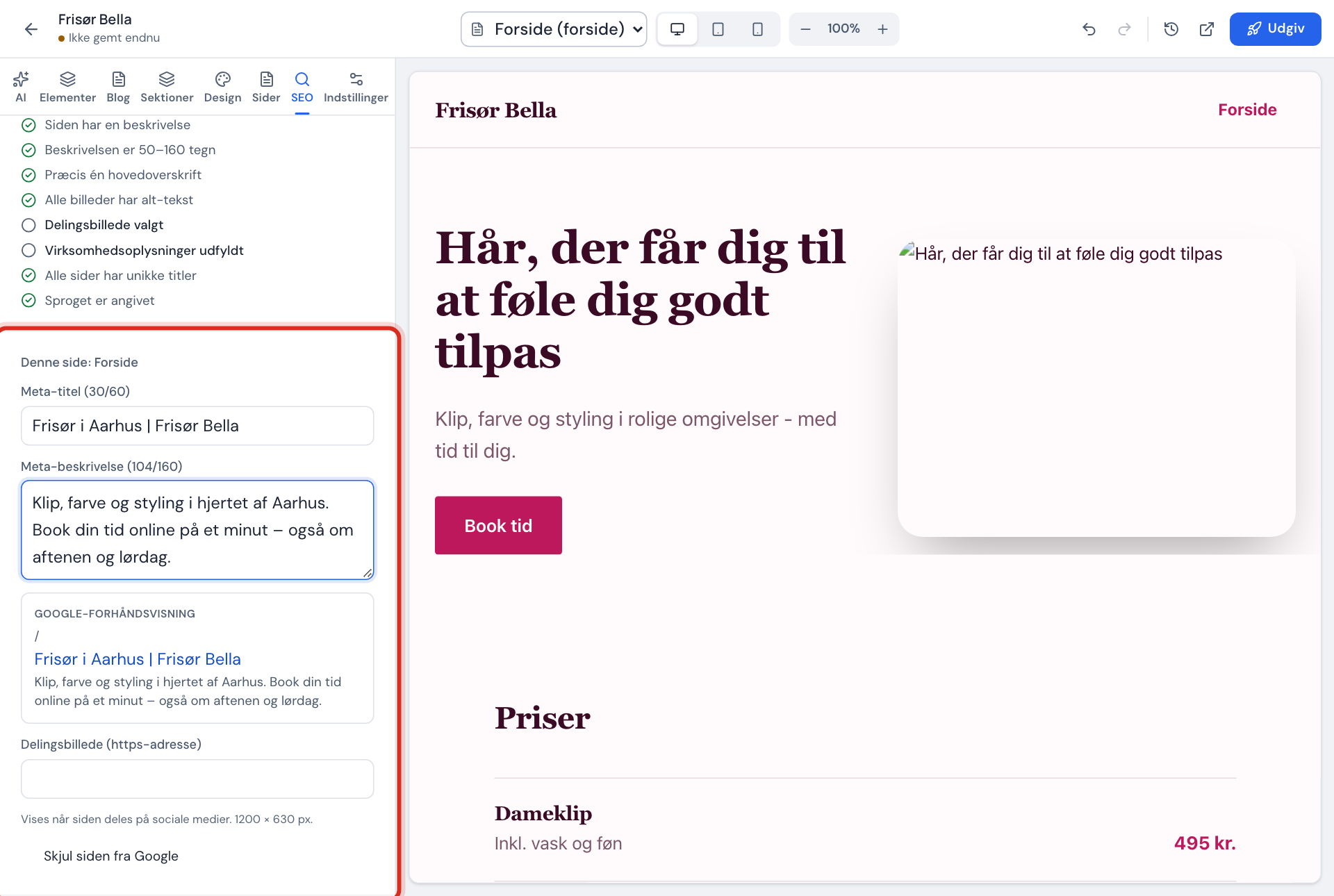
Step 6: Check the preview
The Google preview box shows roughly how the result will look. If the text is cut off with
…, it is too long.Step 7: Publish the website
Tap Publish at the top of the editor. Google discovers the change the next time it visits your website. This can take anything from a few days to a couple of weeks.
Default title for the whole website
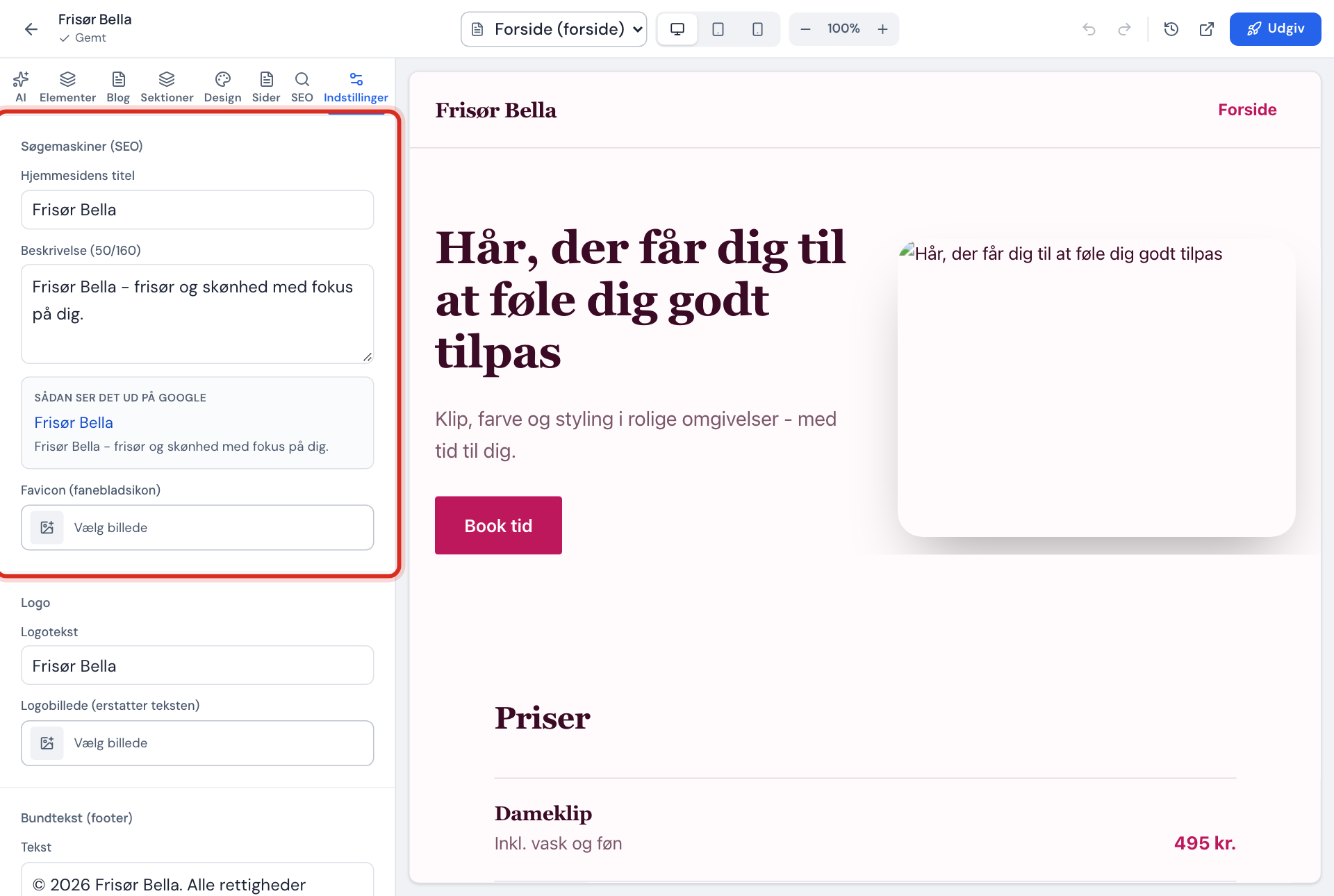
Under the Settings tab you will find the Search engines (SEO) section with the fields Website title, Description (at most 160 characters) and Favicon. They are used on the pages where you have not written a Meta title or Meta description yourself.
Frequently asked questions
Why does Google show a different text from the one I wrote?
Google sometimes chooses a text from the page itself if it fits better with what people searched for. A clear and precise Meta description makes it more likely that your own text is used.
How quickly will I see the change on Google?
Only once the website has been published and Google has visited the page again. You can speed it up by submitting your sitemap in Google Search Console – see Add your website to Google Search Console.
Does a high SEO score give a top ranking?
No. The score shows whether the technical foundation is in order. The ranking also depends on your content, how many people link to you and what your competitors are doing.