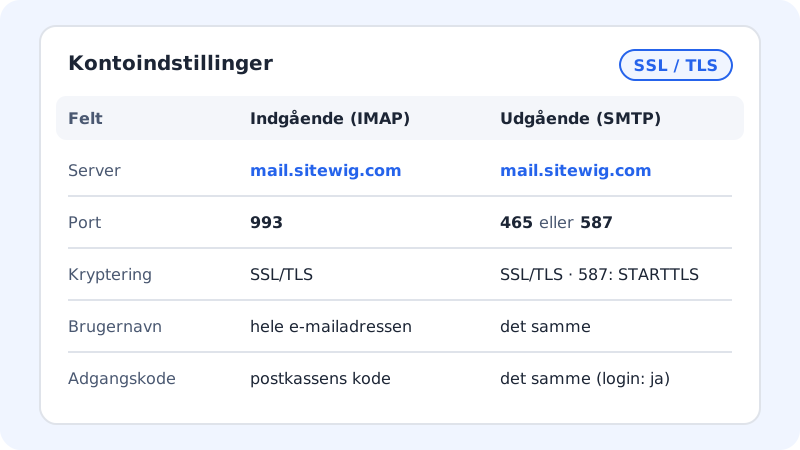
Whichever email program you use, it needs the same details: where email is fetched from (incoming server), where it is sent from (outgoing server), and who you are (username and password). Here are the values for Sitewig Mail.
The settings
Incoming server (IMAP)
- Host name
mail.sitewig.com- Port
993- Security
- SSL/TLS
- Username
- Your full email address, e.g.
contact@yourcompany.com - Password
- The mailbox password
Outgoing server (SMTP)
- Host name
mail.sitewig.com- Port
465(SSL/TLS) – or587(STARTTLS)- Authentication
- Yes – the same username and password as incoming
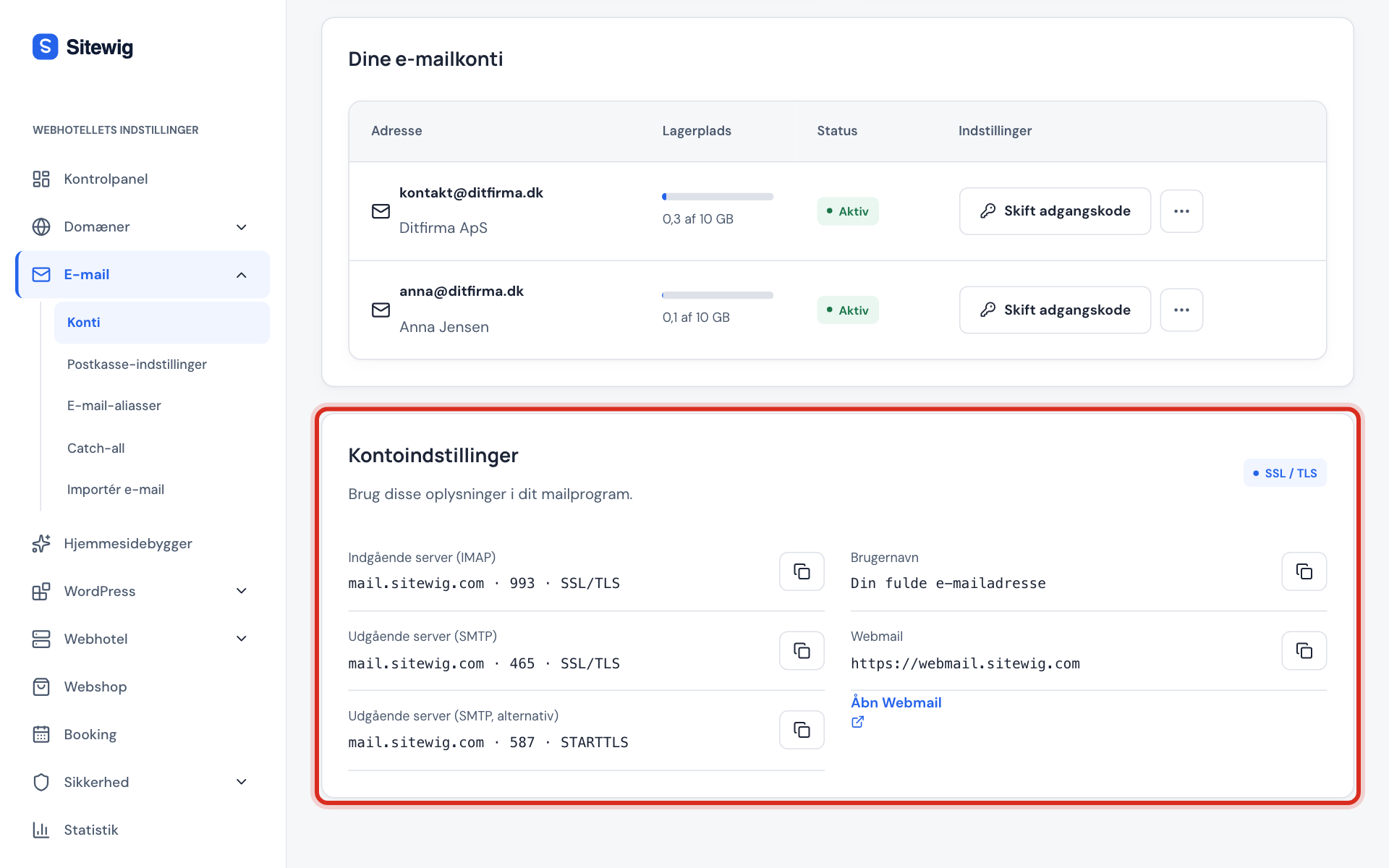
Find the values in the control panel
Step 1: Open Email → Mailboxes
Sign in to the control panel and click Email and then Mailboxes.
Step 2: Find the Account settings card
Scroll down to the Account settings card – Use these details in your mail app. It shows Incoming server (IMAP), Outgoing server (SMTP) and Username.
Step 3: Copy the values
Click the copy button next to a field to copy the value and paste it into your email program.
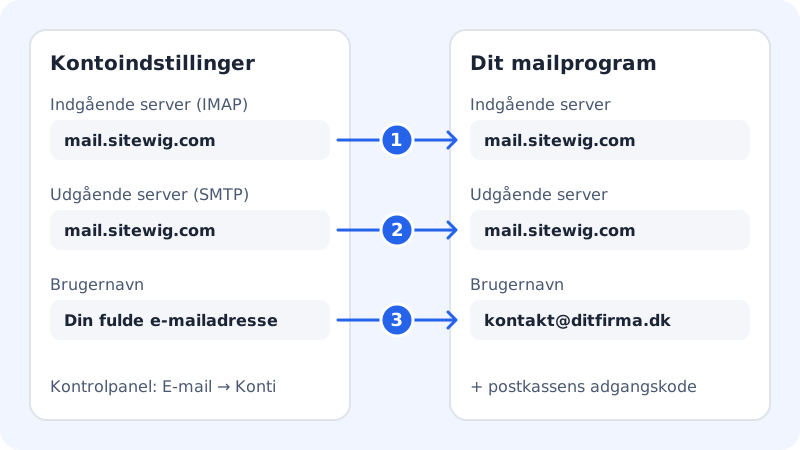
How the fields match up
Email programs call the fields slightly different things – e.g. Incoming mail server, Host name or IMAP server. It is the same field.
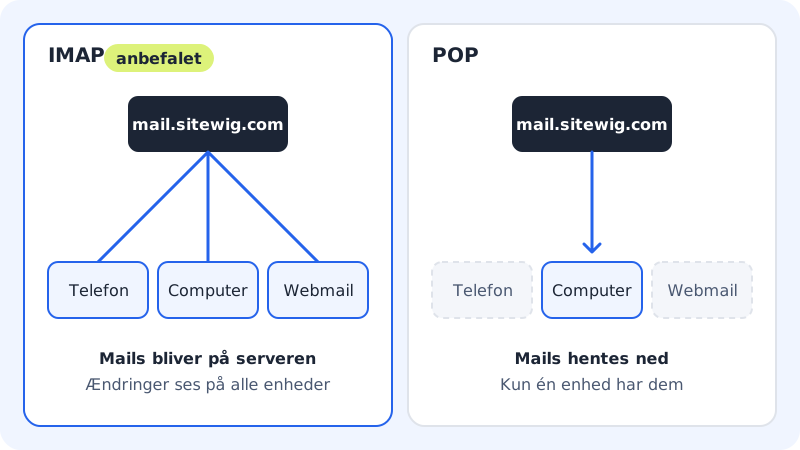
IMAP only – not POP
Sitewig Mail uses IMAP. With IMAP your email stays on the server, and your phone, computer and Webmail show the same inbox, the same folders and the same sent mail. POP (POP3) is not supported, so always choose IMAP when your email program asks for the account type.
Checklist if it does not work
- The username is the whole address. If you only enter
contact, the sign-in is rejected. - The password is the mailbox's – not the one you use to sign in to the control panel.
- Port and encryption belong together: 993 with SSL/TLS, 465 with SSL/TLS, 587 with STARTTLS. Wrong pairs cause errors such as the connection timed out.
- The outgoing server requires authentication. Turn on My outgoing server requires authentication (or similar).
- Have you just changed your password? Then the new password must also be entered in the program.
If it still does not work, follow the troubleshooting guide.
Frequently asked questions
Should I use my own domain as the server, e.g. mail.yourcompany.com?
No. Always use mail.sitewig.com. That name has a valid SSL certificate, so your program does not warn you about the server's identity.
My program uses mail.ayamail.net or mail.fiktomail.dk. Does it still work?
Yes, the old server names point to the same mail server. If you set up the account again, use mail.sitewig.com.
Can I get calendar and contacts too?
Yes, with the Essential and Unlimited email plans. See the section on calendar and contacts in Set up email on iPhone, Android, Outlook and Apple Mail.
Is port 25 open for sending?
Use port 465 or 587 in your email program. Port 25 is intended for traffic between mail servers and is not used for sending from an email program.