With forwarding, every email that arrives in a mailbox at Sitewig is automatically sent on to another address. This is useful if you want to read your email somewhere else, or if a colleague needs to take over an address for a while. You choose whether a copy should also stay in the Sitewig mailbox.
Before you start
- The mailbox must be created under Email → Mailboxes.
- You can forward to at most 20 addresses from the same mailbox.
- A mailbox cannot forward to itself.
Turn on forwarding
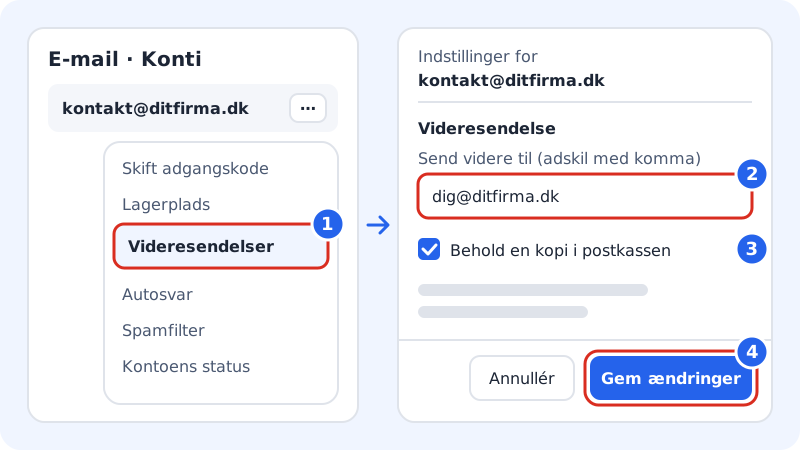
Step 1: Open Email → Mailboxes
Sign in to the control panel, choose the domain and go to Email. The Accounts tab shows your mailboxes.
Step 2: Choose Forwarding next to the mailbox
Click the menu button (the three dots) next to the address that should forward, and choose Forwarding. The Settings for the address drawer opens on the right.
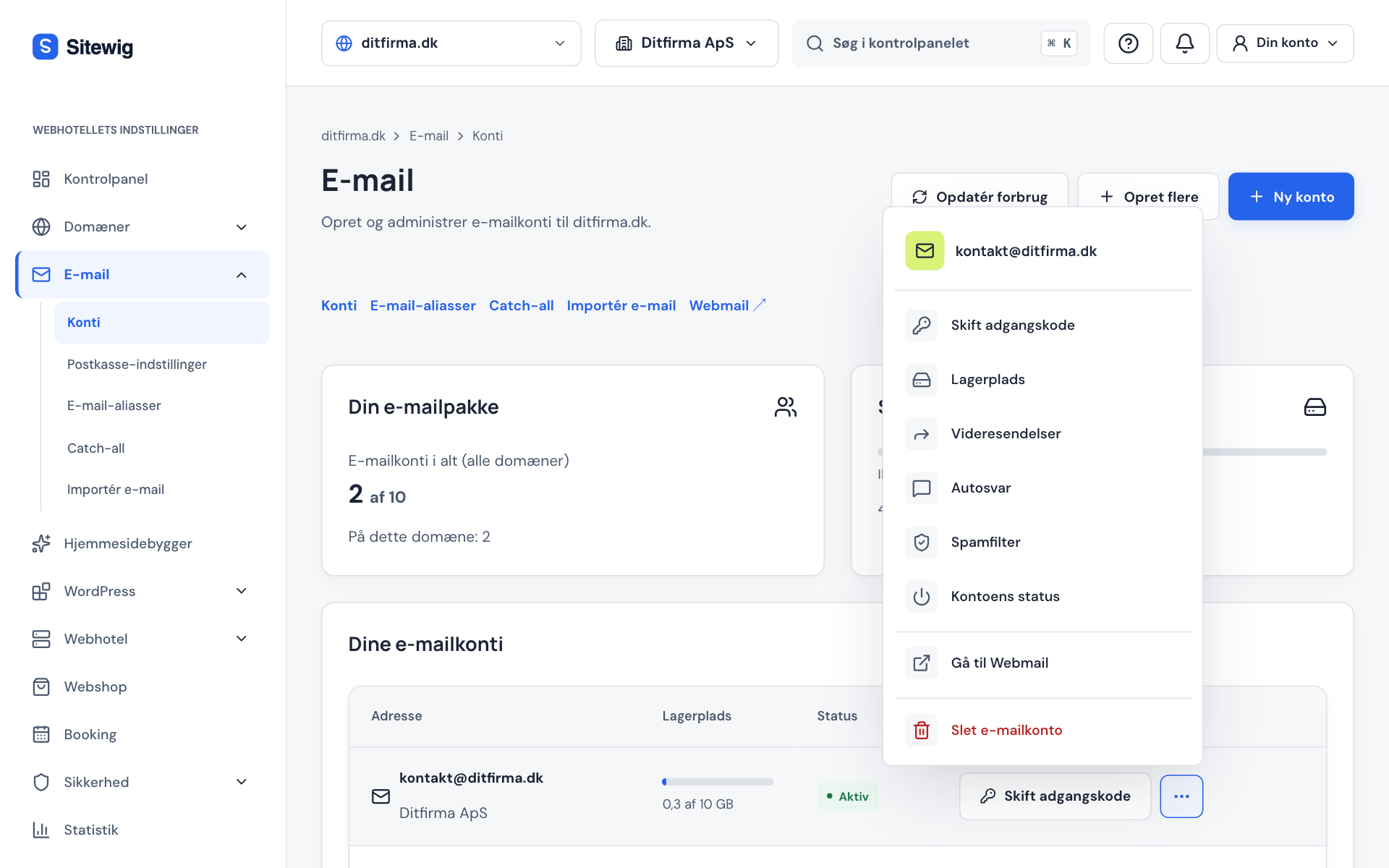
The menu next to the mailbox in the control panel Step 3: Enter the recipient address
Under Forwarding, enter the address in the field Forward to (comma separated). Separate several recipients with commas, e.g.
anna@yourcompany.com, accounts@yourcompany.com.Step 4: Choose whether to keep a copy
Leave Keep a copy in the mailbox turned on if the email should also stay in the Sitewig mailbox. If you untick it, the email is only forwarded.
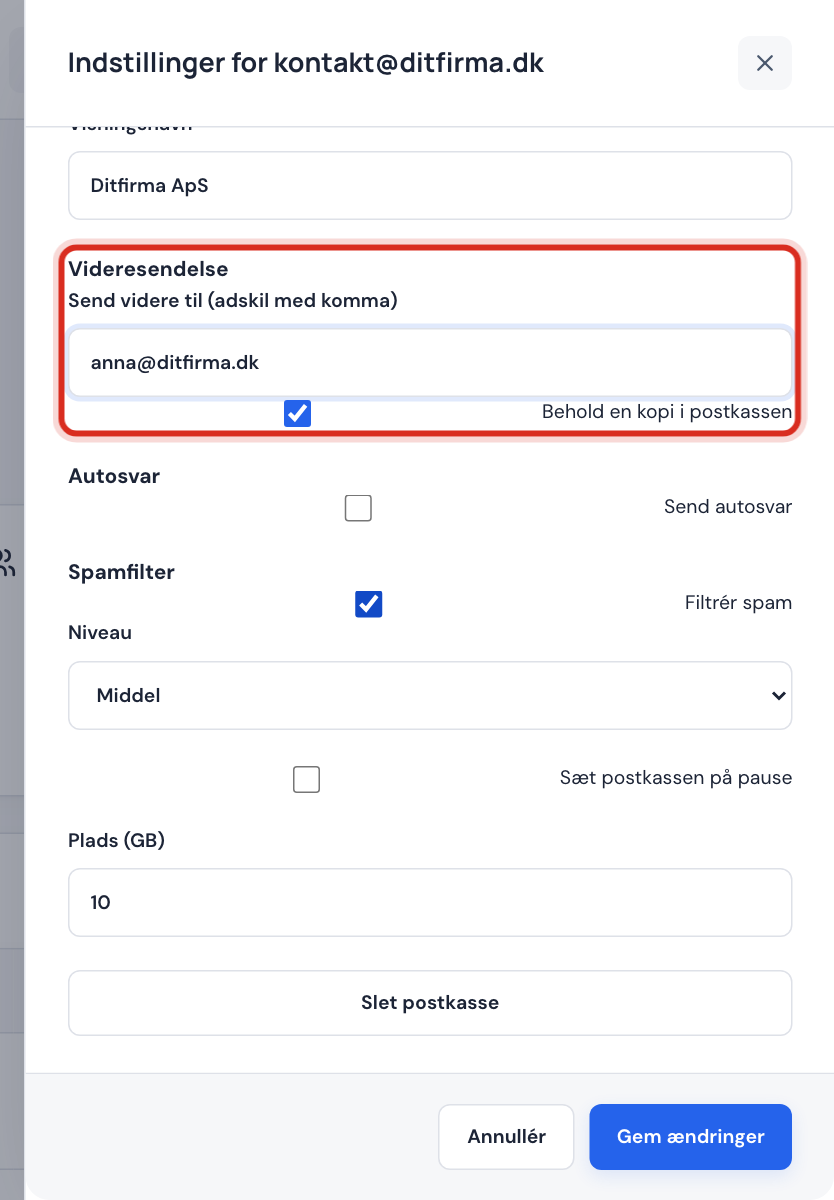
Forwarding in the mailbox settings Step 5: Save
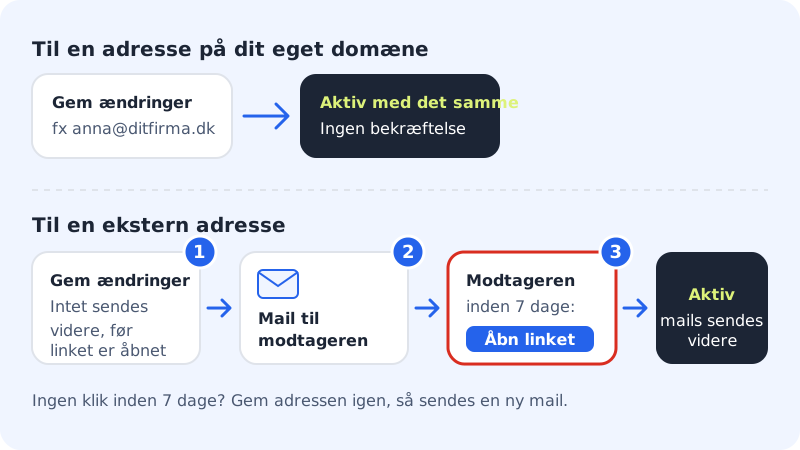
Click Save changes. Forwarding to your own domains is now active.
Step 6: Confirm an external address
If the recipient is an address outside your own domains, it receives an email with the subject Confirm forwarding from your address. The recipient must open the link in the email within 7 days. When the link is opened, it says Forwarding to the address has been confirmed, and from then on emails are forwarded.
Test that it works
Send an email from another address (e.g. your private one) to the mailbox. It should appear at the recipient after a moment – and in the Sitewig mailbox if you keep a copy.
Stop forwarding
Open Forwarding next to the mailbox again, clear the Forward to field and click Save changes. From then on, emails stay in the mailbox only.
Frequently asked questions
The recipient has not received the confirmation email. What do I do?
Ask the recipient to look in their spam or junk folder. If the link has expired (after 7 days), open Forwarding again, enter the address in the field and save – a new confirmation email is then sent.
Are emails forwarded while the mailbox is paused?
No. A paused mailbox receives no new email, so there is nothing to forward either. Read more in Pause a mailbox or give it more space.
What is the difference between forwarding and an alias?
Forwarding sends email from an existing mailbox on to another address. An alias is an extra address without its own mailbox, which delivers directly to one of your mailboxes. If you just need more addresses, an alias is often the simplest.
Can I reply from the Sitewig address when I read the email somewhere else?
It depends on the email program at the receiving end. The safest solution is to set up the Sitewig mailbox directly in your email program – see the server settings.