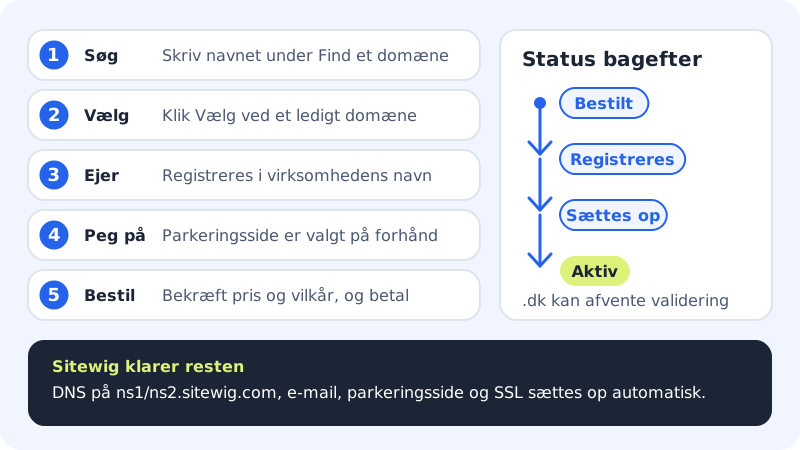
A domain is your address on the internet, e.g. yourcompany.com. At Sitewig you order it directly in the control panel. Once it is paid for, we register it in the domain owner's name and set up DNS, email, a parking page and a free SSL certificate ourselves. You do not have to touch a single DNS record.
Before you start
- You must be an owner or administrator on the customer account. Other users can see the domains but cannot order.
- The account must be linked to a Sitewig customer with a name and address. If anything is missing, the order page asks you to fill it in before you can order.
- You pay for the domain in advance when you order. See the prices in What does a domain cost?
You can also search on the public page sitewig.com/eget-domaene without being signed in and add an available domain to the basket from there.
Order a domain in the control panel
Step 1: Open Add domain
Sign in and choose Domains → My domains in the menu. Click the Add domain button at the top right.
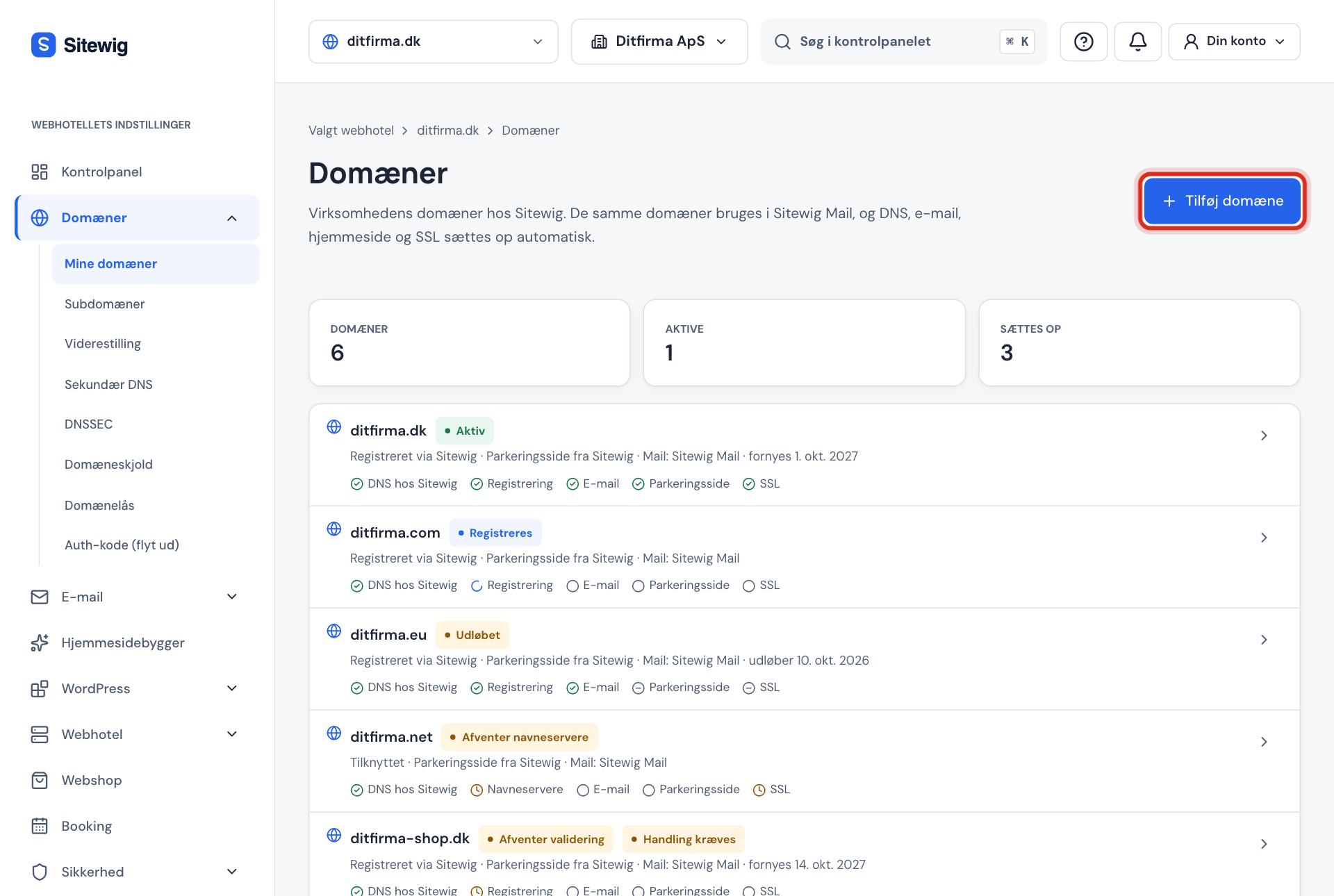
My domains: start with Add domain Step 2: Search for the name
The Register a new domain tab is selected beforehand. Enter the name you want in the Find a domain field and click Search. Below the field you see the extensions you can order, e.g. .dk, .com, .eu, .net, .se and .de.
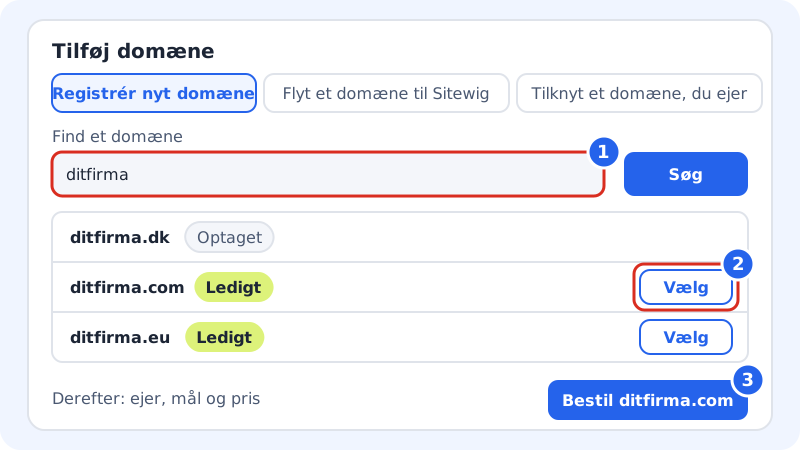
1: search, 2: choose an available domain, 3: order Step 3: Choose an available domain
Each result has a label: Available, Taken, Reserved or Cannot be ordered. Click Choose next to the available domain you want. It shows Selected once it is selected.
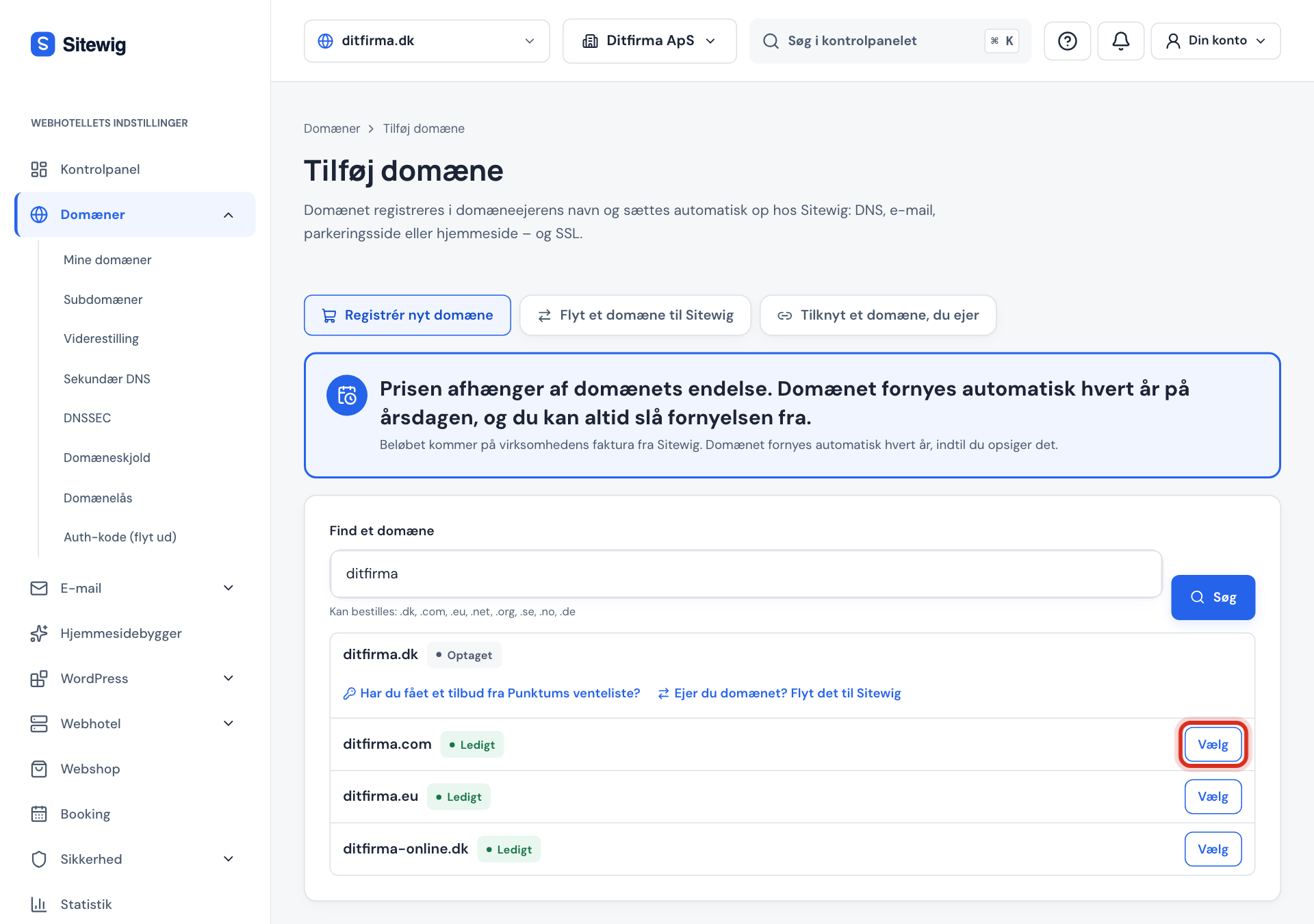
Click Choose next to an available domain Step 4: Check the domain owner
Under Registered in the company's name you see who the domain will be registered to. Name and address are locked because they come from the CVR register or your customer details. You can change the contact's phone number and email with Edit phone and email. Read more in Who is listed as the owner of the domain?
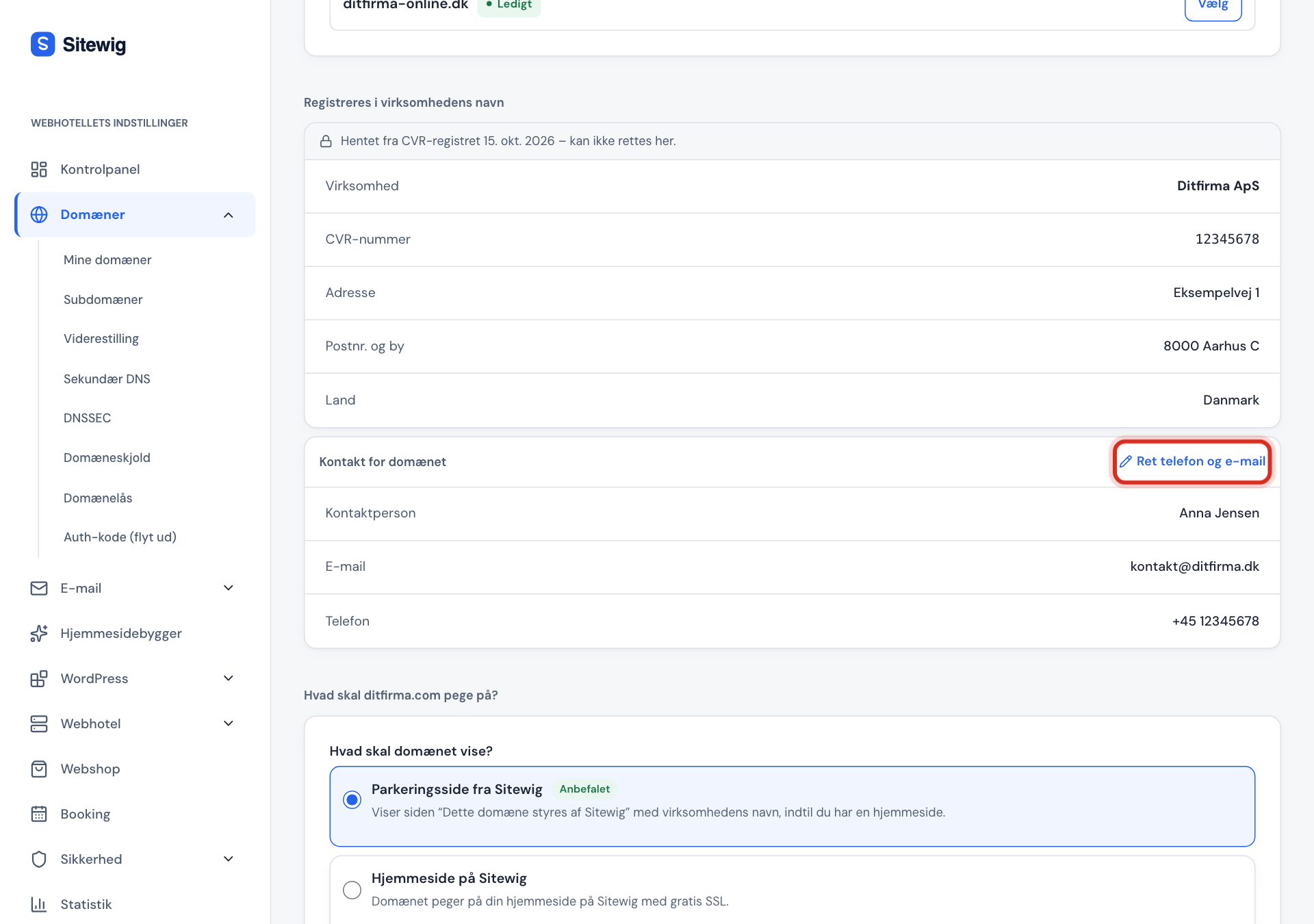
The owner details are fetched automatically Step 5: Choose what the domain should point to
Under What should yourcompany.com point to? Parking page from Sitewig is selected beforehand, and Sitewig Mail is selected for email. If you already have a website at Sitewig, you can choose Website on Sitewig straight away. You can always change it later.
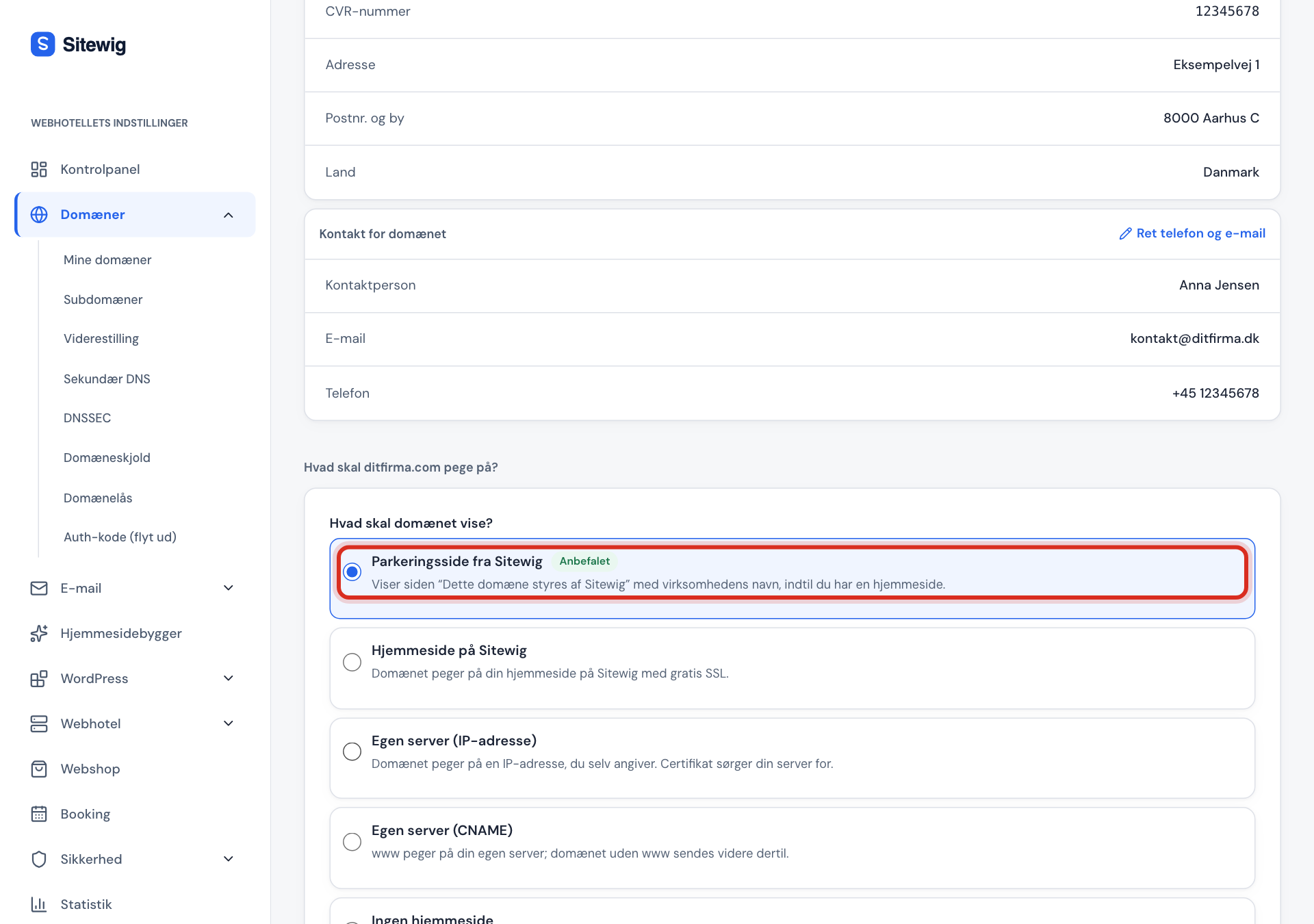
The parking page is a safe choice until the website is ready Step 6: Confirm price and terms, and order
Tick Yes, order … to confirm the price, and accept the terms and conditions. Then click Order yourcompany.com (with your own domain name). You are taken on to payment, and once it is complete, you return to the control panel.
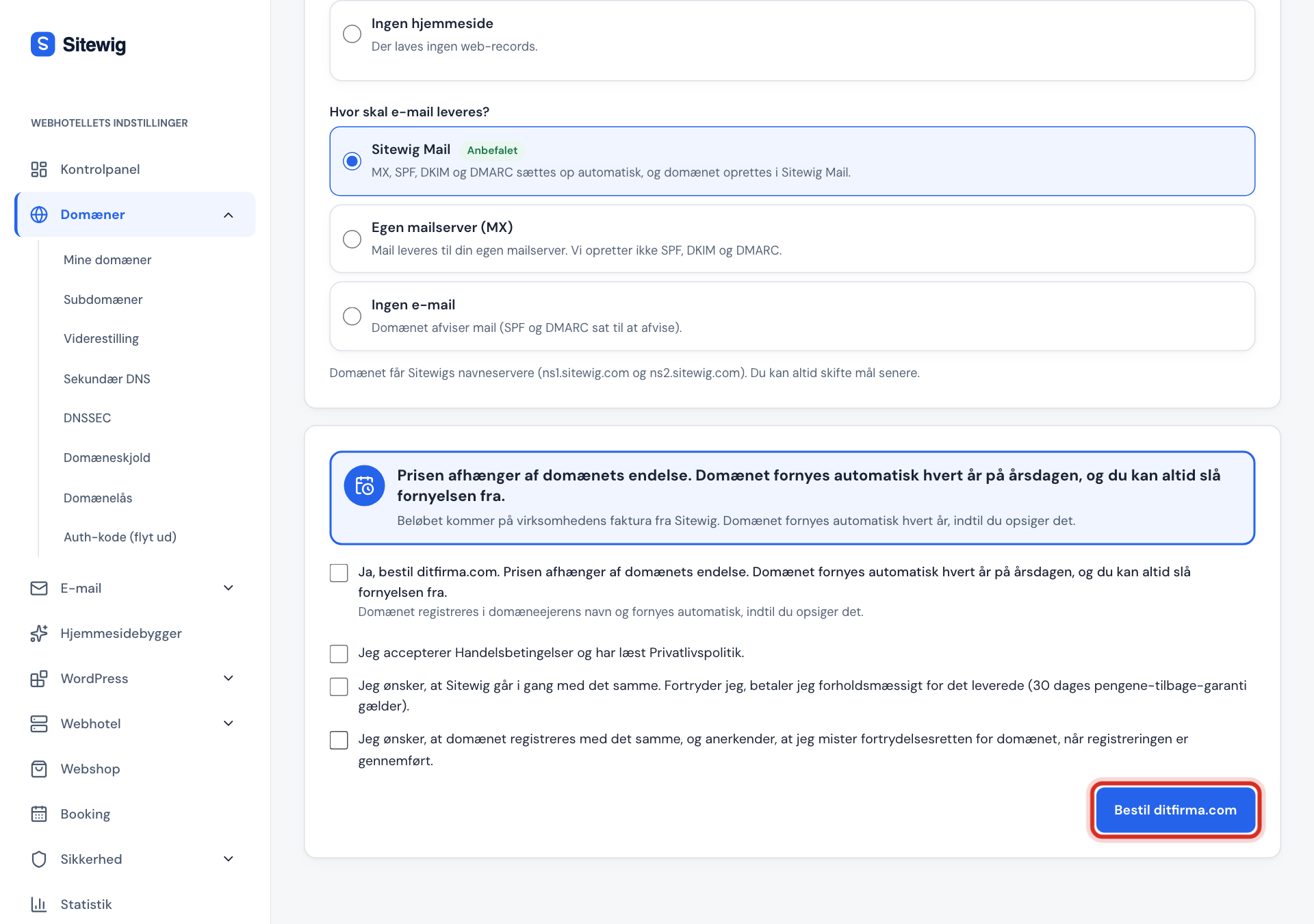
Confirm and order – payment opens afterwards Step 7: Follow the setup
The domain appears under My domains with the status Ordered, then Registering and Setting up, and finally Active. Click the domain to see each step. For .dk domains, Punktum dk may ask for an extra approval – see .dk domains: Punktum dk, MitID and approval.
If you cannot order
| Message on the page | What you do |
|---|---|
| Domains belong to a Sitewig company | The account is not linked to a Sitewig customer yet. Click Link to Sitewig. |
| Only owners and administrators can add domains | Ask an owner of the customer account to order, or to give you administrator access. |
| The domain owner's details could not be verified | The CVR number was not found as active. Check your customer details under Settings. |
| Fill in the domain owner's details | Name, address or phone number is missing. Fill in the form directly on the page and save. |
Frequently asked questions
How long does it take before the domain works?
Most domains are registered and set up shortly after payment. DNS changes can then take up to 24 hours to reach all networks. .dk domains may wait for Punktum dk's approval until you have confirmed your details.
Can I order several domains at once?
In the control panel you order one domain at a time. On the public page sitewig.com/eget-domaene you can add several domains to the basket and pay for them together.
Do I get email on the domain straight away?
The domain is set up automatically for Sitewig Mail (MX, SPF, DKIM and DMARC). You create the mailboxes themselves under Email → Mailboxes, and how many you can create depends on your plan.