If your domain is with another provider, you can still use it for website and email at Sitewig. You keep the domain where it is and only change its name servers. Once the domain points to Sitewig's name servers, we set up the rest by ourselves.
Sitewig's name servers
- Name server 1
ns1.sitewig.com- Name server 2
ns2.sitewig.com- Applies to
- All extensions – including .dk
Before you begin
- You must be an owner or administrator of the company in the control panel.
- Your own domain must be included in your plan. If the Add domain page says domains require a different plan, upgrade first.
- You must be able to sign in at the provider where the domain is registered today. For self-managed .dk domains, this is Punktum dk's self-service with MitID.
- If you use email on the domain with the old provider, create the mailboxes at Sitewig first, so no email is lost.
Change name servers
Step 1: Connect the domain at Sitewig
Choose Domains → My domains and tap Add domain. Choose the Attach a domain you own tab, enter the domain and, under What should the domain point to?, choose whether it should show a website at Sitewig or a parking page, and whether email should go to Sitewig Mail. Tap Attach domain. Connecting a domain costs nothing.
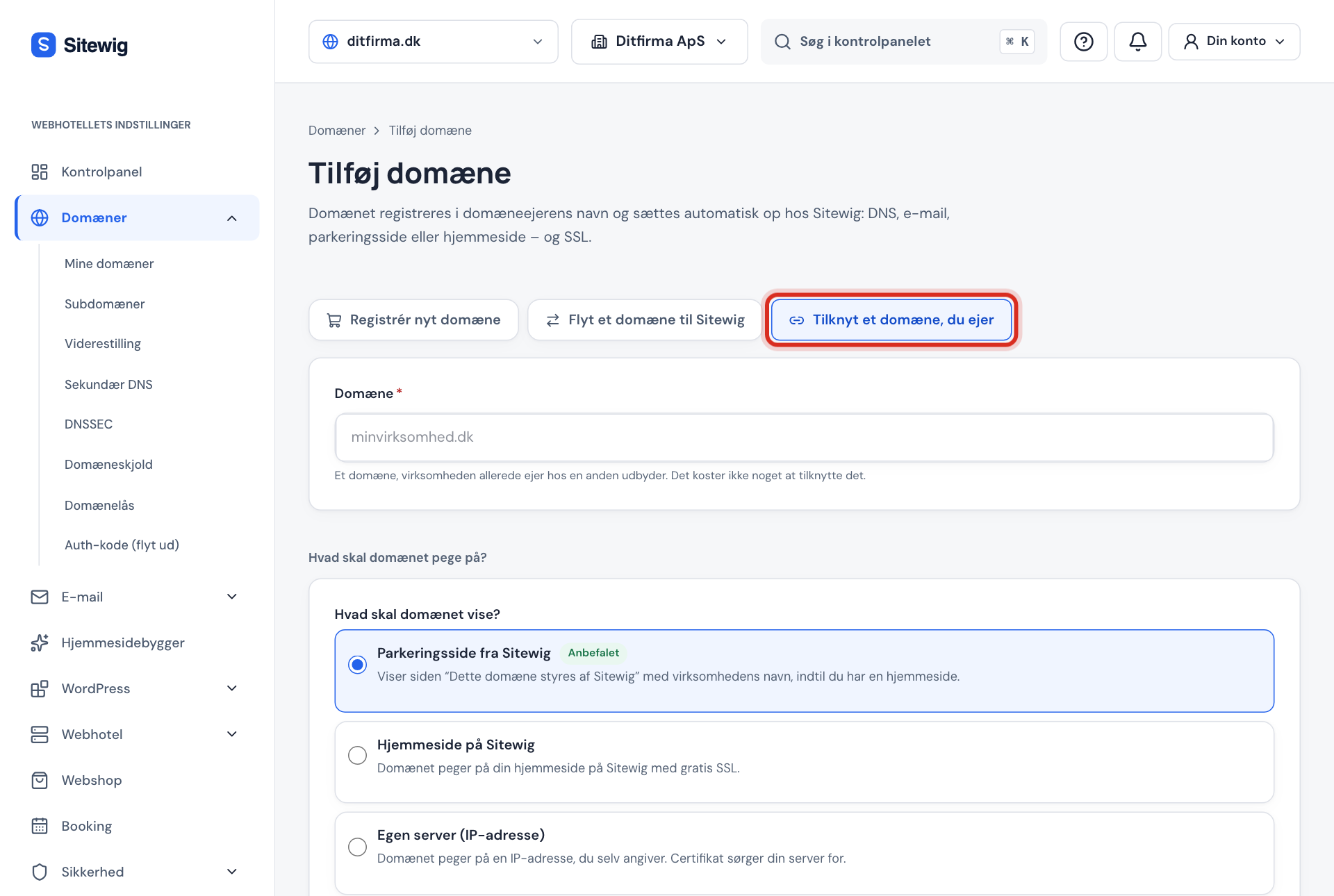
Add domain → Attach a domain you own Step 2: Copy the name servers
Open the domain. At the top it says Point the domain to Sitewig with the two name servers you need to use. Copy them.
Step 3: Change the name servers at your current provider
Sign in at the provider, find the domain's name server settings (also called nameservers or DNS servers), and replace the current ones with
ns1.sitewig.comandns2.sitewig.com. Delete all other name servers on the list, and save.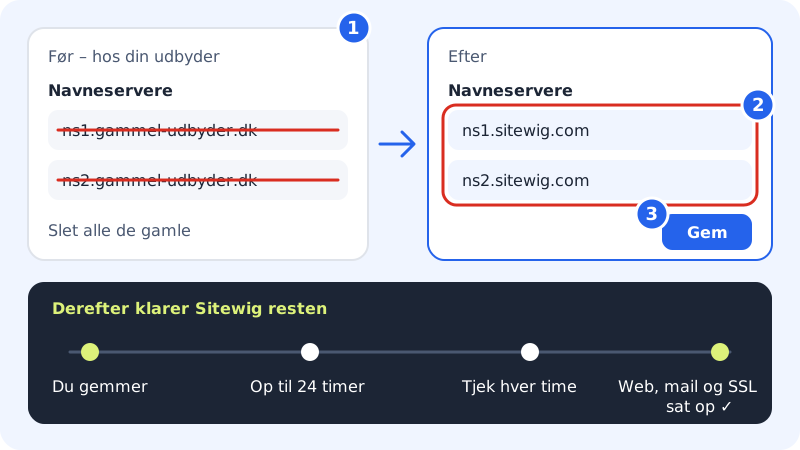
Replace all old name servers – do not mix them with Sitewig's Step 4: Wait for Sitewig to detect the change
It can take up to 24 hours for the change to take effect. We check automatically every hour. As soon as the name servers work, the banner disappears, and we set up website, email and SSL certificate.
Step 5: Check the result
On the domain page, Nameservers now shows
ns1.sitewig.com, ns2.sitewig.com, and the Setup card shows the status of Email, Web and SSL. Follow along under Timeline.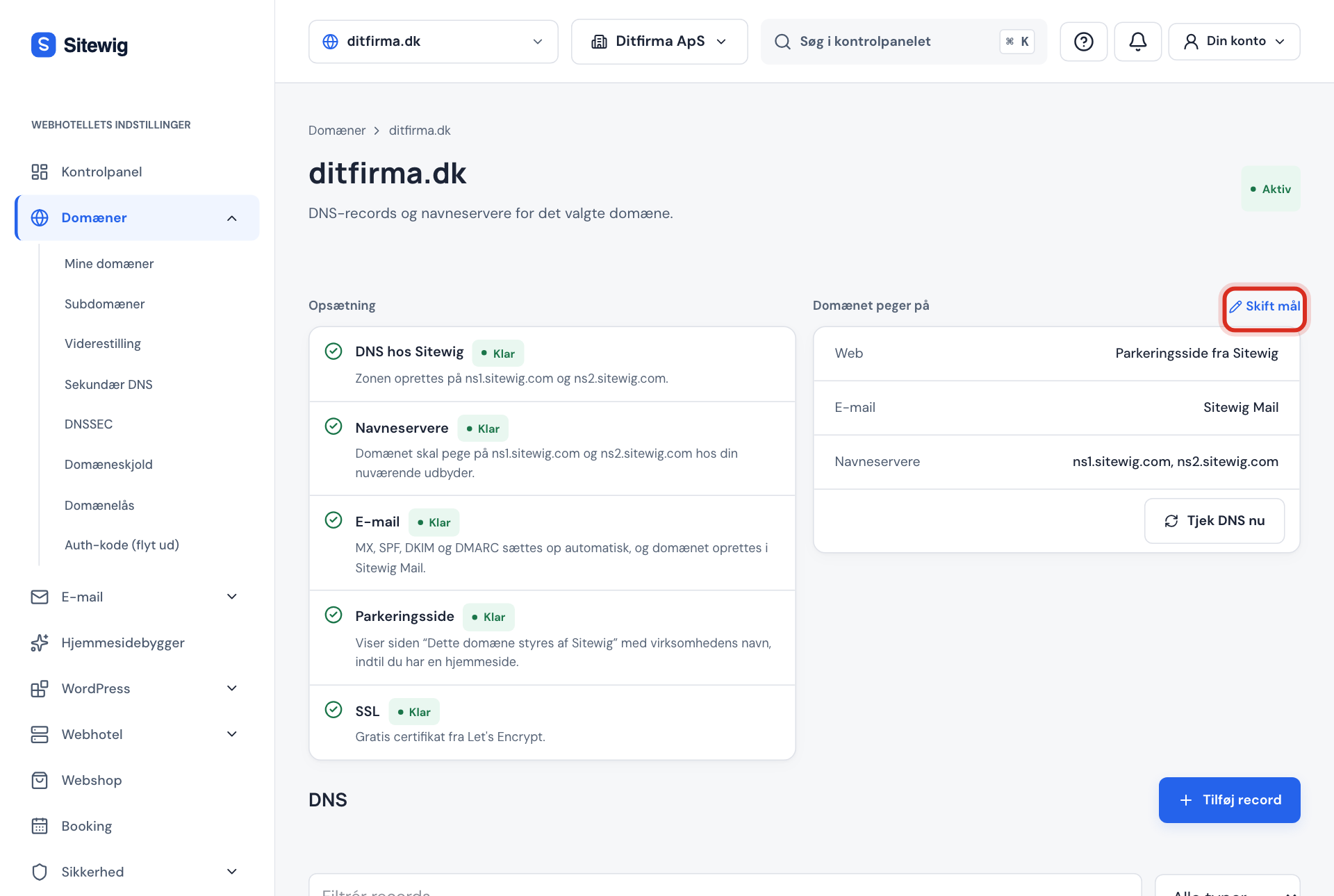
Nameservers shows Sitewig's servers once the change has gone through
Specifically for .dk domains
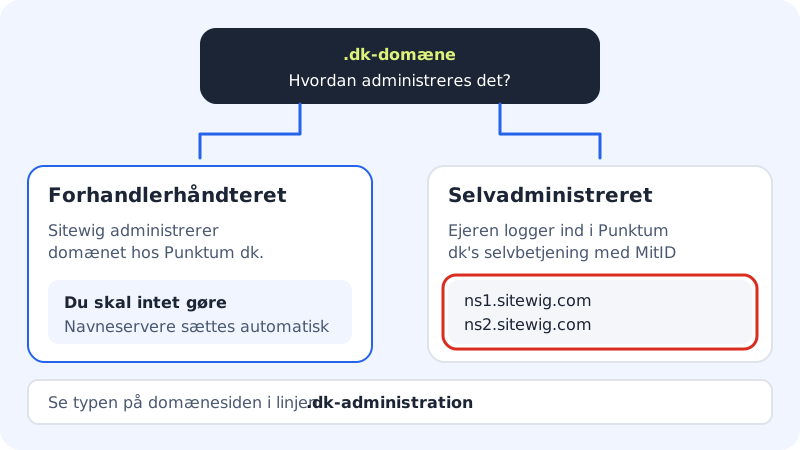
.dk domains are managed in one of two ways:
- Registrar-managed: the domain is with a registrar (e.g. Sitewig). Sitewig manages the domain at Punktum dk, and name servers and contacts are updated automatically.
- Self-managed: the domain owner manages the domain themselves in Punktum dk's self-service. Here the owner must sign in with MitID and change the name servers to
ns1.sitewig.comandns2.sitewig.com. When the control panel knows you need to do something at Punktum dk, the domain page shows a guide.
If Sitewig has registered your .dk domain or taken over its payment, you can see the type under Renewal and payment in the .dk management line.
Frequently asked questions
How long does it take?
Usually less than an hour, but up to 24 hours. Sitewig checks every hour, so you do not need to press anything. Read more in TTL and waiting time.
Will I lose my email while I change?
It can happen if your email is with the old provider and you have not created the mailboxes at Sitewig. Create the mailboxes before the change, or choose a different email target under Change target if your email should stay with another provider. See MX records.
Do I need to move my old DNS records?
Sitewig creates everything for website, email and SSL. If you have extra records with the old provider – e.g. TXT records for Google or Microsoft – you need to create them again yourself with Add record before you change. See Add, edit and delete DNS records.
The Point the domain to Sitewig banner does not disappear – what do I do?
Check that only Sitewig's two name servers are listed at the provider and that they are spelt correctly. See Troubleshooting.