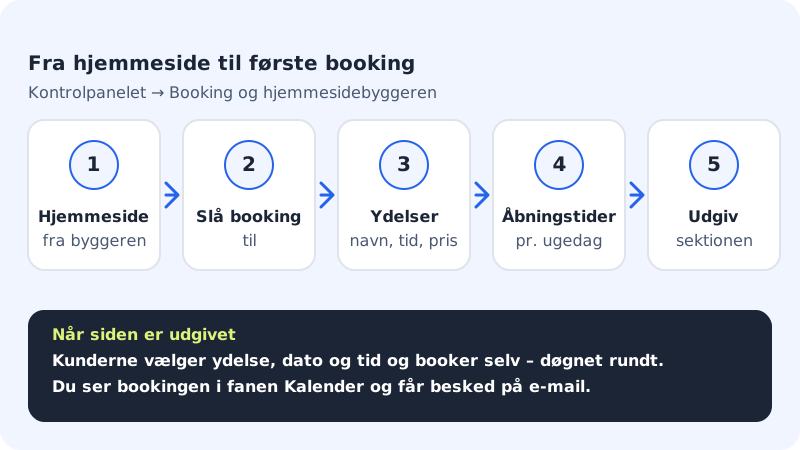
With Sitewig Booking, your customers can book an appointment directly on your website – also in the evening and at weekends. You manage services, opening hours and bookings from the control panel under Booking, and the calendar is shown on the website with a section from the website builder.
What you need
- A website made with Sitewig's website builder. Booking always belongs to a specific website.
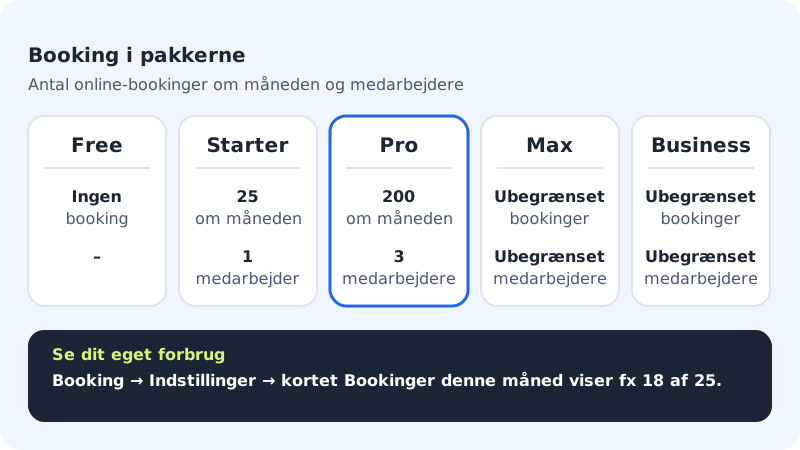
- A plan with booking: Starter, Pro, Max or Business. The Free plan does not include booking.
- An email address where you want to be notified of new bookings, e.g.
contact@yourcompany.com.
Turn on bookings
Step 1: Open Booking in the control panel
Sign in and choose Booking in the menu. If you have several websites, choose the right one in the Website field at the top.
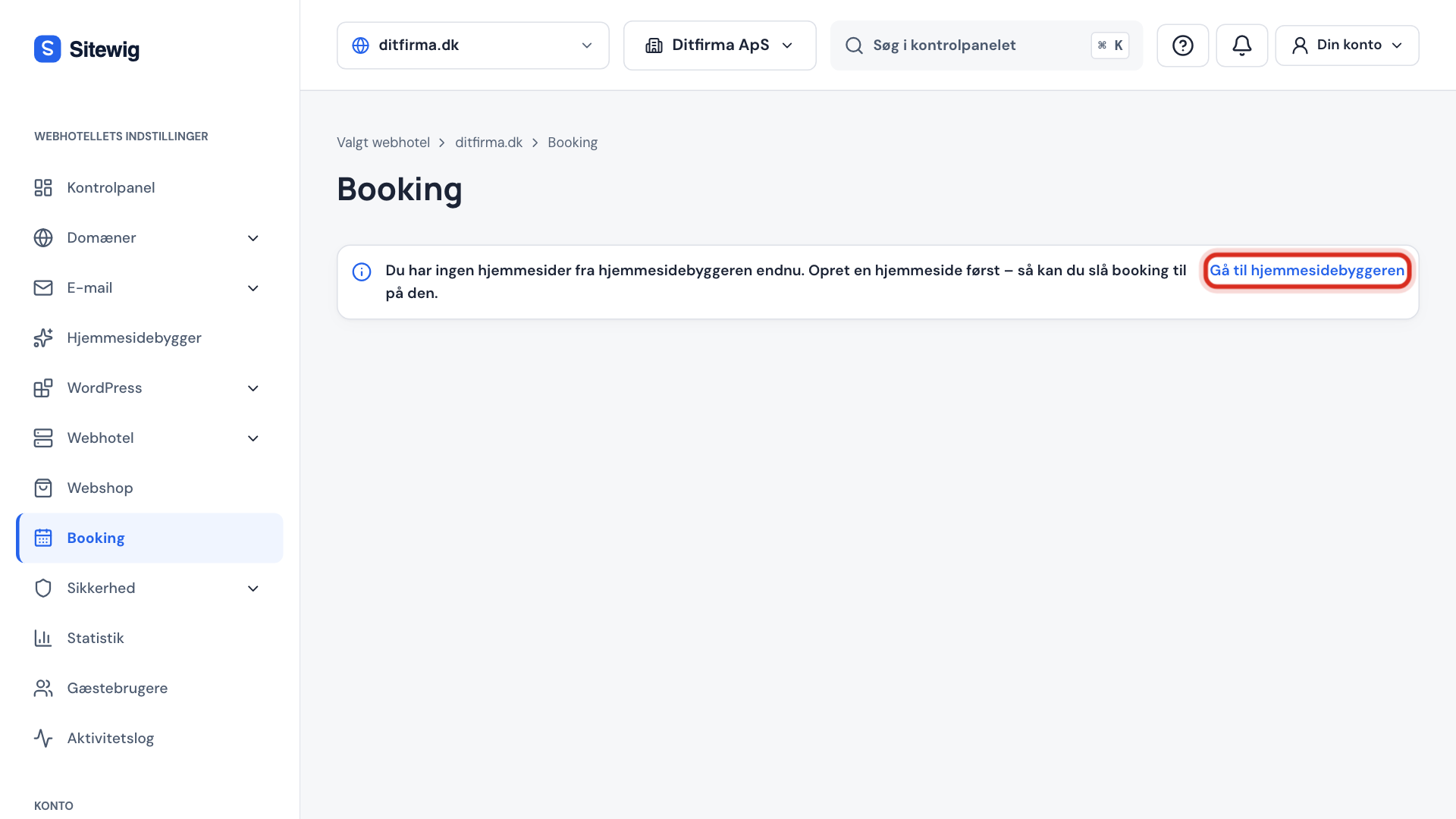
If you see the message You do not have any websites from the website builder yet, you need to create a website first. Tap Go to the website builder.
Step 2: Fill in name and email
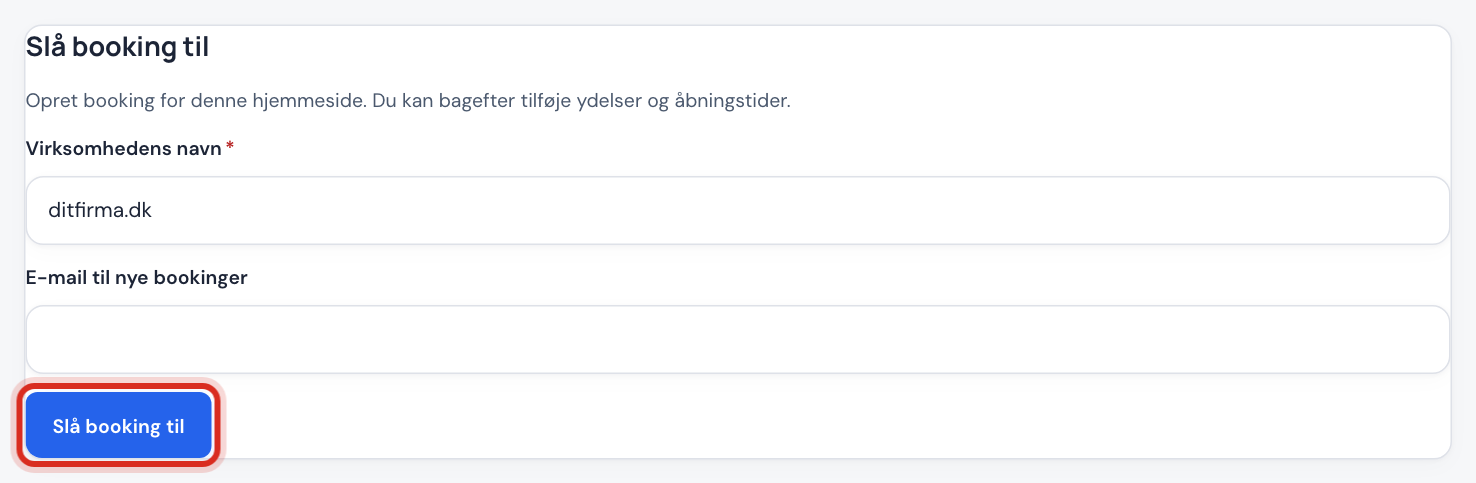
The first time, you see the Turn on bookings card. Enter the Business name – this is the name customers see in the calendar and in emails. Also enter Email for new bookings, so you are notified when someone books. Tap Turn on bookings.
Step 3: Create your services
Go to the Services tab and tap New service. Give the service a name, a duration and optionally a price. See Create services with duration, price and break.
Step 4: Set opening hours
Go to the Availability tab and set the times customers can book within. Tap Save. See Set opening hours, breaks and booking rules.
Step 5: Show the calendar on the website
Open the website in Website builder and tap Add section on the page where customers should book. Choose the Online booking section and one of the variants Embedded calendar (the whole calendar on the page) or Compact button (a button that opens the booking). If you also want to show an overview of the services, you can add Bookable services. Tap Publish. If you cannot find the Online booking section, the booking sections have not yet been turned on for your account – contact support.
Step 6: Test as a customer
Open your published website and book an appointment as a customer would. The booking appears in the Calendar tab, and you receive an email. Cancel the test booking in the calendar afterwards.
The tabs in Booking
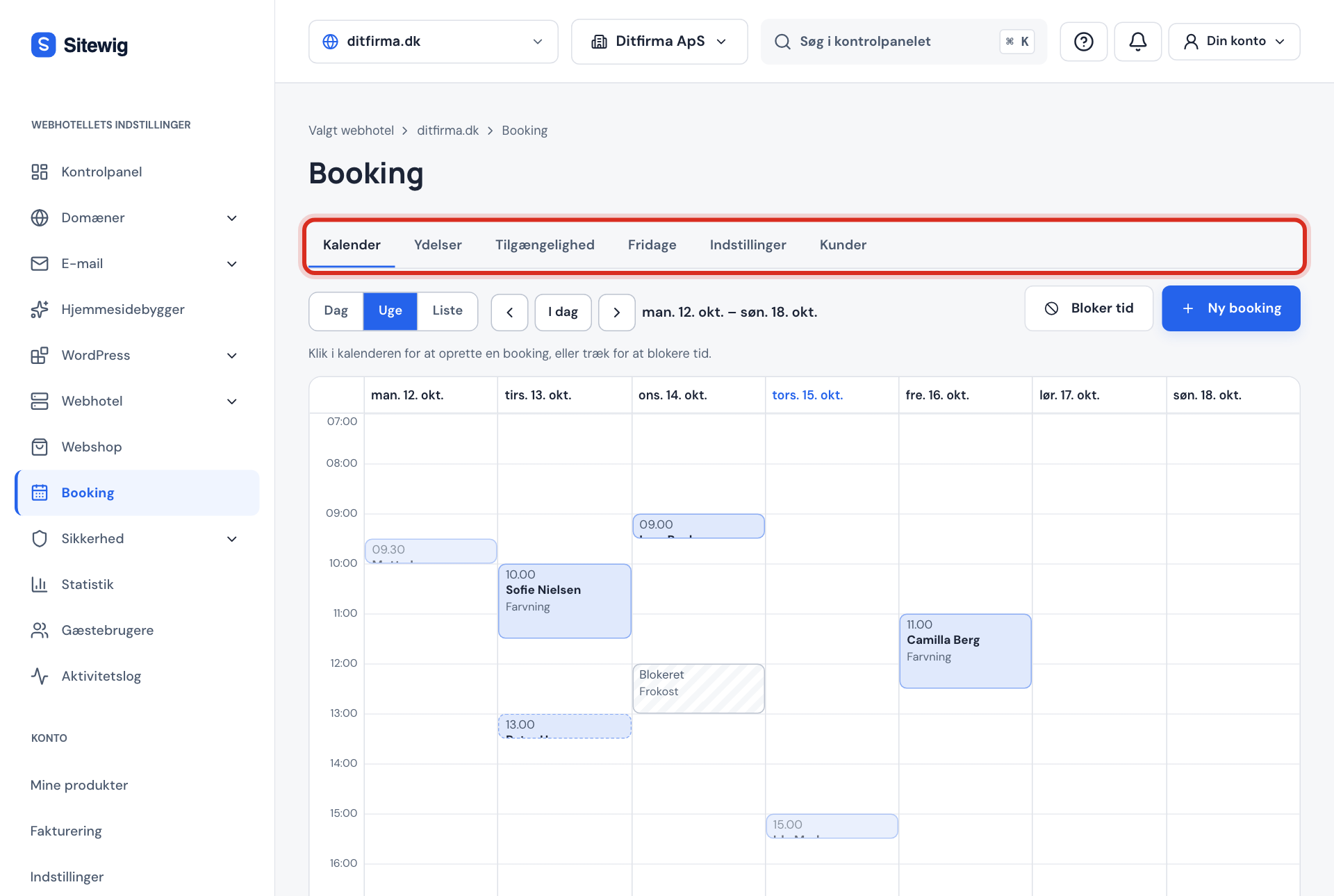
| Tab | What you use it for |
|---|---|
| Calendar | See, create, move and cancel bookings – and block time |
| Services | Services, prices and staff |
| Availability | Regular opening hours for the business and each staff member |
| Time off | Holidays, closing days and special opening hours |
| Settings | Booking rules, contact details and the month's usage |
| Customers | Customer list, export and deletion of customer data |
Frequently asked questions
Can I use booking without a website from Sitewig?
No, not at the moment. Booking belongs to a website from the website builder. If you already have another website, you can still create a simple Sitewig page and show the calendar on your old website – see Show the booking calendar on another website.
Why do I see "Booking is on its way" instead of the calendar?
The booking administration is being opened gradually for all customers. If you see a card saying booking is included in your plan and opens soon, the feature has not yet been turned on for your account. Contact support if you need it now.
What happens when the monthly limit is reached?
You get a warning when you are approaching the limit. The first booking over the limit is still accepted, and you are told to upgrade. If more come in, the customer is told to call or write to you. No booking disappears silently.
Can I close booking temporarily?
Yes. Untick Online booking is open under Booking → Settings and tap Save. Your services and bookings stay in place.